Every screen, every button and every setting of OZMA, from the first note to a rendered song. The pictures are real screens from the app, numbered so you can find each part.
Its SD card and a computer, or a phone with a card reader.
The latest OZMA-<version>.zip from the download page (for Knulli, muOS or a Ports system: that system's own package from the same page).
Builds by system
spruce on the TrimUI BrickThe main zip OZMA-<version>.zip. Tested on a real Brick.
Stock TrimUI OS, CrossMixThe main zip. Not tested on a real device yet.
NextUI, MinUIThe main zip, OZMA is in Tools. Not tested on a real device yet.
KnulliIts own zip, OZMA-<version>-knulli.zip. Not tested on a real device yet.
muOSIts own file, OZMA-<version>-muos.muxapp. Not tested on a real device yet.
ROCKNIX, AmberELEC, ArkOS, dArkOS and other systems with a Ports listThe Ports zip, OZMA-<version>-ports.zip. Not tested on a real device yet.
Getting started
OZMA on your handheld
Installing it takes about two minutes: put one file on your SD card and open OZMA from your system's menu.
Install
1
Card out
Turn the handheld off and take out the SD card.
2
Into the computer
Put the card in your computer (or phone).
3
Unzip, merge
Main zip: unzip OZMA-<version>.zip on the computer or phone into the root of the card. If you're asked about existing folders, choose merge, not replace. You'll get two folders:
App/OZMA
the app and your songs.
Apps/OZMA
the menu entry for the stock TrimUI OS and CrossMix.
Tools/tg5040/OZMA.pak
the menu entry for NextUI and MinUI.
4
Card back in
Eject the card safely, put it back in the handheld and turn it on.
5
Open OZMA
On spruce OZMA is in the App list, on the stock OS and CrossMix in Apps, on NextUI and MinUI in Tools.
System
Put it on the card
Open it from
Knulli
Copy both folders from the Knulli zip onto the SHARE drive (the card in a computer, or the handheld over USB): OZMA at the top and roms/ports/OZMA.sh.
Ports. Not there? START > Game settings > Update gamelists.
muOS
Copy the .muxapp file into the ARCHIVE folder at the top of the card, then install it in muOS's Archive Manager.
Applications
ROCKNIX and other Ports systems
Unzip the Ports zip into the system's ports folder (roms/ports; on ArkOS and dArkOS it may be roms2/ports) and choose merge.
Ports (refresh the game list)
Each package also has a README.txt that says where its folders go. Handheld without FN keys: hold R1 + R2 for PERFORM, R1 + MENU for QUICK MIX. On NextUI and MinUI, hold POWER about 1 second to save your song and quit.
First start
The first start takes a few seconds while OZMA prepares its sounds. OZMA asks you to press the button you want as EDIT (A), so A and B sit where your thumb expects them. It remembers your choice.
Then a card offers the lessons: A LET'S GO starts them, B LATER asks again next time, X NEVER stops asking. The lessons stay in HELP (MENU) either way.
Demo songs are included, so you can hear something straight away: press MENU; on the LESSONS page the demos are at the end of the list (UP on the first lesson jumps there), A opens one. If MENU opens on KEYS, press LEFT for LESSONS. Then write your first beat or learn the buttons.
Good to know
Where your files live
With the Brick zip, your songs and settings are inside App/OZMA/data on the SD card (the other packages say where in their README.txt):
Folder
What's in it
data/Songs
Your songs (.ozm files). Back this folder up now and then.
OZMA/Samples
At the top of the SD card, not inside App: your own samples, WAV files only. OZMA makes this folder when it starts. Make any subfolders you like (Drums, Loops, Kits...).
data/Samples
OZMA's own sounds, and samples you put here before 0.9.2: they stay and keep working.
data/Instruments
Saved instruments.
The sample list (RADAR) shows OZMA/Samples and data/Samples together, and its line YOUR WAVS says where your folder is on your system (on Knulli it is on the SHARE drive). OZMA only reads your folder: it never changes, moves or deletes a file there. Samples anywhere else on the card won't show up.
Updating to a new version
Over Wi-Fi:PROJECT > UPDATE. On the Brick with the stock TrimUI OS or spruce it downloads the new version and installs it. On the other systems it tells you that a new version is out, and you install it by hand.
By hand: unzip the new OZMA-<version>.zip into the card root the same way, choosing merge (on another system: its new package, as its README.txt says). The zip has no Songs folder and nothing for OZMA/Samples, so your songs and samples stay where they are.
While OZMA runs: studio mode
To keep the sound clean, on spruce and the stock TrimUI OS OZMA puts the handheld in studio mode: all CPU cores on, and background services (file sync, file sharing, media server) paused. Everything goes back to normal when you quit OZMA.
If OZMA ever crashes, open it once and quit normally, or restart the handheld. That brings the background services back.
Troubleshooting
Problem
Try this
OZMA isn't in the menu
Check that you unzipped into the card root: you should see App/OZMA/launch.sh (spruce), Apps/OZMA/config.json (stock OS) or Tools/tg5040/OZMA.pak (NextUI, MinUI).
My samples don't show up
They must be .wav files inside OZMA/Samples at the top of the card (or the older App/OZMA/data/Samples).
Join the OZMA Discord and make a post in #bugs, one bug per post. Include:
the OZMA version (App/OZMA/VERSION.txt), your handheld and its system;
what happened, and how to make it happen again;
the files App/OZMA/log.txt and App/OZMA/studio.log; on systems other than spruce and the stock TrimUI OS also the report file OZMA_REPORT_<handheld>_<system>.txt that OZMA writes next to the app after every run (nothing is sent anywhere).
To get the files, quit OZMA, turn the handheld off and put the SD card in a computer or phone. Grab them before opening OZMA again, because the log is rewritten on every start. A short phone video helps a lot with sound or screen problems.
Removing OZMA
Copy App/OZMA/data somewhere safe if you want to keep your songs, then delete the folders App/OZMA, Apps/OZMA and the OZMA.pak folders in Tools. Your own samples in OZMA/Samples stay until you delete that folder too.
Thanks for playing with OZMA!
01
The idea in one page
STOP 01 · LAUNCH PADTHE SHIP
One song is one ship: 8 tracks, a grid of 256 rows, the clips, the sounds and the mix all travel together.
RouteYou start here. A fresh song lands you on LIVE.
Keys here
L2undo, any time
R1+L2redo
SELECTsave a new version
PROJECT  tempo, launch timing, setup (AUDIO, MIDI, POOL)
 └─ 8 TRACKS   one track = one sound (an instrument), STEP track or LOOP track
     └─ GRID   256 rows x 8 tracks of cells; a cell holds a CLIP, is empty or STOP
         ├─ LIVE  launches cells and rows, like a clip launcher
         └─ SONG  plays the same rows from top to bottom: the arrangement
     CLIP  1-256 steps (pages of 16) with its own speed; each step holds up to 8 notes,
           trig fields (COND PROB MICRO RETRIG SLIDE) and up to 3 parameter locks
     AUDIO CLIP  on a LOOP track: a piece of a WAV that follows the tempo
SONG plays the grid rows top to bottomLIVE launches the same cells as clips
Try it
Quick start: your first beat
Two ways to play the same grid. LIVE launches cells. SONG runs the rows down. Nothing is copied between them.
On LIVE an empty cell lets the track play on; in SONG an empty or STOP cell is a rest New 0.9.2.
A track is one sound. Every clip on a track plays that track's instrument. A step can borrow another
instrument with a sound lock.
Every clip has its own length. A 14-step hat against a 16-step kick meets again after 7 bars.
Undo is always one finger away. L2 undoes, R1+L2 redoes. One press or one hold-A gesture is one undo step.
Your sample library is never written. What a song records lives in data/Bounce/<song>/; sample edits go to data/Edits/, renders to data/Renders/.
Every feature knob at 00 = off. At 00 the sound is exactly what it was before the feature existed. A few new
sounds start with some of them turned up (a new LUNA starts with CORE 50, TIDE 40, AURORA 60).
A small fixed grammar: A does, B goes back, R1 shifts, L1 plays, L2 undoes. It is the same on every planet.
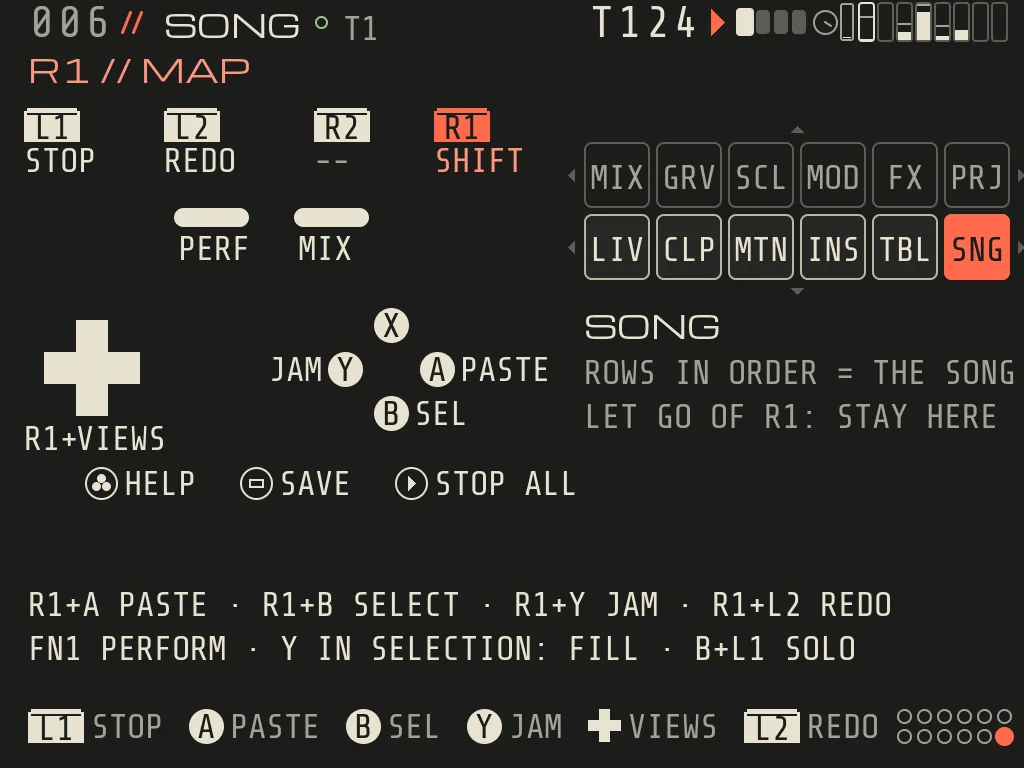
RouteHold R1 anywhere for the button map of the screen you are on.
Keys here
Ado / edit
Bback
R1shift
Button
Everywhere
Notes
A
EDIT: tap to put or toggle; hold A + d-pad to change (LEFT/RIGHT by one, UP/DOWN in big steps). On the CLIP grid add R1: LEFT/RIGHT = length, UP/DOWN = loudness New 0.9. A,A (double tap) = a new object
The main button
B
Back / cancel. B+A = delete. B+d-pad = previous / next item. B+R1 = mute, B+L1 = solo, B+R1+L1 = unmute and unsolo everything
X
A screen's own job: LIVE = MAKE LOOP on a playing clip, the cell menu on an empty cell New 0.9; CLIP = latch a step (on STEPS: double the clip); RADAR = star; QUICK MIX = scenes; BALANCE = learn the mix New 0.9. B+X = chord stamp. R1+X = CLIP LIST in CLIP, the JAM card in JAM
Y
Listen (preview). On a pick (R1+B) = FILL (the CLIP grid too New 0.9); on MOTION = GEN. R1+Y = JAM
R1
SHIFT. R1+d-pad = change screen; hold 0.45 s = button map (a tap alone does nothing). R1+B = pick (on the CLIP grid again: the row, then the clip), R1+A = paste
Resting right finger
L1
Play what this screen edits. On LIVE / CLIP it launches the clip (again: relaunch; on a waiting cue: cancel). On the other screens: play, and stop when it plays. R1+L1 = stop this track on LIVE, CLIP, MOTION, CHOP and in JAM / PERFORM / QUICK MIX; on the other screens R1+L1 stops everything
Resting left finger
R2
Play now / from the cursor
L2
Undo. R1+L2 = redo. Hold L2 = undo again and again (counter UNDO x12)
In JAM: octave down. In PERFORM: hold = PADS, a tap undoes when you let go New 0.9
START
Play the row you are on; if it already plays, stop all. R1+START = stop everything
JAM with REC armed: count-in
SELECT
Save a new numbered version (NAME-V01, V02 ...)
Autosave runs anyway
FN1
PERFORM on / off
Toggle, not a hold
FN2
QUICK MIX on / off
Toggle
MENU
HELP (opens on LESSONS until the course is done)
LEFT/RIGHT: KEYS, JAM
Tap a button
A
The Brick from the front, drawn like the button map in the app (hold R1). The four triggers sit on the back edge.
Other handheldsNew 0.9.2. A handheld without FN keys: hold R1 and press R2 for PERFORM, hold R1 and press MENU
for QUICK MIX. On NextUI and MinUI hold POWER about 1 second: OZMA saves your song and quits to the menu.
First start. The Brick asks you to press the button you want as EDIT (A), so A and B sit where your thumb
expects them. The result is kept in data/input.cfg; start OZMA with --calibrate to ask again, or --swap-ab to
swap them.
Three rules make the rest predictable:
Irreversible actions need a hold (NEW, QUIT, RENDER, POOL CLEAN, deleting a song): hold A until the ring fills.
Undo on stage asks firstNew 0.9. When L2 after L2 would take a clip that plays right now off its LIVE cell,
it says T4 PLAYS THIS CLIP · L2 AGAIN REMOVES IT first; L2 again within 4 s does it.
A held ride brakes at neutral. A held value with a middle point (DJ FILT OFF) stops there for 0.5 s; a fresh
tap goes anywhere.
 top row :  MIXER  GROOVE  SCALE   MODS   EFFECTS  PROJECT
 main row:  LIVE   CLIP    MOTION  INST   TABLE    SONG
TOPMIXERGROOVESCALEMODSFXPROJECT
MAINLIVECLIPMOTIONINSTTABLESONG
Hold R1 for the button map of the screen you are on
R1+LEFT/RIGHT walks along a row, R1+UP/DOWN switches rows; both wrap, so no direction is dead. Each top screen sets
up the one below it (GROOVE and the clip, SCALE and MOTION, MODS and INST, EFFECTS and TABLE, PROJECT and SONG).
The button map calls EFFECTS FX. A tap on
R1 alone does nothing (0.8.2: it no longer jumps to the last screen). CLIP LIST is CLIP's second face (R1+X), not a separate place on the map.
Hints and the hint line
The bottom row always shows the keys that work right now, with Brick-shaped key icons. It changes when you hold
R1, open JAM, open the card, select steps and so on.
The hint line above it explains the field under the cursor (for example HARMONIC WARMTH (00 OFF) on WARMER).
SETTINGS_REFERENCE.md lists every one.
Hold R1 (0.45 s) for the button map: the Brick drawn with what each key does on this screen, the screen map, and
the combos. In JAM it shows the JAM layer (R1+A REC, R1+B MOMENT, R1+X CARD, R1+Y EXIT, R1+L2 UNDO, R1+R2 REDO).
A quick tap on R1 alone does nothing (0.8.2; it used to jump to the last screen). The first tap after you start
OZMA reminds you: HOLD R1: MAP · R1+DPAD: SCREENS.
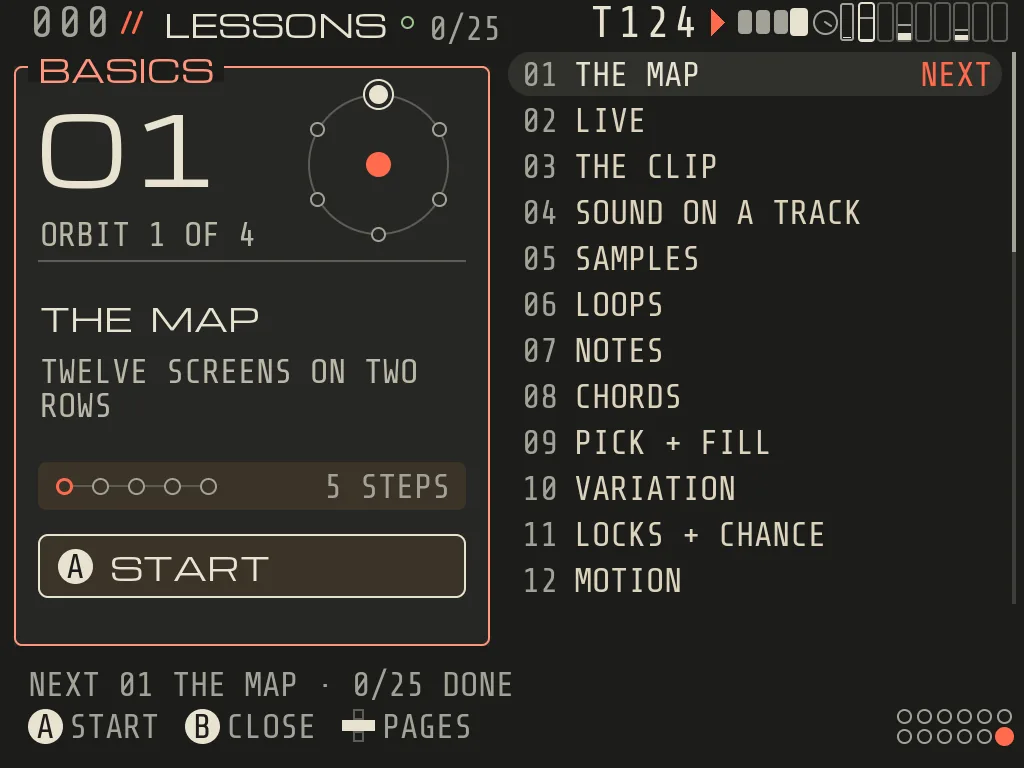
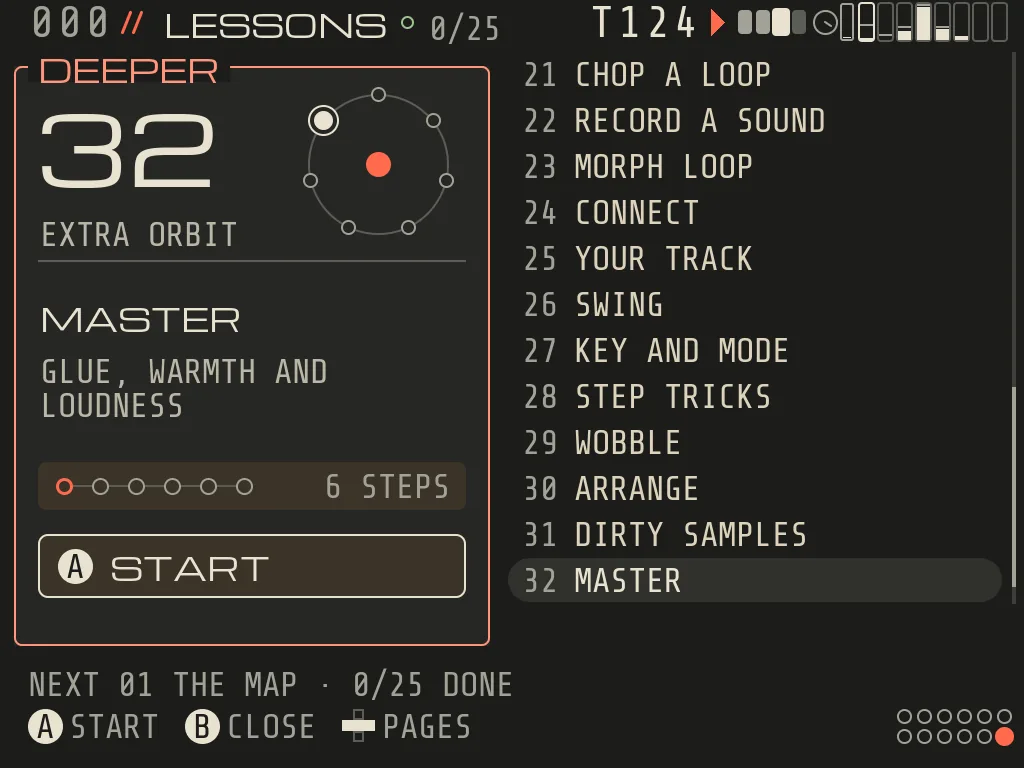
HELP (MENU) and the lessons New 0.9
MENU opens HELP on LESSONS while the course is not done: a big card for the next lesson (A START / CONTINUE), the
list of lessons and then the demo songs (UP on the first lesson jumps to the end of the list, where the demos are). Once the 25 lessons are done (or you said NEVER), MENU opens on KEYS.
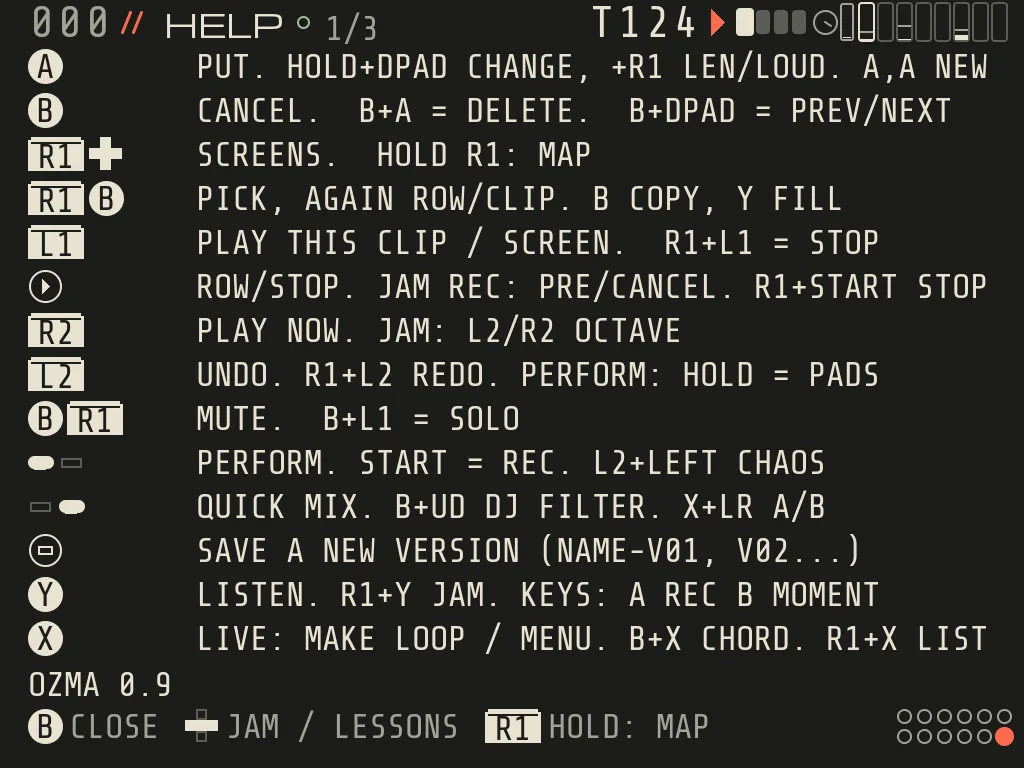
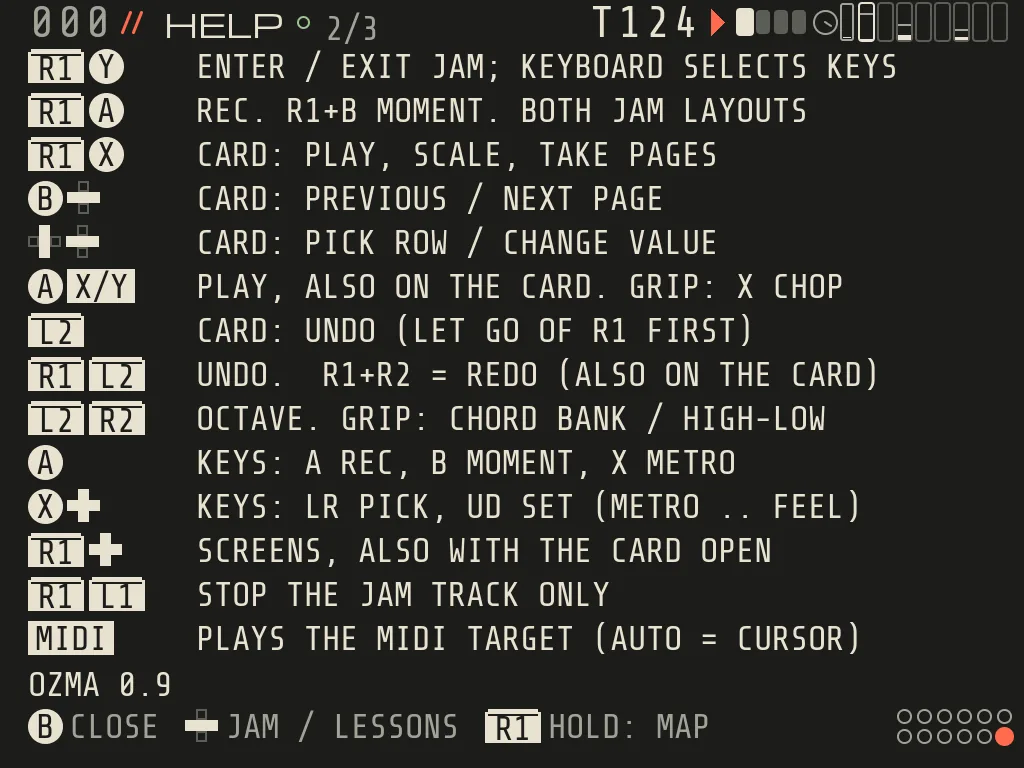
LEFT/RIGHT turn the pages: KEYS 1/3 (the main grammar; from CLIP's NOTES tab, the note editor's keys), JAM 2/3
(every JAM and JAM KEYS control) and LESSONS. B closes HELP. While a lesson runs, START on it stops it (its progress
stays) and X goes back to your own song. The KEYS page names the 0.9 keys too: +R1 LEN/LOUD on the grid, R1+B again
for the row and the clip, PERFORM: HOLD = PADS, L2+LEFT CHAOS, the QUICK MIX DJ filter, and X on LIVE: MAKE LOOP / MENU.
LESSONS · the course, 25 lessons in four orbitsDEEPER · the extra orbit, lessons 26 to 32
HELP 1/3 · KEYSHELP 2/3 · JAM
Course 3: 25 lessons in four orbits, then 7 DEEPER ones. The header counts the 25 (0/25).
Orbit
Lessons
1 · BASICS
THE MAP, LIVE, THE CLIP, SOUND ON A TRACK, SAMPLES, LOOPS
New in course 3: LOOPS (a loop from the library follows your tempo), PICK + FILL (pick steps, change them all), MAKE
LOOP (what you hear becomes one loop), EFFECTS (send tracks through a group), RECORD A SOUND (mic, PC or a file becomes
a sound), MORPH LOOP (a loop where every key is a piece) and YOUR TRACK, the finale (copy a row, take the kick out,
play it as a song, tape a trick, render). DEEPER is optional and comes after the course; the count and the finale do
not include it. Lessons you finished in 0.8.2 start again once (a new course); your first-launch answer and your songs
are kept.
The lessons all play in one song of yours, MYTRACK, which keeps what you make; your own song is saved first.
If you already have a song of your own called MYTRACK, the lessons never open or change it: they use MYTRACK2 and say
YOUR MYTRACK IS KEPT · LESSONS USE MYTRACK2New 0.9.2. A lesson song that cannot be read is moved aside under a new
name (KEPT AS MYTRACK-UNREADABLE-<date>), never written over. The
coach bar above the key hints shows the goal and its keys (outlined words are places on the screen, not buttons). A
goal counts however you reach it.
On the very first launch a card offers the course: A LET'S GO, B LATER (asks again next time), X NEVER (HELP then opens
on KEYS; the lessons stay one page away). Any other button leaves the card up and says A: LESSONS · B: LATER.
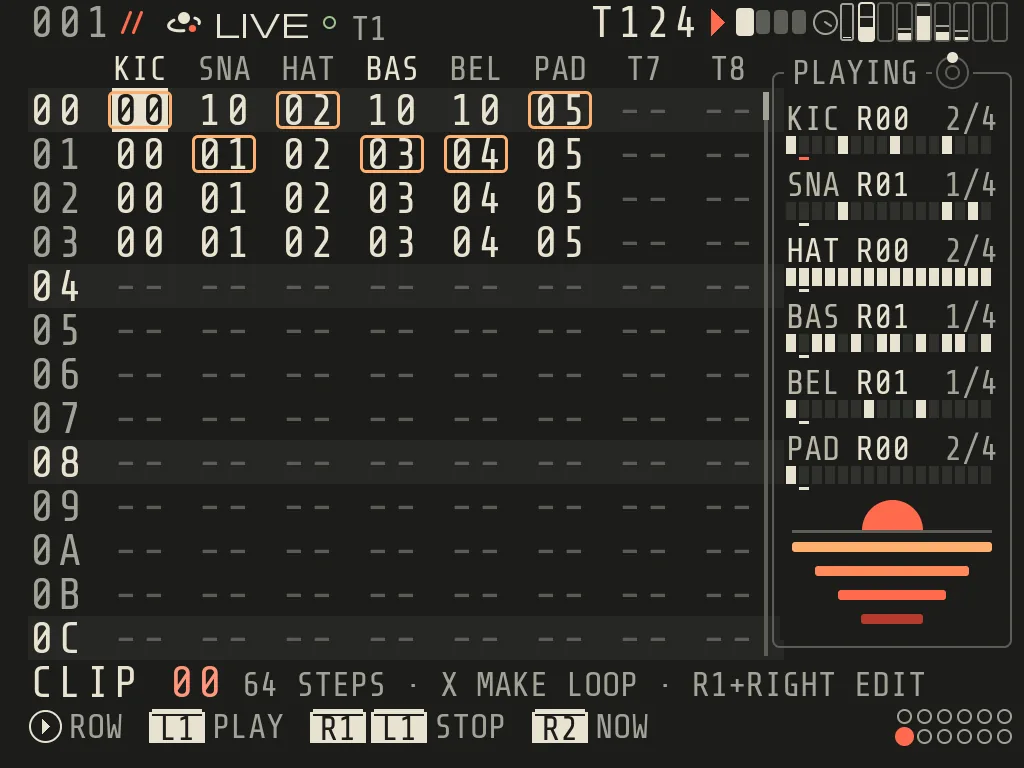
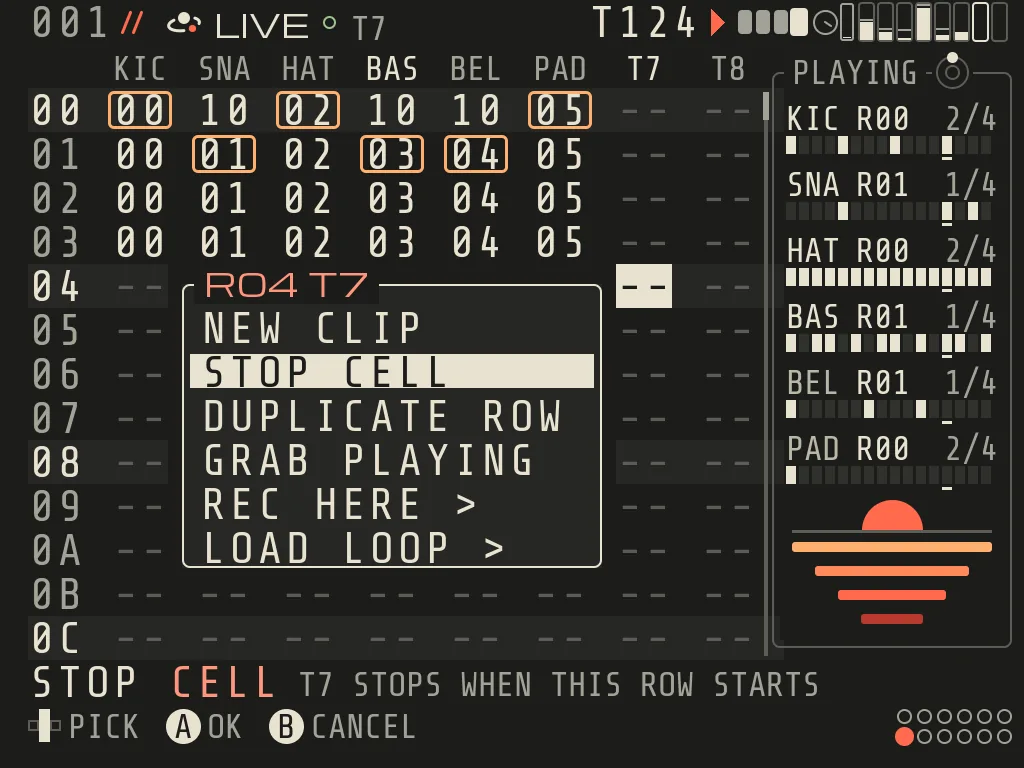
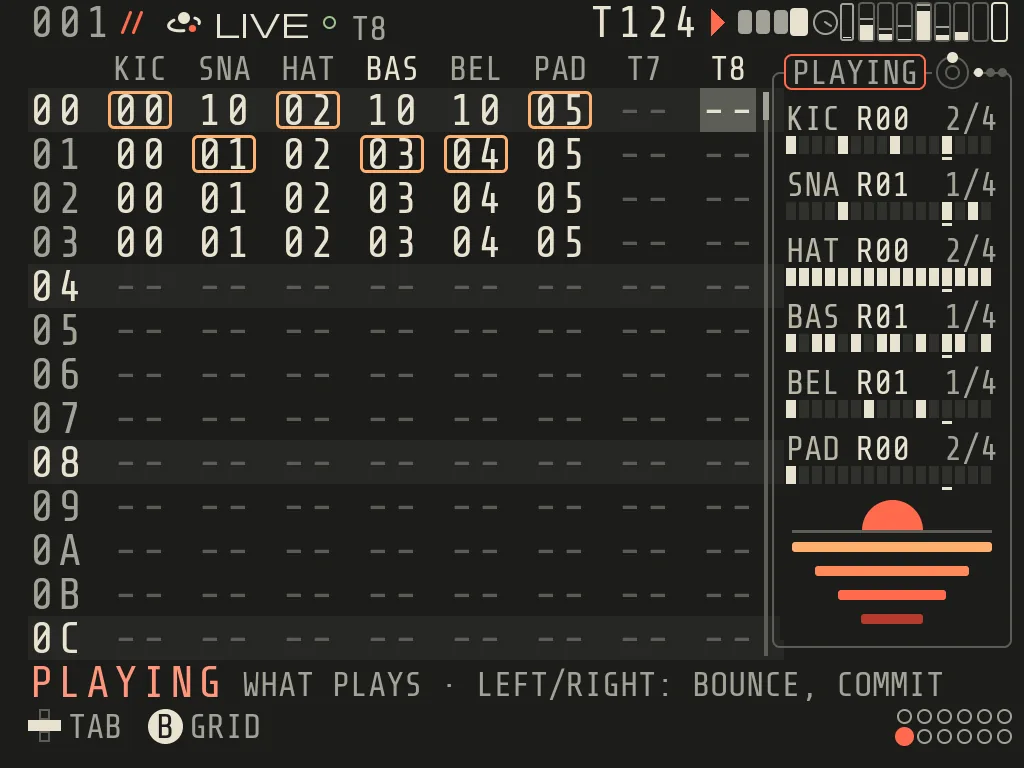
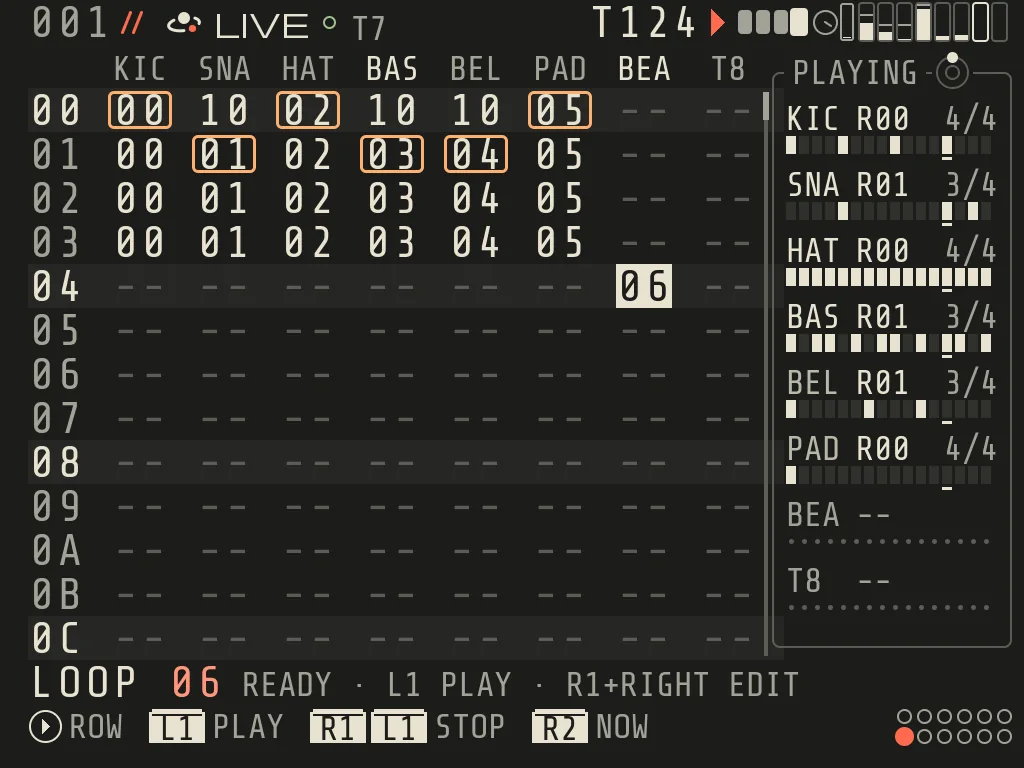
LIVE shows the grid: rows down, the 8 tracks across. A cell shows its clip number, -- when empty, [] for a STOP
cell. The PLAYING panel on the right shows, per track, the row it plays, its length, and a lane with the playhead and
any waiting cue (amber).
LIVE with the demo song playing
1Screen name Screen number, name and the cursor track.
2Tempo and meters Tempo, play state and the CPU meter.
3Tracks Eight tracks across, named after their sound.
4Rows Rows 00 to FF going down. One row is a scene.
5Cells Each cell holds a clip number, -- when empty, [] for STOP. Framed cells are playing.
6PLAYING panel Per track: the row it plays, the clip length and a lane with the playhead. RIGHT past track 8 opens it.
7Hint line Explains what is under the cursor and what A will do.
8Key bar The keys that work right now, drawn as Brick keys.
9Map dots Where this screen sits on the screen map.
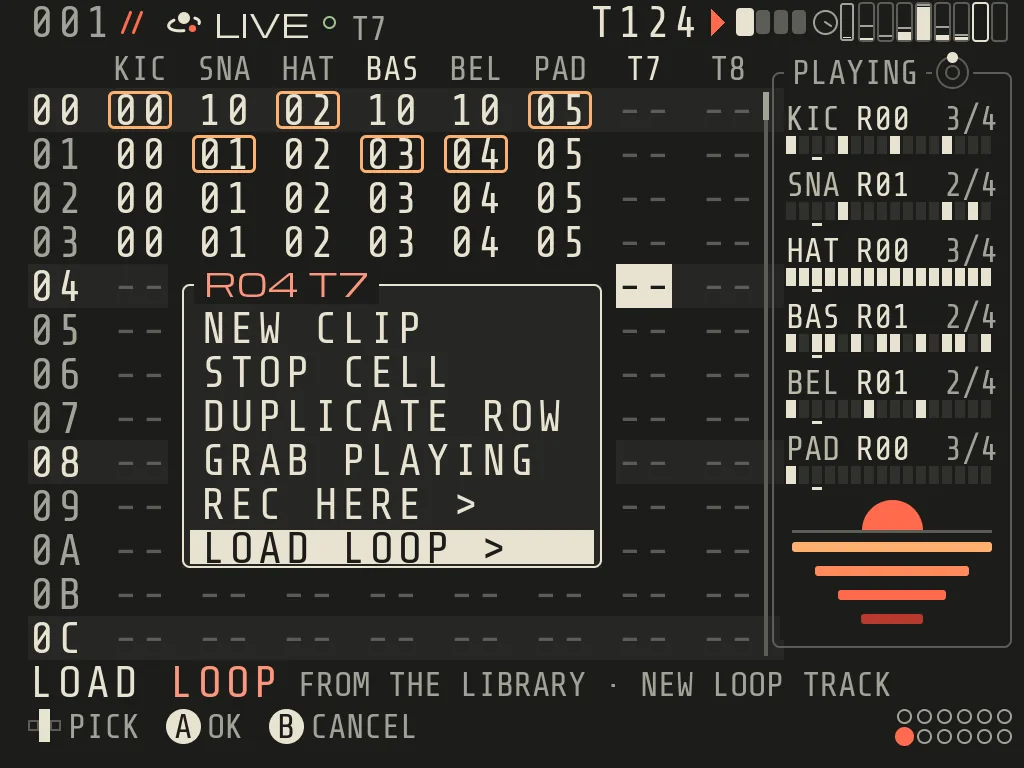
X on an empty cell · the cell menu, LOAD LOOP lastRIGHT past track 8 · PLAYING, BOUNCE, COMMIT
Do
Keys
Launch the clip under the cursor
L1 (it loops; starts at the launch timing, PROJECT > LAUNCH)
Launch it at once
R2
Launch the whole row
START (the row already playing as written: everything stops at the bar; START again cancels)
Stop this track / everything
R1+L1 / R1+START
Cancel a waiting cue
L1 on that track
Open the clip
R1+RIGHT (CLIP is the next screen)
Put a clip in an empty cell
A: an own copy of this track's nearest clip New 0.9 (OWN COPY · EDITS STAY HERE; a new one if the track has none). A,A: a new empty clip. Hold A + d-pad: step through this track's own clips (the same clip, on purpose)
Jump 16 rows
B+UP/DOWN
Make a loop of what you hear
X on a playing clip: MAKE LOOPNew 0.9, below
Cell menu (empty or STOP cell)
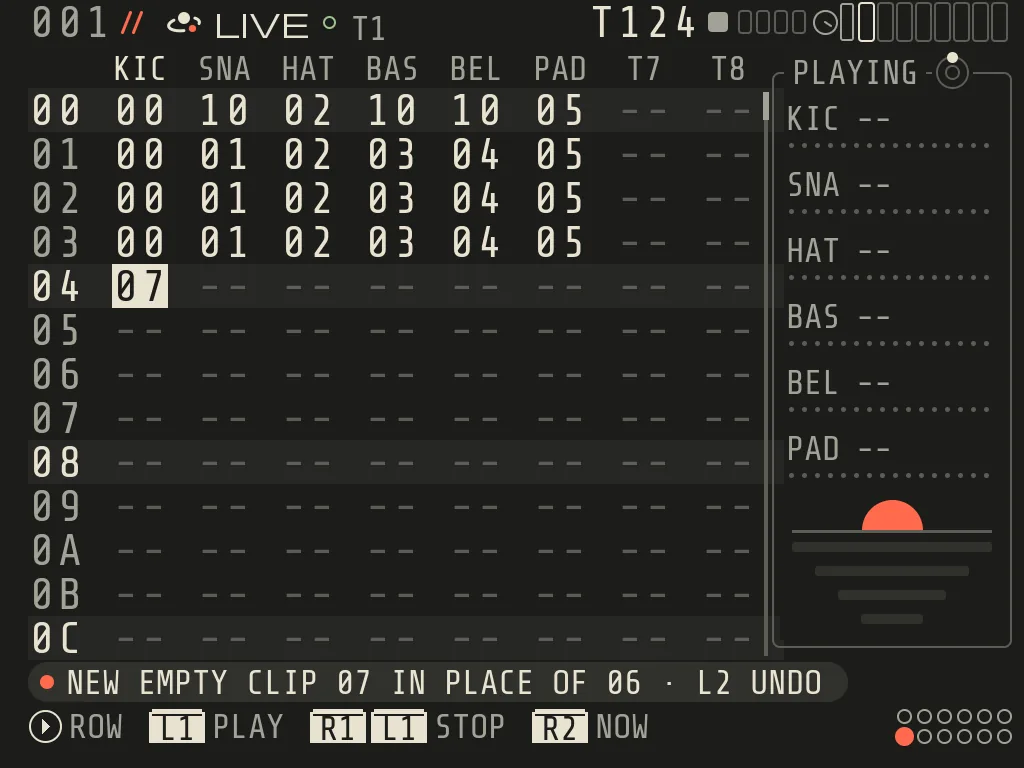
X, then UP/DOWN and A: NEW CLIP, STOP CELL / CLEAR STOP, DUPLICATE ROW, GRAB PLAYING, REC HERE >, LOAD LOOP >New 0.9
Copy / paste cells
R1+B select (R1+B again: BLOCK, COLUMNS, ROWS, ALL), B copy, R1+A paste (pasted clips are independent copies). A in a selection makes an independent copy of the cell under the cursor
Clear a cell
B+A
Listen to the cell's clip
Y
Side panel
RIGHT off track 8: PLAYING / BOUNCE / COMMIT tabs
REC HERE records audio into an empty cell of an empty or LOOP track: FROM PFX / MIC / MIX / USB IN / a track, BARS 1, 2, 4 or 8 (for the live sources PFX, MIC, USB IN),
START. GRAB PLAYING copies what every track plays now into an empty row. BOUNCE prints a row to audio,
COMMIT renders several tracks into one to free voices; both end in REVIEW (Y hear, A keep, B drop).
LIVE shows a small DUCK badge while DUCK is on (chapter 8, MIXER).
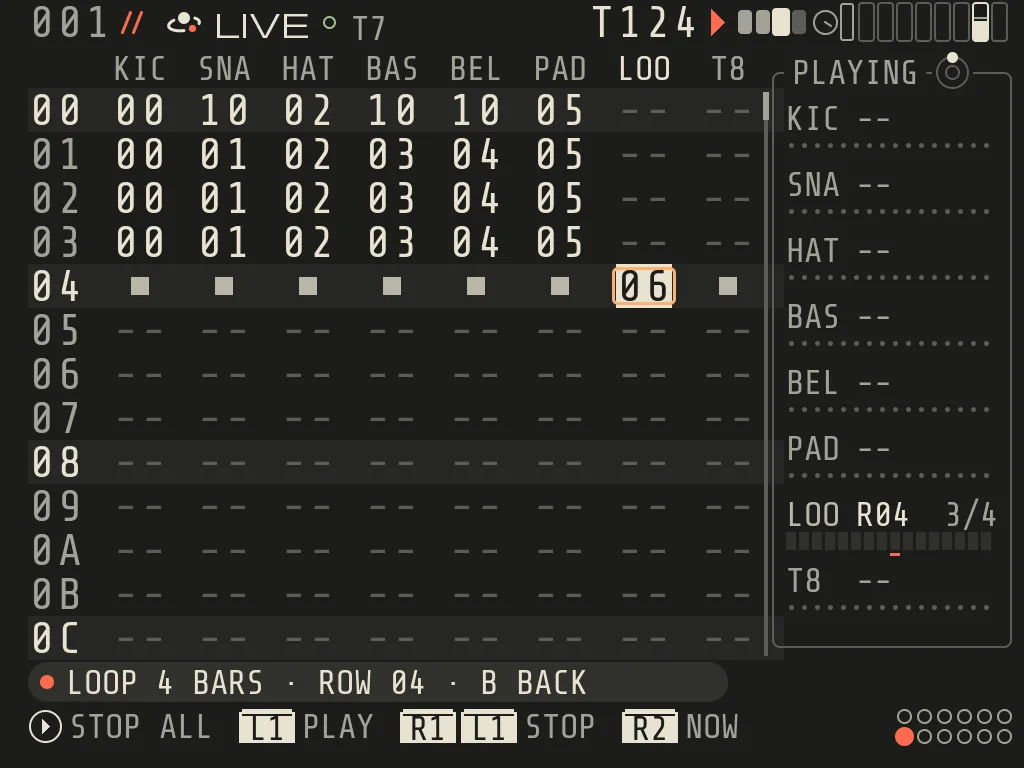
MAKE LOOP New 0.9
X on a clip that plays makes one loop of what you hear. The music keeps playing
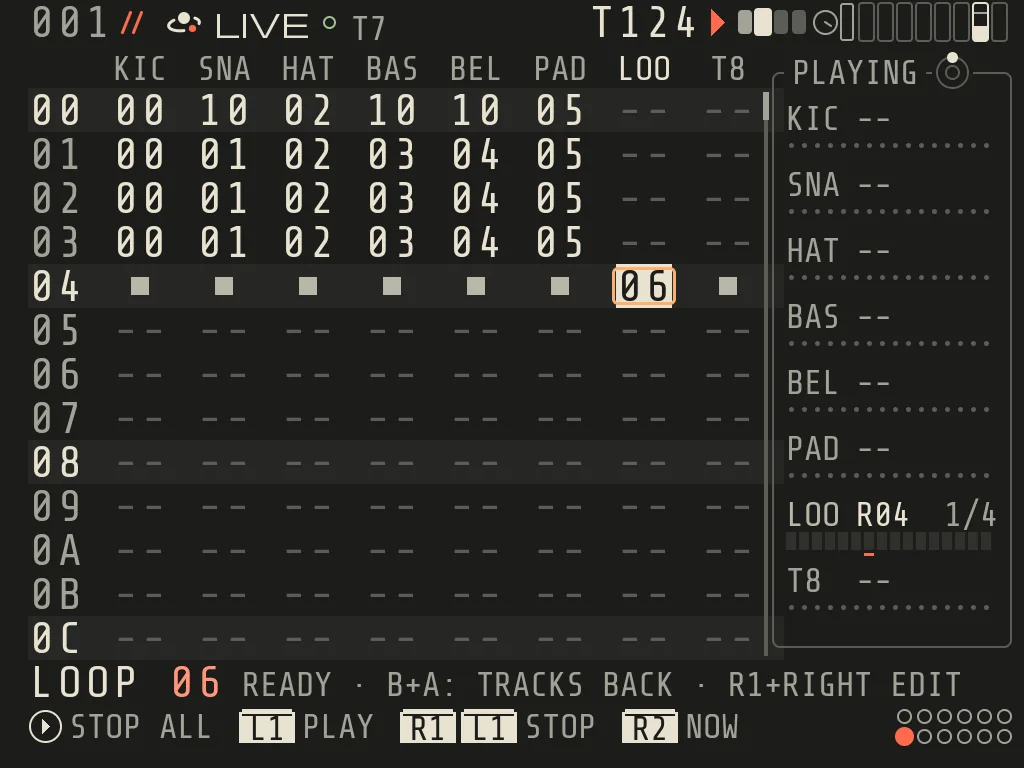
(MAKING LOOP · 6 TRACKS · 4 BARS · LANDS IN 2 BARS, B cancels). On a bar a new row appears below with one loop in it
and takes over; the old row is untouched (LOOP 4 BARS · ROW 04 · B BACK). OZMA picks what goes in (what you hear:
mutes and solo count), the length (the real cycle, up to 16 bars), the track and the row. One L2 undoes it.
Try it
Make one loop of what you hear
The way back: B right after, L2, or B+A on the loop cell at any time (B+A: TRACKS BACK). The tracks come back
on the bar, in time. Launching an old row with START does the same.
What you played is in it. OZMA keeps the last 64 seconds it played. When you played by hand in the last cycle
(JAM, MIDI keys, PERFORM, a knob), the loop is taken from what was heard and the line says AS PLAYED.
X again on the same clips updates the same row (LOOP UPDATED · ROW 04 · B BACK); B or L2 bring back the
loop of before.
A made loop follows the song: when the tempo or TRANSPOSE moves, it is made again from its tracks. A loop taken
AS PLAYED stays as it was played.
While SONG plays, X makes the loop quietly: its row appears and the SONG plays on
(LOOP READY · ROW 04 · START PLAYS IT).
X on a clip that does not play says X ON A PLAYING CLIP MAKES A LOOP; with nothing playing it says PLAY FIRST.
The file goes to Bounce/<song>/ (LOOP_<row>_<bpm>_<bars>B_<n>.wav).
LOAD LOOP New 0.9
A library loop straight onto a track. X on an empty cell, then the last entry LOAD LOOP >
(FROM THE LIBRARY · NEW LOOP TRACK). RADAR opens for that track (LOOP FOR T7); A on a WAV puts it in the cell as a
loop that follows the song tempo. An empty track becomes a LOOP track by itself. A file that is not a loop (a kick, a
hit) plays as it is. The song tempo never changes, and one L2 undoes it all. On the loop's own screen (R1+RIGHT), A on
FILE opens RADAR on the loop's file, so the next loop of the pack is one move away.
A tap on a step (stopped: a new trig sounds once). A new hit gets VEL 100
Change a hit's note
On the TRIG tab: hold A on the step + LEFT/RIGHT (UP/DOWN: an octave). On the other tabs hold A + d-pad changes the outlined tile for that step
Length and loudnessNew 0.9
Hold A + R1 (either order): LEFT/RIGHT = length, UP/DOWN = loudness, one band a press
Latch a step (tiles edit it)
X; then B+LEFT/RIGHT = previous / next step, B = done
Pick steps
R1+B picks the step; R1+B again the row, again the clip New 0.9; the d-pad extends it. Holds and tile edits then change the picked hits only; B after an edit = done
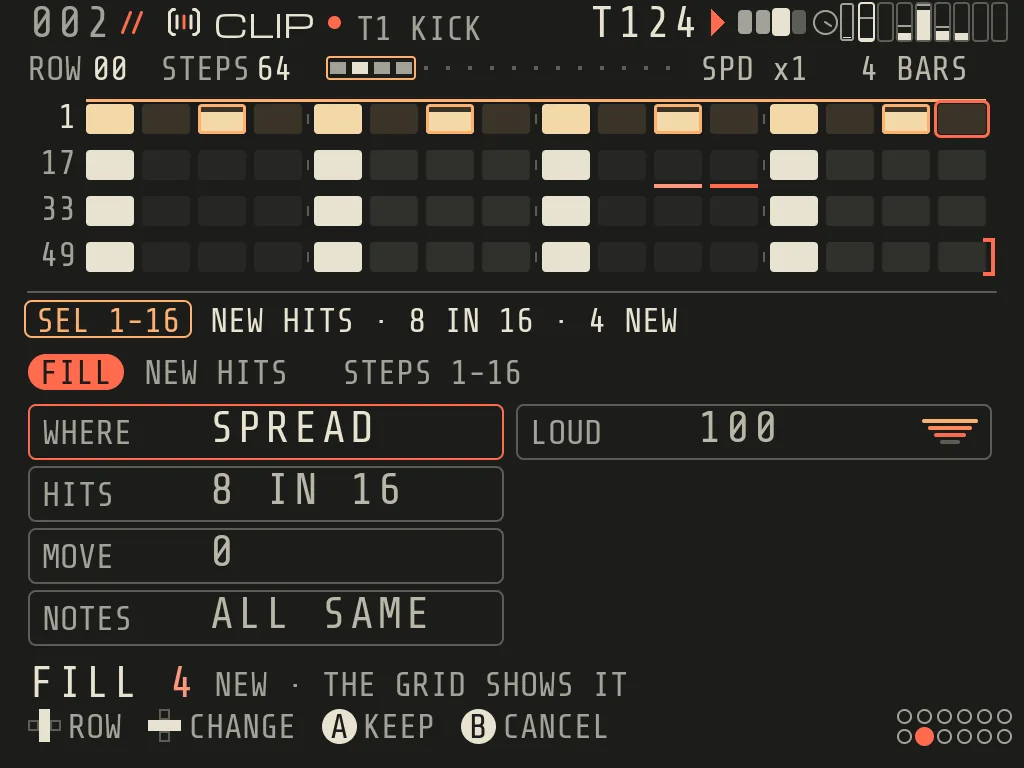
FILLNew 0.9
Y on a pick: the FILL card. Every hit it would make or change wears an amber frame; A keeps, B cancels
Double the clipNew 0.9
X on STEPS (the strip): the clip doubles, conditions re-counted. B+X returns to its step
Copy / cut / paste
B copy, B+A cut (in a selection), R1+A paste
Page / track
B+UP/DOWN page, B+LEFT/RIGHT track
Listen
Y
Play the clip / from here
L1 / R2
Stamp a chord on this step
B+X (see below)
CLIP LIST of this page
R1+X
Hold A+R1 on a hit · LEFT/RIGHT length, UP/DOWN loudnessR1+B picks, Y opens FILL · amber frames show what it will do
The grid shows the notesNew 0.9: lengths, the ringing line, chord bands, loudness as height, and a pip when a
hit may not play (condition or chance). A hit owns its loudness: a VEL on one step no longer carries on to the next
steps. A chord is one hit: it clears, copies and changes as one. A muted track draws its hits grey (MUTED).
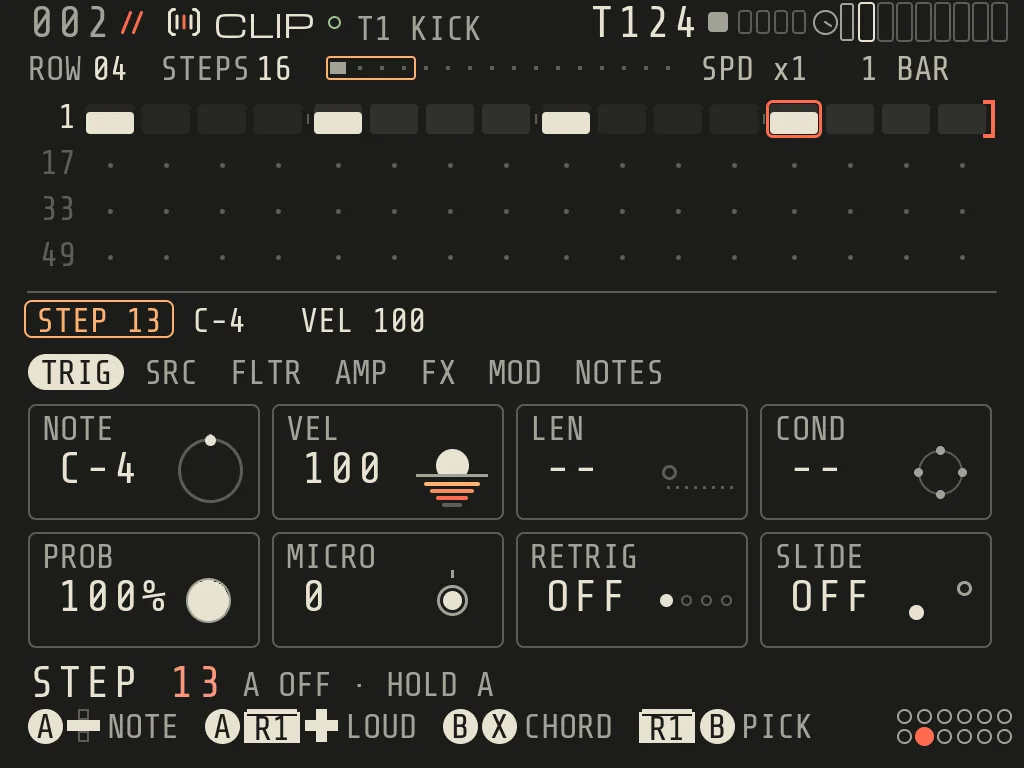
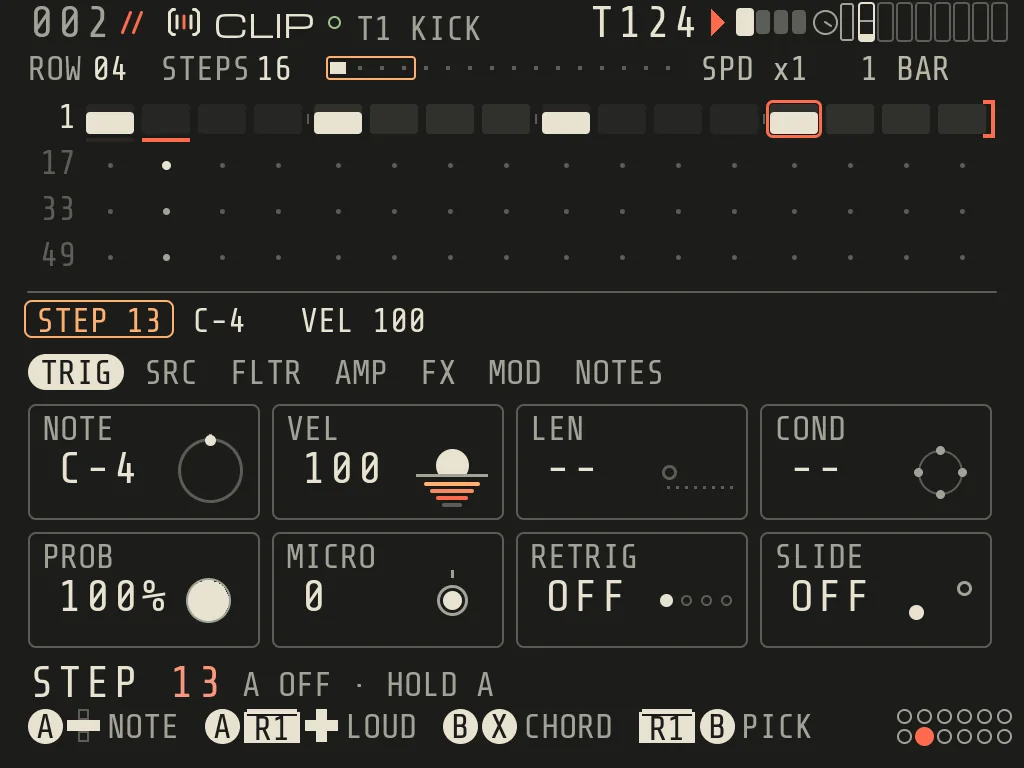
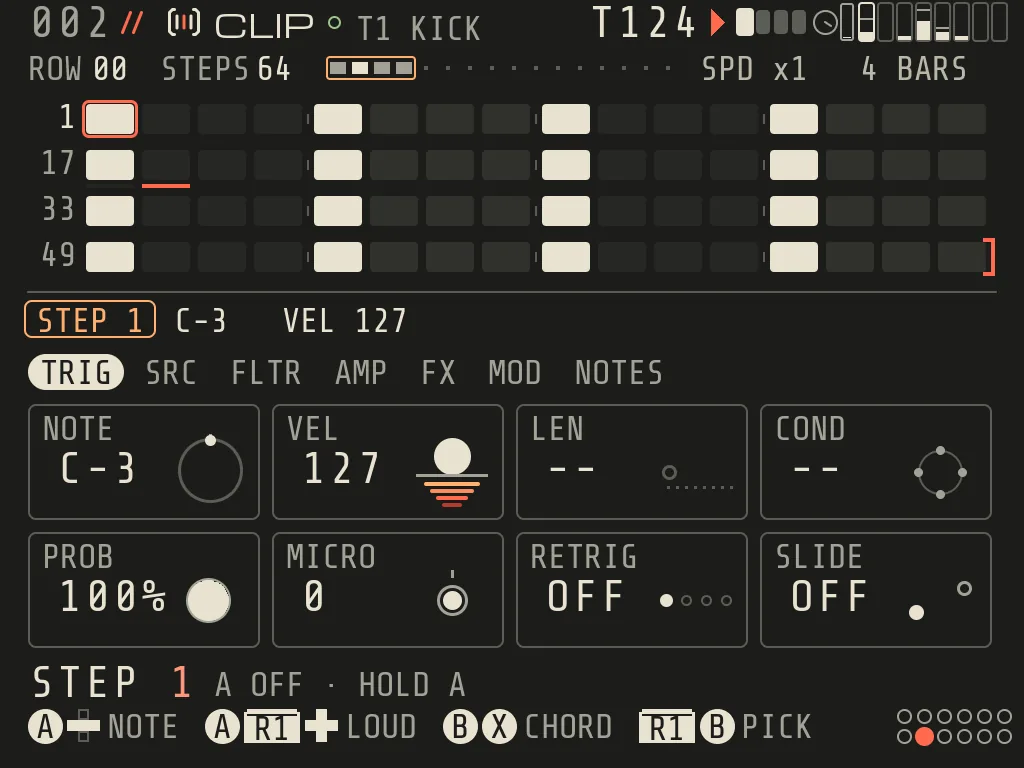
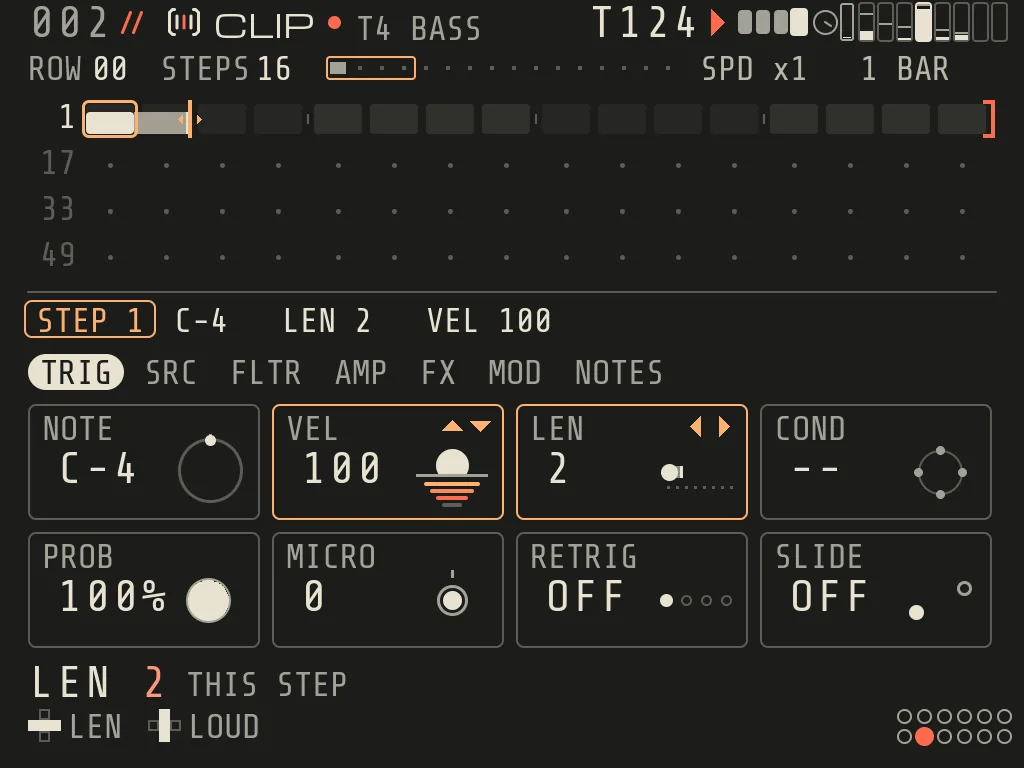
TRIG tab
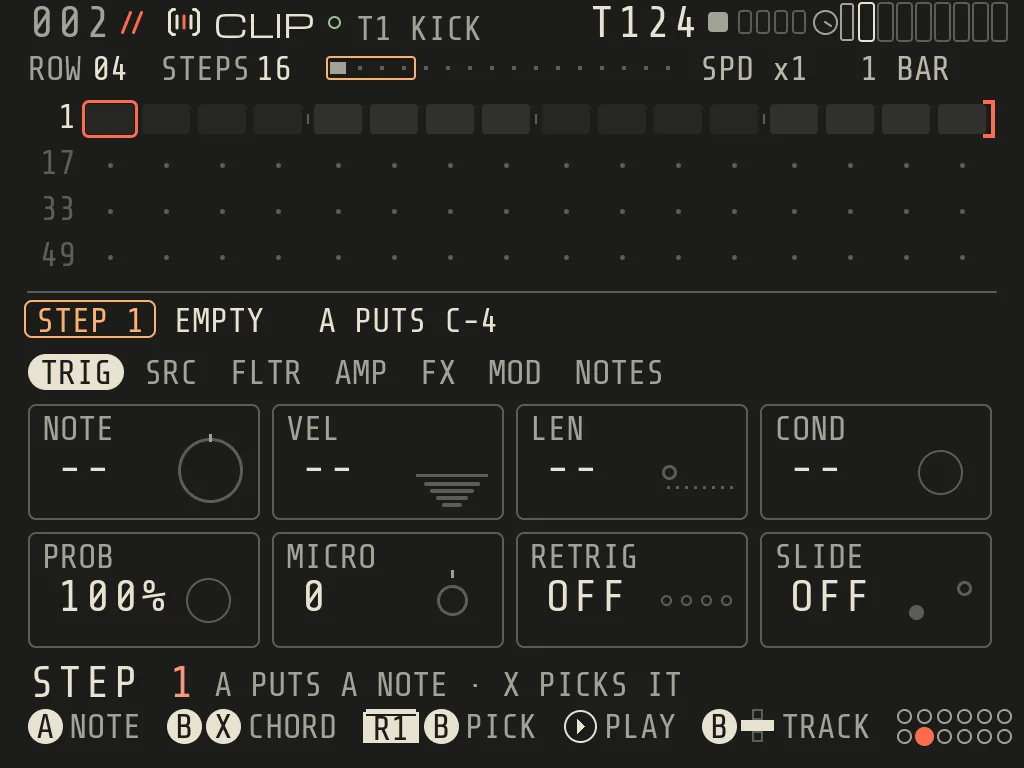
NOTE (the note you hear, page transpose included), VEL, LEN (note length), COND, PROB, MICRO, RETRIG, SLIDE. In
0.9 each tile draws its value as a small sky: VEL a sun with four loudness stripes, LEN a comet, COND an orbit, PROB a
moon phase, MICRO a planet off its ring, RETRIG echoes, SLIDE two notes joined.
COND plays the step only on some passes: -- always, A:B (pass A of every B: 1:2 ... 8:8), FILL / !FILL
(while PERFORM's FILL is on / off), PRE / !PRE (this track's last trig played / did not), NEI / !NEI (the track to
the left played / did not), 1ST / !1ST (first pass only / never on the first).
PROB 0-100 %. A step plays only if COND and PROB both pass.
MICRO moves the step early or late by up to 23/24 of a step.
RETRIG repeats the note (rate, plus a fade: A+R1+d-pad edits the fade). SLIDE glides into the note.
Sound tabs and locks
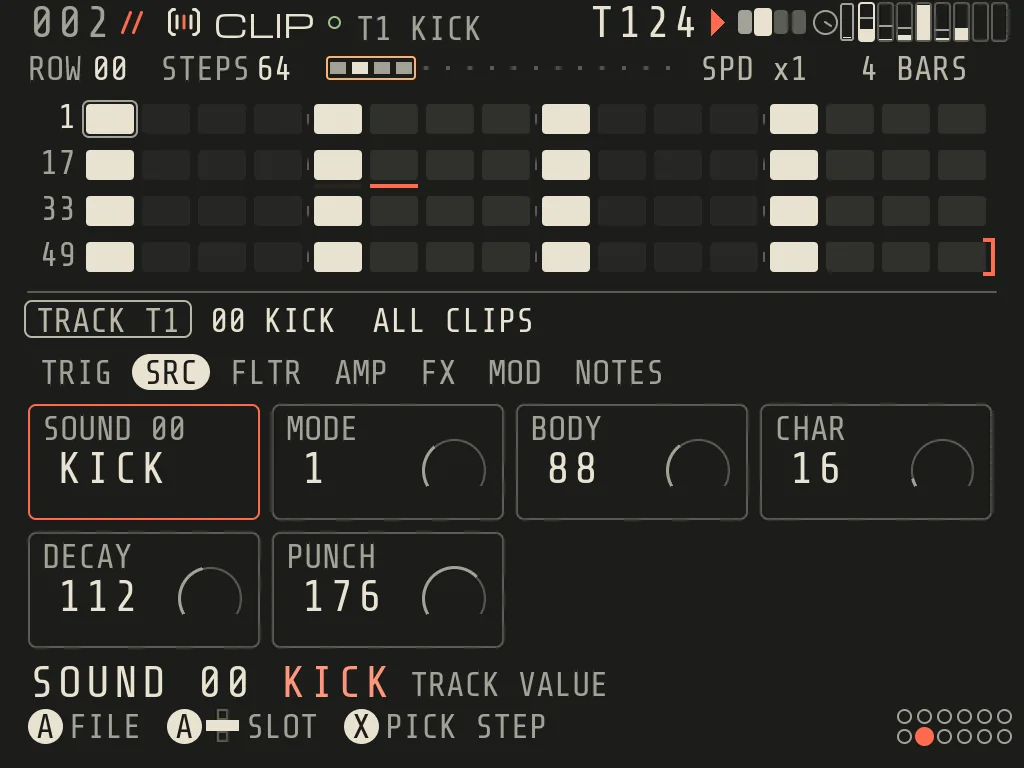
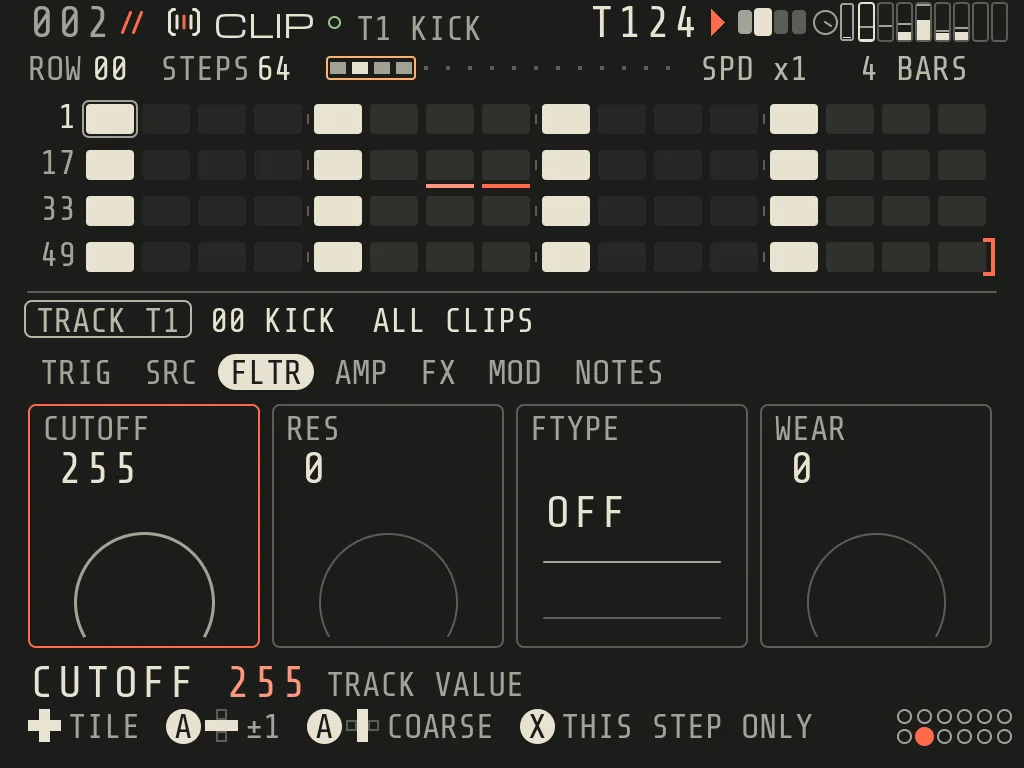
SRC (SOUND plus the engine's own knobs), FLTR (CUTOFF RES type WEAR), AMP (DRIVE PAN FINE LIMIT), FX (DRY and the
three sends, plus GOES TO, DUCK and FN1 New 0.9; A on a send opens its effect card, B comes back), MOD (the four
modulator amounts).
SRC tab · the engine's own knobsFLTR tab · CUTOFF, RES, type, WEAR
With no step held, a tile edits the track's sound (TRACK T2).
On a held or latched step, a tile becomes a lock for that step (amber). Up to 3 locks per step. B+A on a latched
tile puts that value back to the track's.
SOUND (first SRC tile): an A tap opens RADAR for this track; A on a file loads it and returns to the steps. Hold
A + d-pad picks another instrument slot. On a held step it sets a sound lock.
CHOP (SAMPLER tracks, next to SOUND): opens the slicer.
SAMPLER tracks speak the INSTR words: START / LOOP / LENGTH in seconds (LENGTH = how much plays), DEGRADE /
BITS / GRAIN in hex as on the form. The track row says how the sound plays (TRACK T1 00 BREAK92 LOOP · REPITCH
92>120 · 4 BARS). A tile that does not apply is dim and says why (NEEDS LOOP, SET IN CHOP, NEEDS CLOUD); an
old lock on it stays. A locked time tile says the track's time on the help line. An A tap on START, LOOP or LENGTH
(track value) opens REGION for the track's sound; B comes back to the tile.
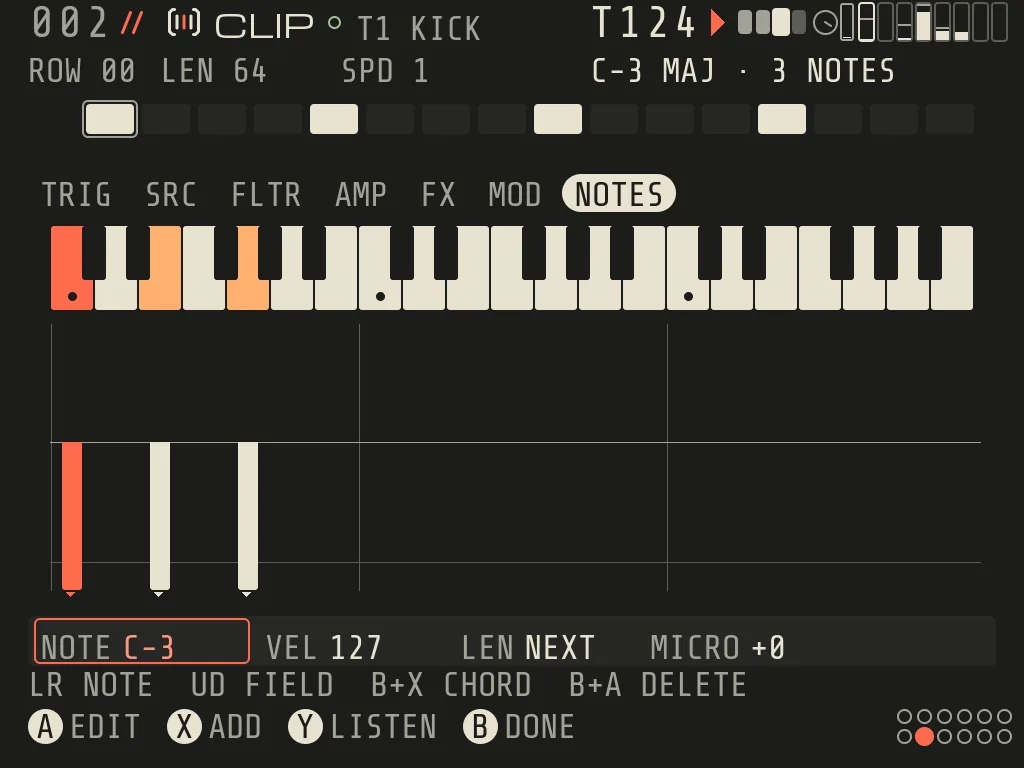
NOTES tab: the note editor (KEYFALL)
Every step can hold up to 8 notes. The NOTES tab shows the notes of the cursor step as a falling key picture, and
edits them one by one. It is the last tab, after MOD (LEFT from TRIG wraps to it). A LOOP clip has no NOTES tab.
NOTES tab (KEYFALL) with a C major triad on step 1
1Chord name What the notes of this step make, and how many there are.
2Step strip The steps of the page; the cursor step is framed.
3NOTES tab The last tab. DOWN from the ribbon goes into the editor.
4Keyboard Every note of the step lights its key; the selected one is coral.
5Falling notes One bar per note, its length drawn down the screen.
6Note fields NOTE, VEL, LEN and MICRO of the selected note. UP/DOWN picks, hold A changes.
7Keys X adds a note, B+X stamps a chord, B+A deletes one note.
Go there: on the tab ribbon move to NOTES, then DOWN into the editor.
Do
Keys
Pick a note
LEFT/RIGHT (notes in pitch order; two notes of the same pitch are separate)
Pick the field
UP/DOWN: NOTE, VEL, LEN, MICRO
Change by one
Hold A + LEFT/RIGHT
Change in big steps
Hold A + UP/DOWN (NOTE: an octave)
Add a note
X: a scale third above the selected note (on an empty step: a new note)
Delete the selected note
B+A (only that one)
Listen to it
Y
Stamp a chord
B+X
From a MIDI keyboard
a key adds that note to the step, or removes it if it is already there
Done
B (back to the tab ribbon)
Undo / redo
L2 / R1+L2 (one hold-A gesture = one undo)
Good to know:
LEN 00 lets the note ring until the track's next note.
Editing MICRO or LEN of a note that came from a JAM style stroke (a strum, a pattern) turns that one note into
a plain note with its own timing. Editing NOTE or VEL keeps it in its stroke.
You cannot edit notes while a recording is armed or running: STOP REC TO EDIT NOTES.
Messages: STEP FULL: 8 NOTES MAX, MAKE A CLIP FIRST, SET A SOUND ON THIS TRACK FIRST,
NOTES: TOO FAST · SOME KEYS SKIPPED (MIDI keys faster than the editor takes them).
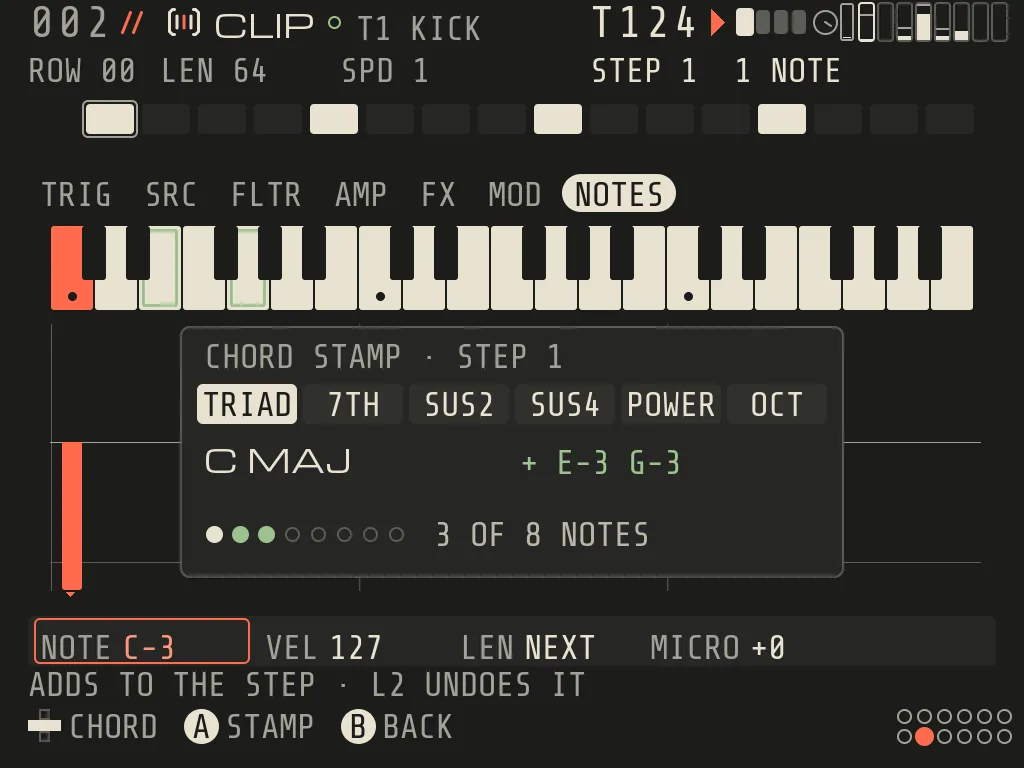
Chord stamp (B+X)
Writes a whole chord on one step in one move, built from the step's main note in the track's scale.
Try it
Stamp a chord on a step
Put a note on the step (the chord grows from it).
Hold B, press X: on the step grid (one step, not a selection) or inside NOTES.
LEFT/RIGHT chooses TRIAD, 7TH, SUS2, SUS4, POWER, OCT. The sheet shows the notes it will write.
A writes it (one undo). B cancels.
X alone keeps its old job (latch on the grid, add one note in NOTES). The stamp keeps the step's other notes; if the
chord would not fit in 8 notes it writes nothing (STEP FULL: 8 NOTES MAX). Other messages:
ADD A NOTE FIRST, THEN THE CHORD, PICK ONE STEP FOR A CHORD, CHORD WOULD LEAVE THE NOTE RANGE,
STEP CHANGED · CHORD NOT ADDED (the step changed under the open sheet).
Chord
Notes (scale degrees above the root)
TRIAD
root, 3rd, 5th
7TH
root, 3rd, 5th, 7th
SUS2
root, 2nd, 5th
SUS4
root, 4th, 5th
POWER
root, 5th, octave
OCT
root, octave
In a chromatic scale the chords use their usual intervals (TRIAD = major, 7TH = dominant 7th).
LOOP tracks and audio clips
A track is a STEP track (an instrument plays steps) or a LOOP track (it plays audio clips). There is no switch for
it: an empty track becomes a LOOP track when audio lands on it (REC HERE, BOUNCE, COMMIT). On a SAMPLER (STEP) track a
loop picked in RADAR fits the tempo by itself when its name, folder or BPM says loop, or when it is 4 bars or longer;
a one-shot keeps its pitch.
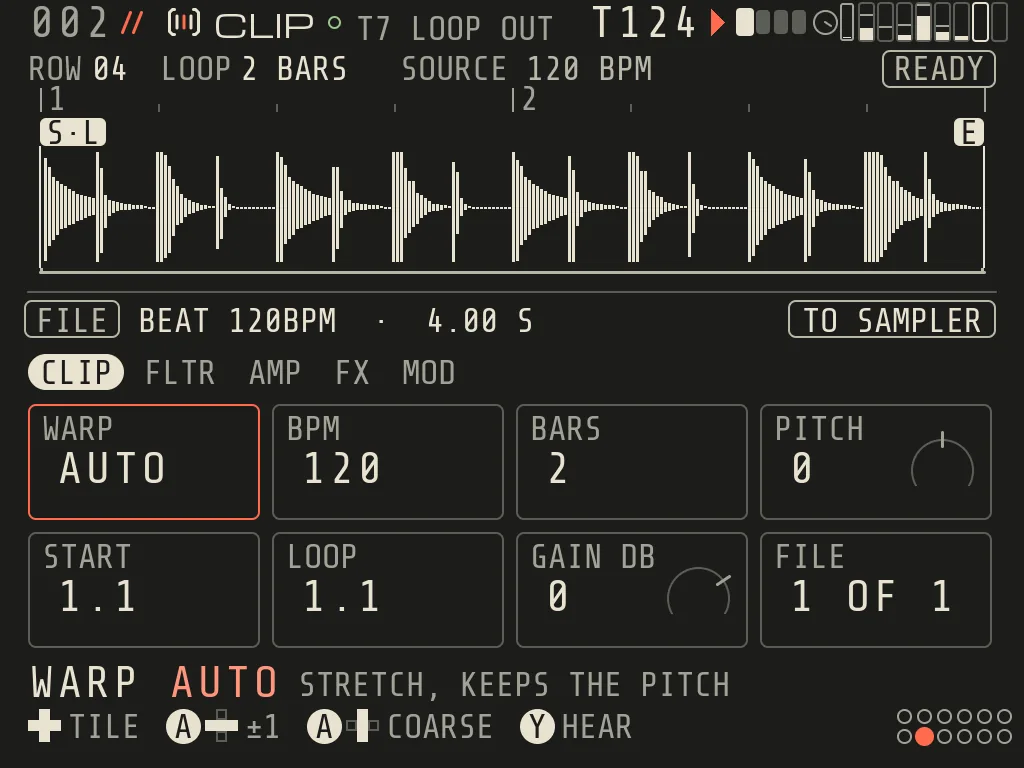
A LOOP clip from LOAD LOOP · WARP AUTO on a 2-bar drum loop
CLIP on an audio clip has the tabs CLIP, FLTR, AMP, FX, MOD (no SRC, no NOTES):
Do
Keys
Waveform line
UP from the tabs; LEFT/RIGHT picks START, LOOP, END or TO SAMPLER
Move a marker
A+LEFT/RIGHT a beat, A+UP/DOWN a bar, R1+A+LEFT/RIGHT fine (1 ms)
Slice it into a kit
A on TO SAMPLER: the loop becomes a sliced SAMPLER on an empty track (asks SPD X2? first when needed; A again agrees)
Clip tiles
WARP, BPM (A+UP doubles, A+DOWN halves; with BARS set, BARS moves with it), BARS, PITCH, START, LOOP, GAIN, FILE (A: RADAR on this file New 0.9; A+LEFT/RIGHT: the next file of the pool)
Hear the file
Y (again stops)
While loops get ready for a new tempo the header says PENDING; they switch on a bar line.
Smarter loop warp New 0.9. WARP AUTO listens to the loop: a drum loop is cut at its hits and keeps its punch
(the line says DRUMS: SLICES FOLLOW THE TEMPO), everything else is stretched; BEATS and STRETCH can still be picked by
hand. STRETCH sounds cleaner on held notes, bass and pads. When the tempo was only guessed from the file's length, the
loop says TEMPO NOT SURE (RADAR writes it with a question mark, 83?) and A+UP/DOWN on BARS or BPM fixes it. A
one-shot named with a tempo (063_Kick) stays a one-shot, and a tempo in a pack's folder name is used for the loops
inside it.
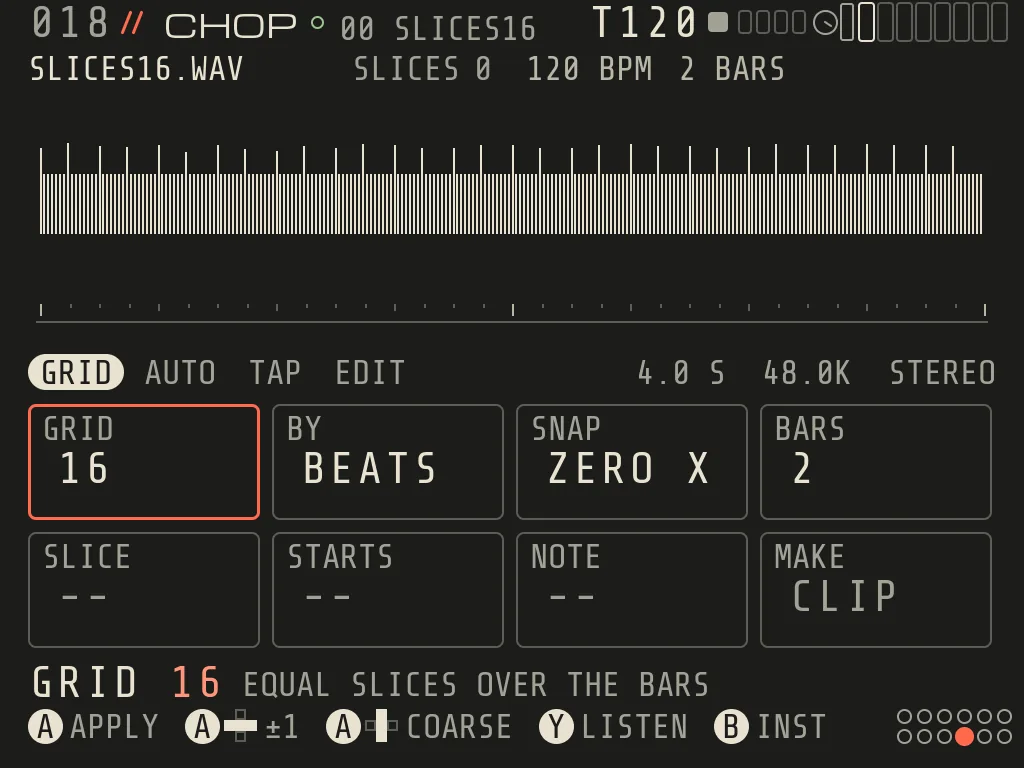
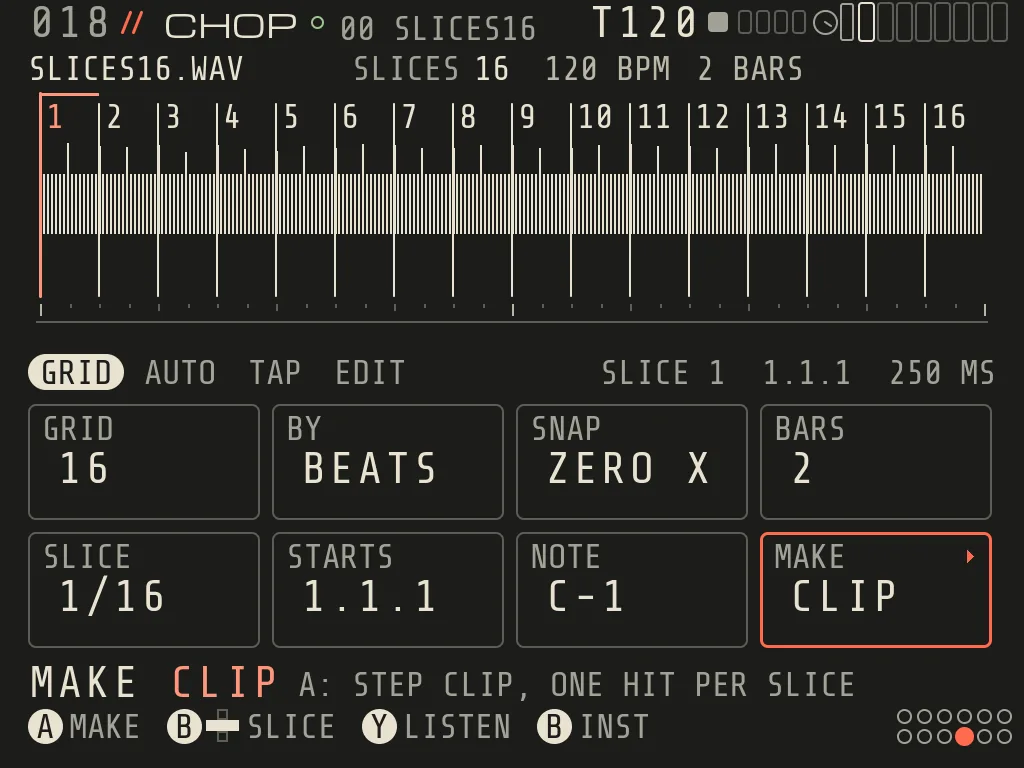
CHOP: slice a sample
A on the CHOP tile (SRC tab of a SAMPLER track) or on INST > CUT > CHOP (the first row of the CUT group). Four tabs:
Try it
Slice a sample into a clip
CHOP after GRID 16 was applied
1File The file, its slices, tempo and bars.
2Slices Numbered slice markers over the waveform.
3Tabs GRID, AUTO, TAP, EDIT.
4Grid fields How many slices, by beats or time, snap to zero crossings, bars.
5MAKE CLIP Writes a clip that plays the slices in order.
6Result What happened, and L2 to undo it.
GRID: equal slices; A slices what is shown and lands on MAKE CLIP.
AUTO: slices on the hits.
TAP: arm, then L1 plays the file and each A tap cuts at that moment (L2 takes the last tap back, Y listens, B
disarms). Taps snap to the TAP tab's QUANT grid (1/16 by default; 1/8 or OFF).
EDIT: move a slice, SPLIT one in two, JOIN with the next, B+A deletes a slice (slice 1 always starts the file).
GRID and AUTO make a draft: A applies, B discards. MAKE CLIP writes a clip that plays the slices in order on this
track (CLIP R04 T1 · L1 PLAYS IT ON CLIP); a second MAKE CLIP on the same slices says ALREADY DONE. Up to 64 slices;
a slice plays from note C-1 plus its number. B goes back to the tile. Every applied change is one undo.
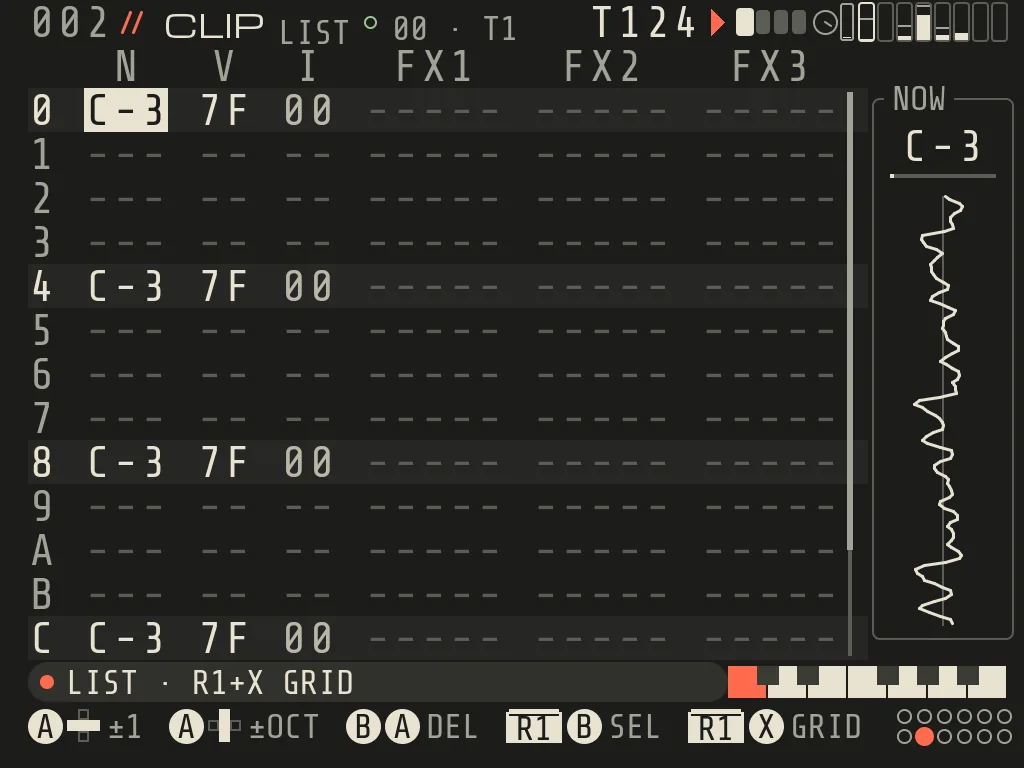
R1+X in CLIP flips the step grid into CLIP LIST: the cursor page as 16 tracker rows (NOTE, VOL, INSTR, three FX
columns, hex). R1+X again goes back to the same step; the bottom line always shows it as R1+X GRID (0.8.2). JAM,
FILL and the FX commands live here.
R1+X in CLIP · CLIP LIST
a row that holds more than one note shows a small grey number right after the note: how many extra notes
sit on that step (the column shows the first note). Edit the extra notes in CLIP > NOTES.
Edit like everywhere: A to put, hold A + d-pad to change, B+A to delete, R1+B select, B copy, R1+A paste, Y in a
selection = FILL (WHERE x WHAT generators in scale degrees; live preview; A apply, B cancel, Y new seed).
FX commands
Each FX column holds a three-letter command and its value XY. Hold A on an FX cell for the list with descriptions.
The whole list with the hint text is at the end of SETTINGS_REFERENCE.md.
Commands work in the FX columns of CLIP LIST and of TABLE; in v2 songs the trig-like ones (MTT, RET, PSL, CHA note)
live as MICRO / RETRIG / SLIDE / PROB on the step, and parameter commands as locks. The ones you meet first: ARP (arpeggio), DEL (delay the step), RET (retrigger), KIL / OFF (cut / release after ticks),
PSL / PBN (slides and bends), VOL / PIT / CUT / RES / PAN, TBL (instrument table), HOP and SNG (jumps), CHA and RND
(chance), MTT (micro timing), the conditions FIL / PRE / NEI / 1ST, and CRD.
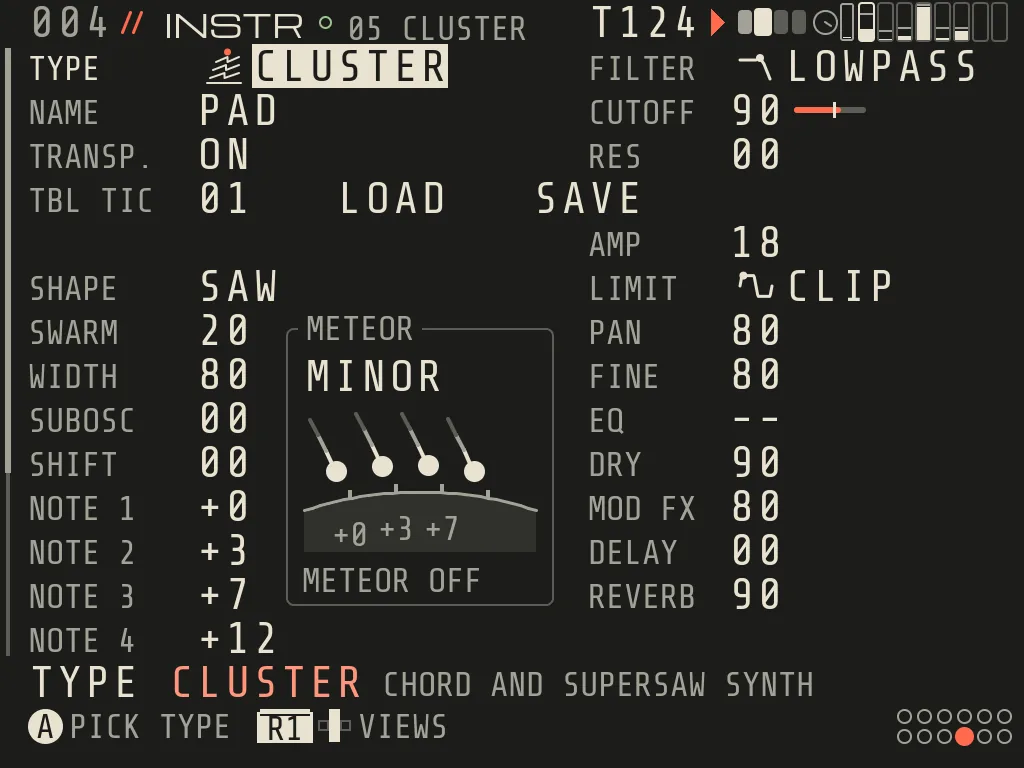
CRD XY (changed in 0.8) plays a chord from one note: the root plus X and Y semitones. It now works on any
instrument with POLY 2-4 (ORBIT, ATLAS, KEPLER, SAMPLER), not only CLUSTER. At POLY 2 the root and the most important
other note sound. Scale snapping can merge two notes into one.
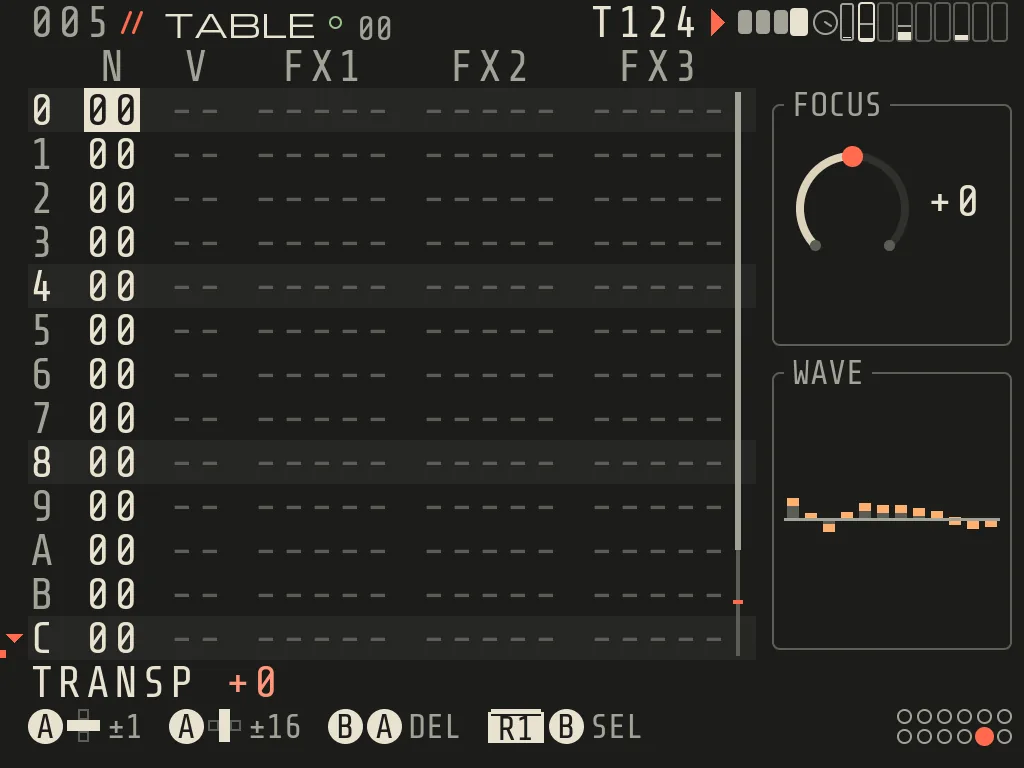
TABLE
A per-instrument FX sequence of 16 rows that runs with every note (arpeggios, pitch drops, rhythmic volume). TBL TIC
on INSTR sets its speed (00 = one row per step, FF = 200 Hz). B+d-pad shows another table.
TABLE · 16 rows of FX that run with every note
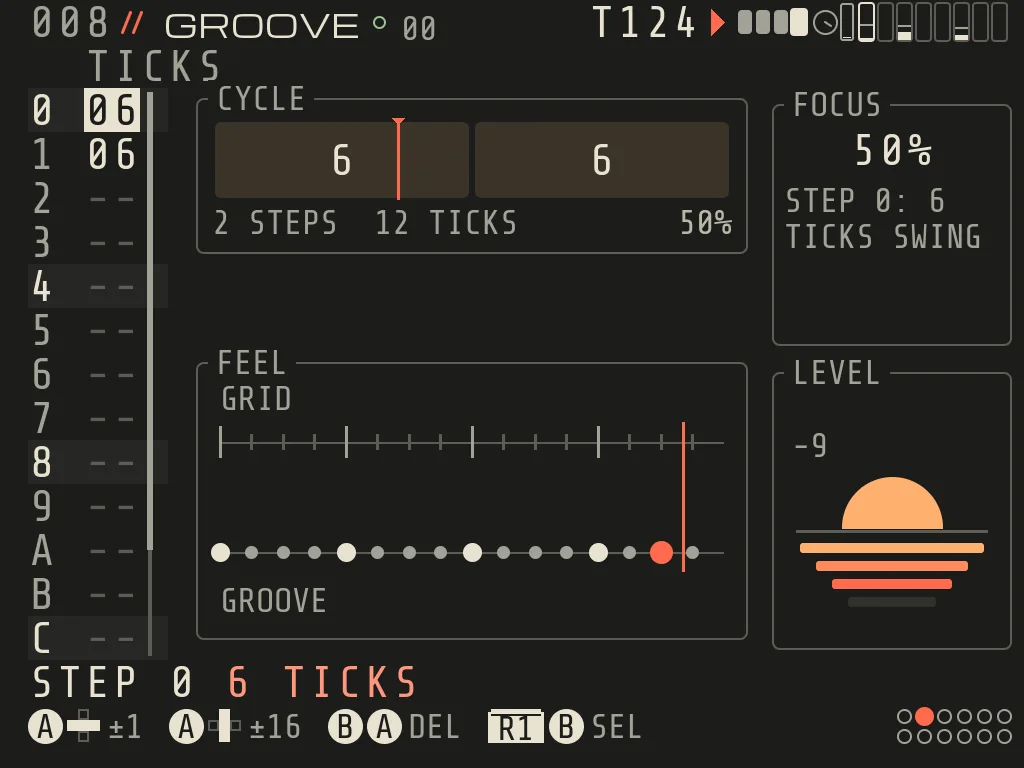
GROOVE
Ticks per step: swing and shuffle. B+d-pad shows another groove. GGR / GRV commands switch grooves inside a song.
GROOVE · ticks per step
SCALE
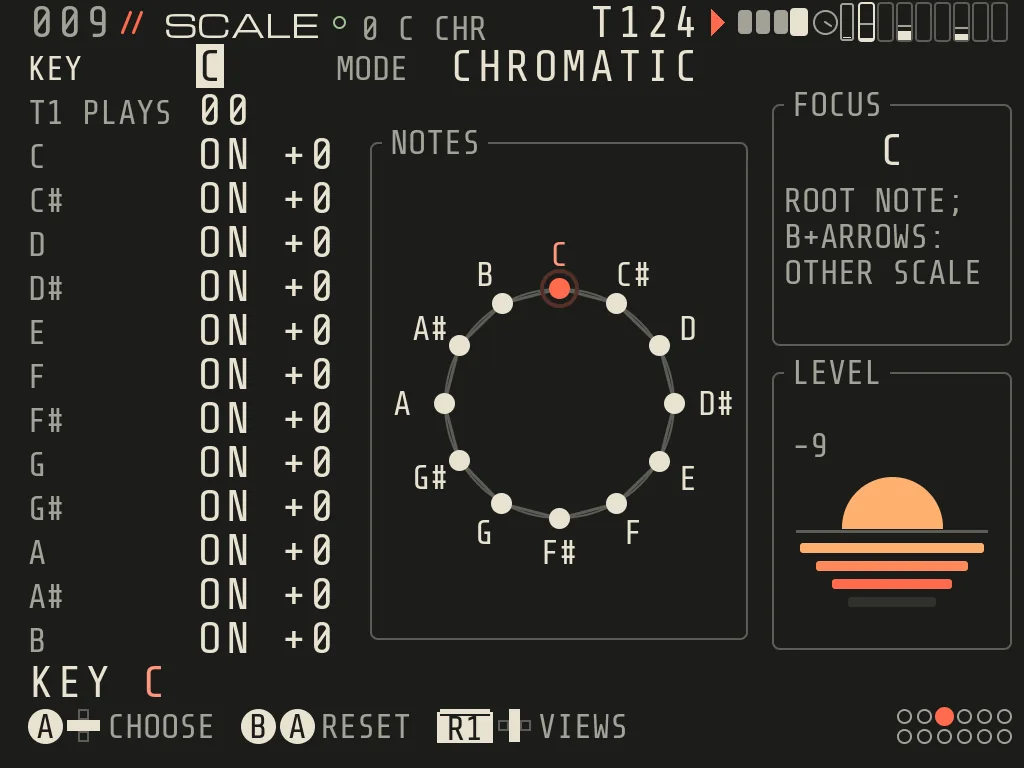
KEY, MODE and the 12 notes (A+arrow puts a note in or out of the scale), cents per note, and which scale each track
plays (T1 PLAYS). Modes: MAJOR, MINOR, DORIAN, PHRYGIAN, LYDIAN, MIXOLYDIAN, LOCRIAN, HARM MINOR, MEL MINOR and
more; picking a mode keeps your cents. JAM, FILL, chords and the chord stamp all follow the track's scale. SCA (one
track) and SCG (all tracks) switch scale from a step. B+arrows show another scale slot.
R1+RIGHT from CLIP (from a CLIP sound tile, MOTION opens on that parameter's lane). Up to 4 lanes per clip; each lane moves one parameter of the track's sound (any lockable
continuous parameter, plus LEVEL) step by step, as an offset on the step's own value, times DEPTH 0-200 %.
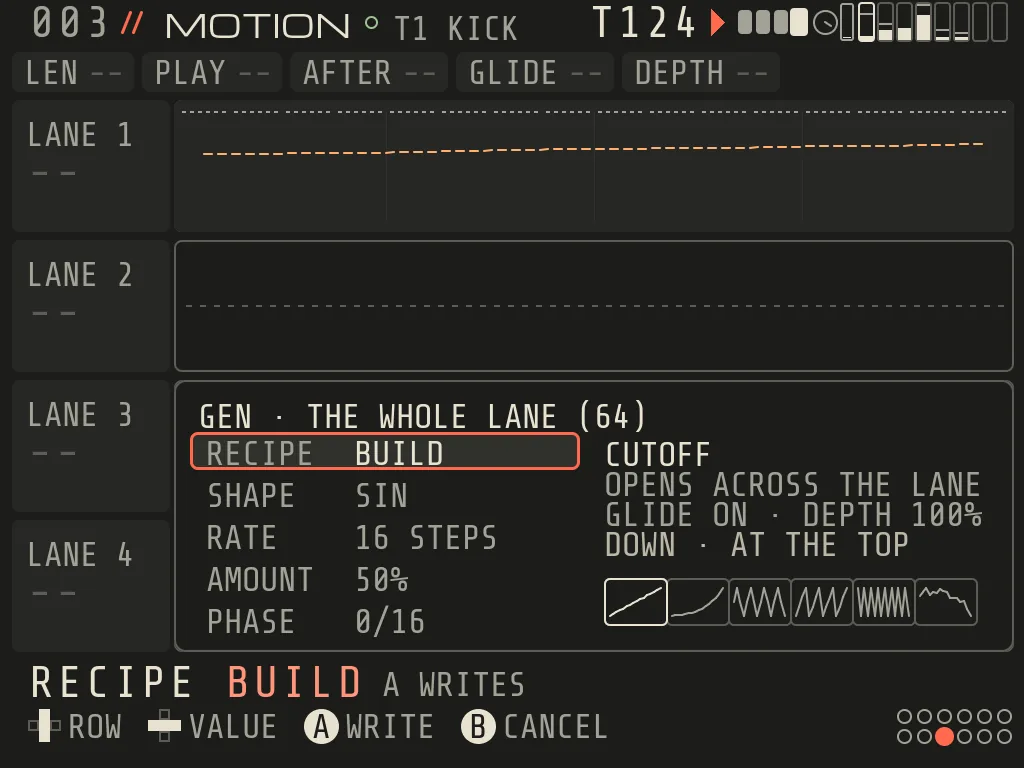
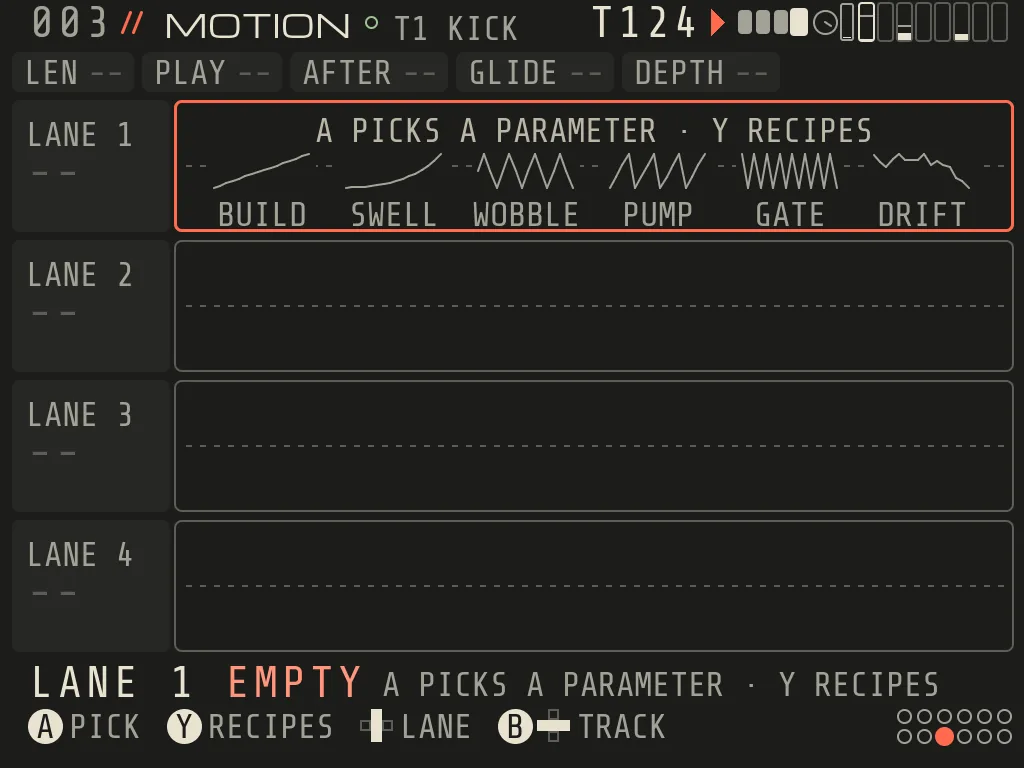
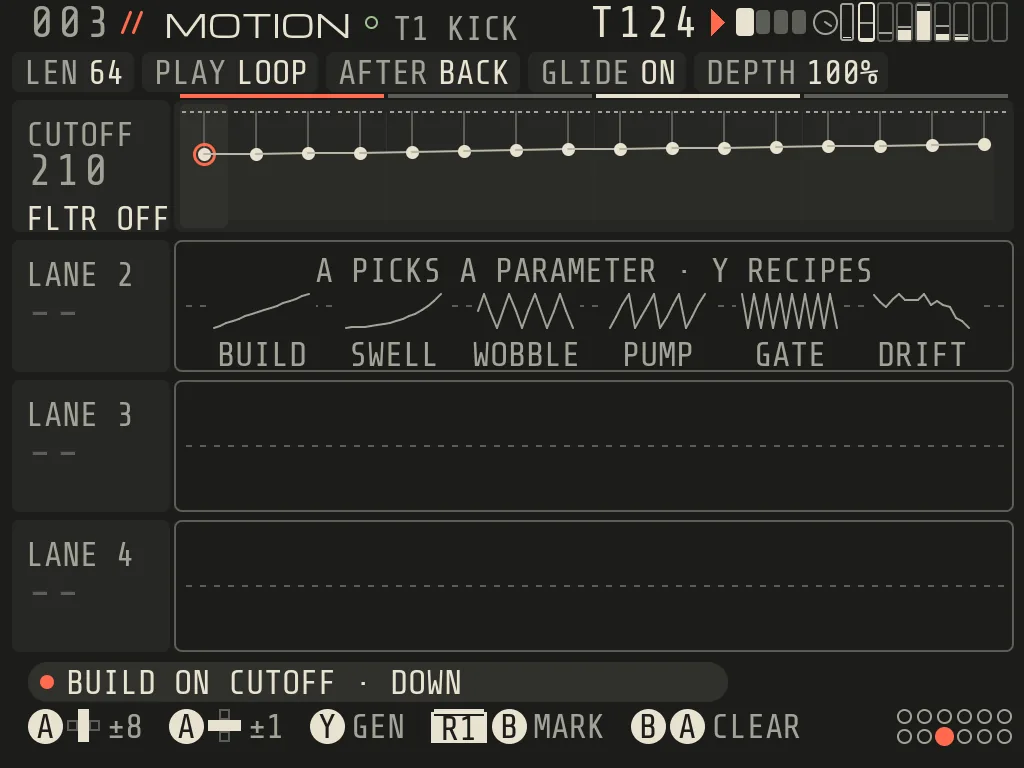
MOTION: a CUTOFF lane and the GEN sheet
1Lane settings LEN, PLAY, AFTER, GLIDE and DEPTH of the lane under the cursor.
2Parameter What the lane moves, and its current value.
3Lane One dot per step; the line is the movement.
4Empty lane A picks a parameter, Y offers recipes.
5GEN Recipe, shape, rate, amount and phase. A writes, B cancels.
6Shapes The recipe drawn before it is written.
A clip with no lanes yetA lane on CUTOFF after GEN wrote it
Field
Values
LEN
1-256 lane steps, independent of the clip (PASS n/m when longer)
PLAY
LOOP (from the launch), ONCE (stays on the last value), NOTE / NOTE1 (restart at each note, loop / stop), HOLD (the value at each note), FREE (song clock)
AFTER
BACK (returns to the track value when the clip stops) or KEEP
GLIDE
ON slides between steps, OFF holds each step
DEPTH
0-200 %
Keys: d-pad moves; hold A + UP/DOWN ±8 (with R1 ±32), A + LEFT/RIGHT ±1; A on a name or an empty lane = parameter
picker; Y = GEN: a recipe (BUILD, SWELL, WOBBLE, PUMP, GATE, DRIFT) writes the whole lane, a shape (SIN, TRI,
saws, SQUARE, RAMP, EXP, RANDOM, DRUNK) writes the marked steps; amber preview, A writes, B cancels. R1+B marks steps,
B+A clears a step or (on a name) the lane, B+LEFT/RIGHT track, B+UP/DOWN lane page.
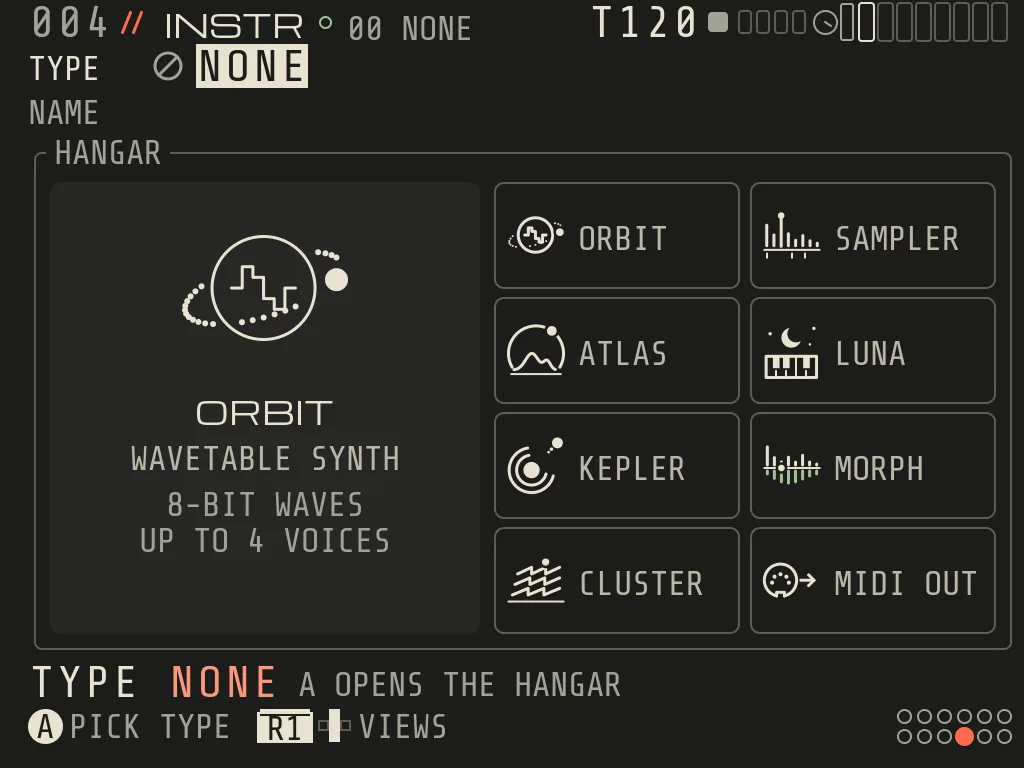
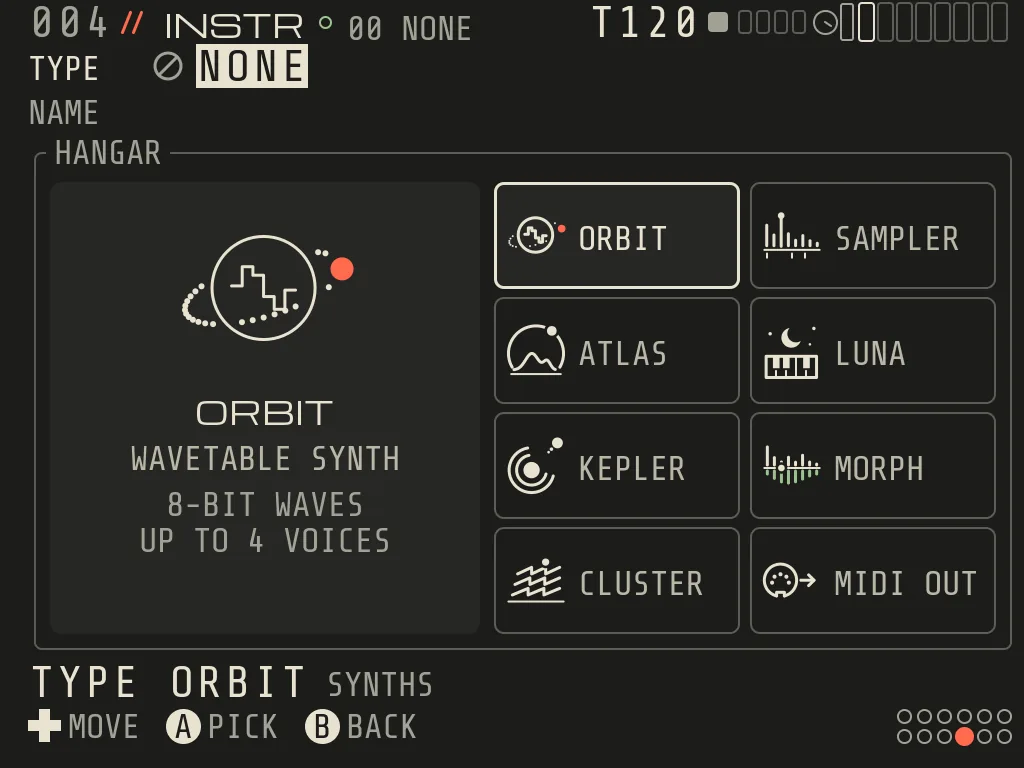
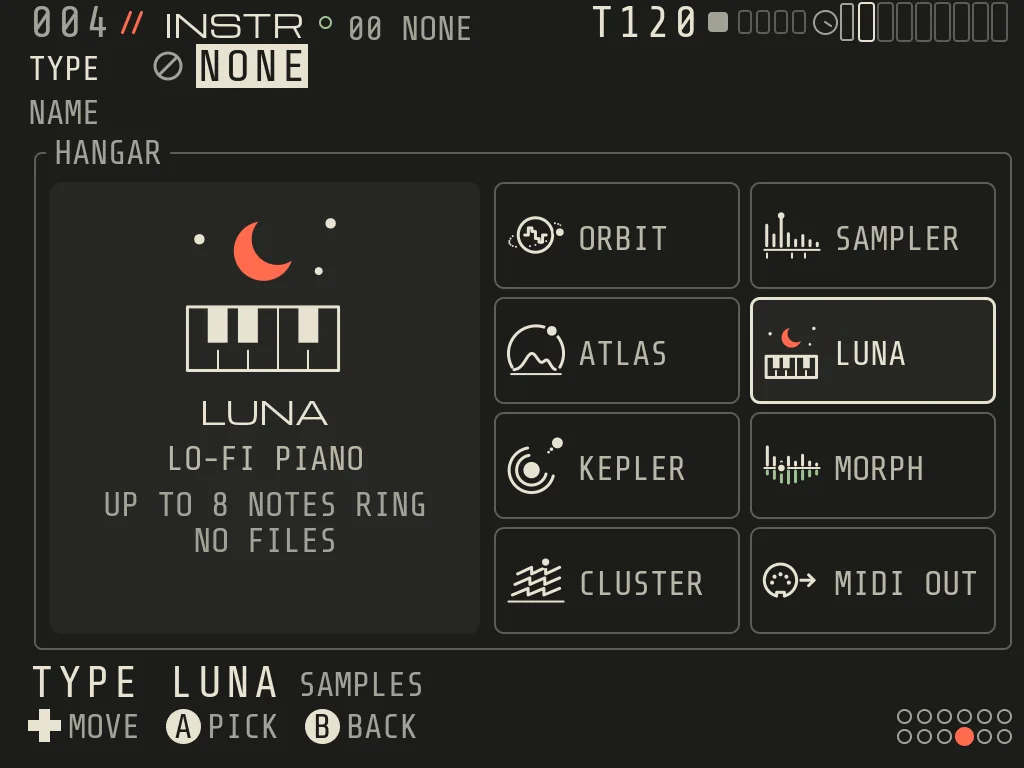
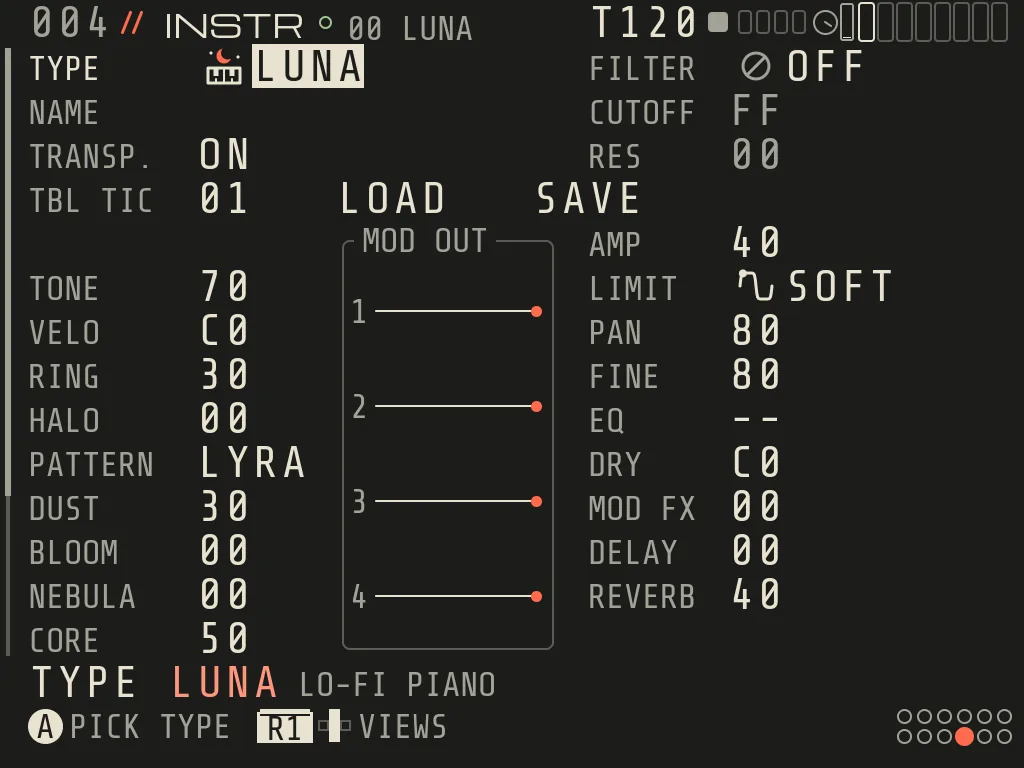
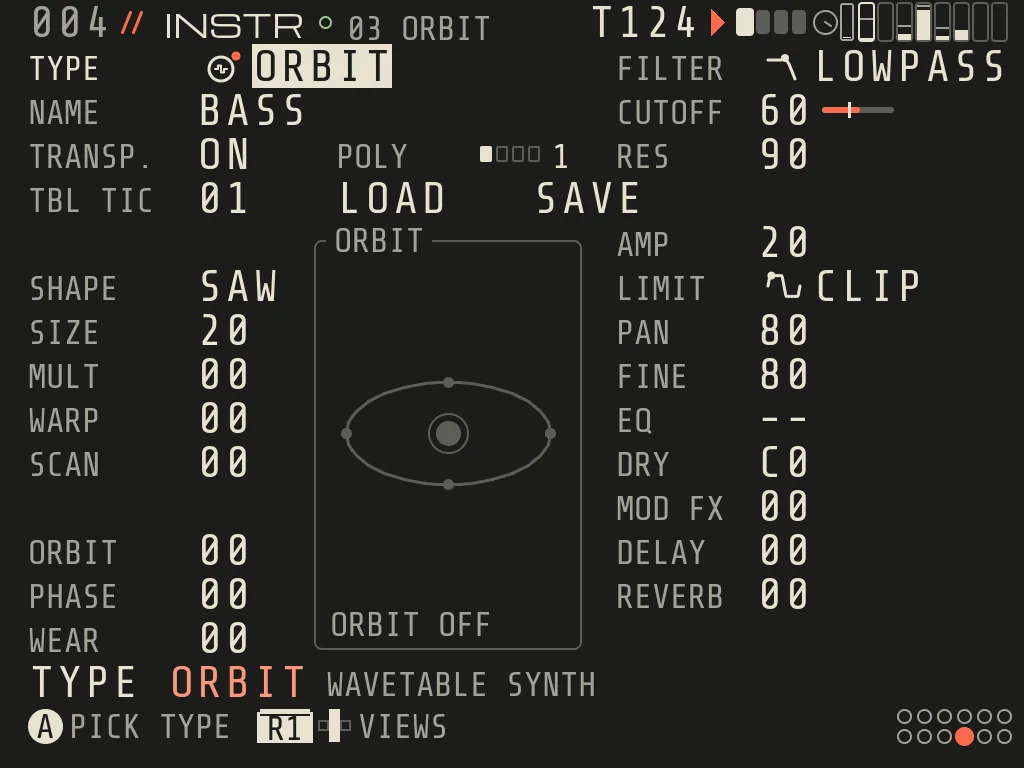
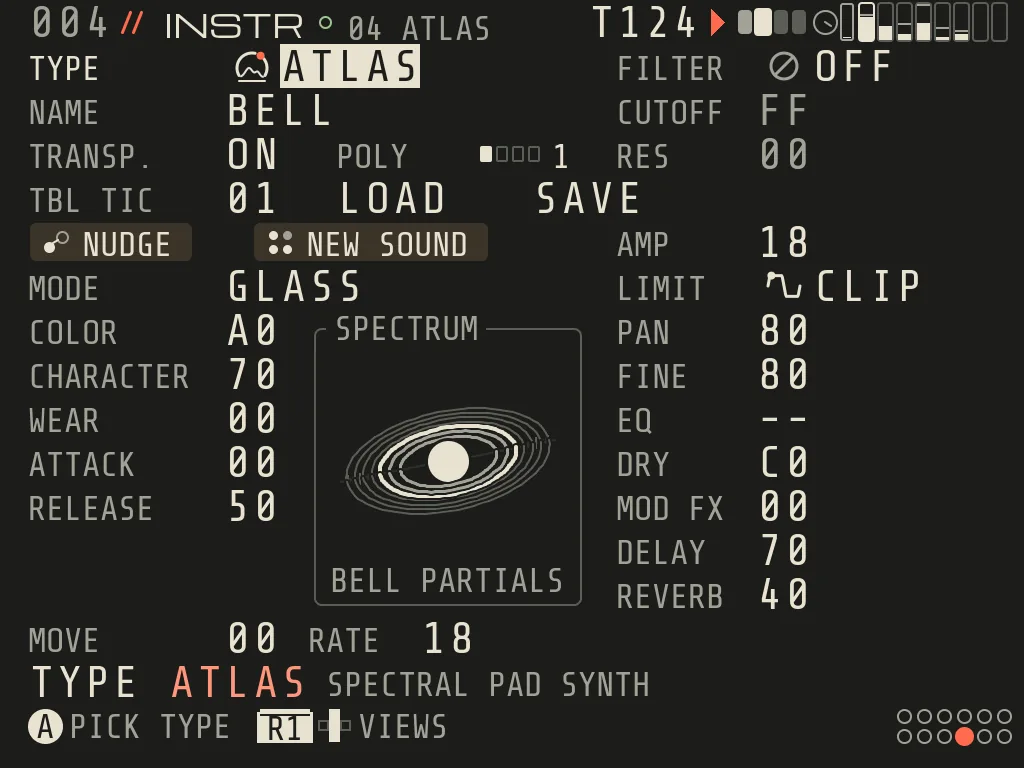
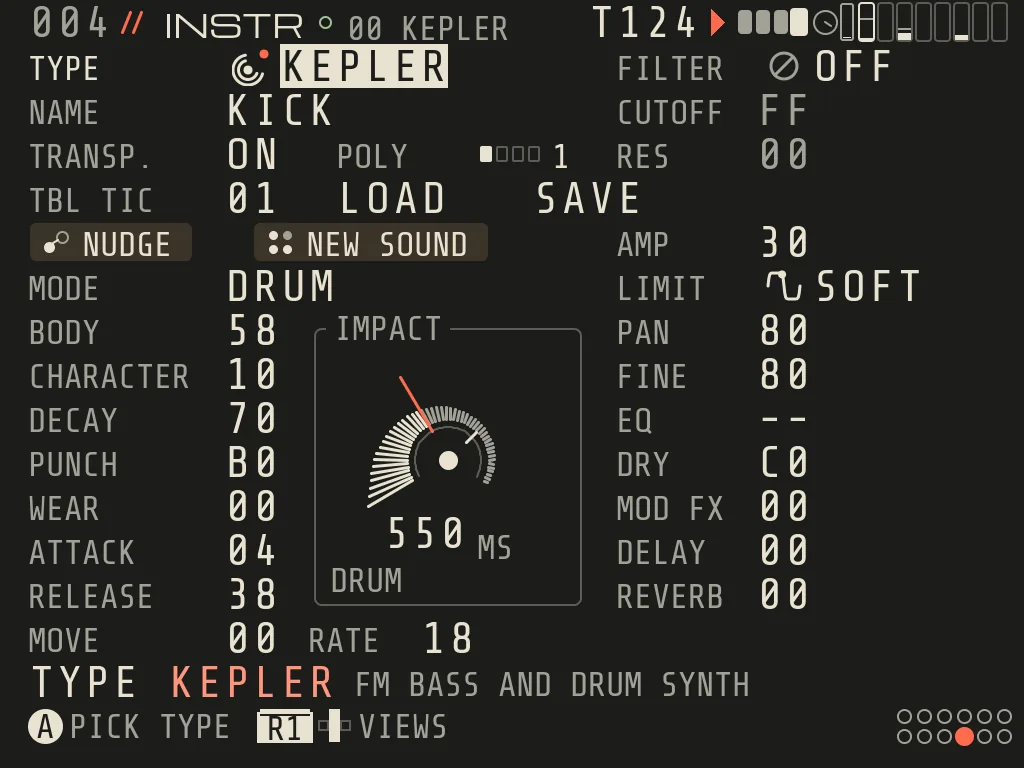
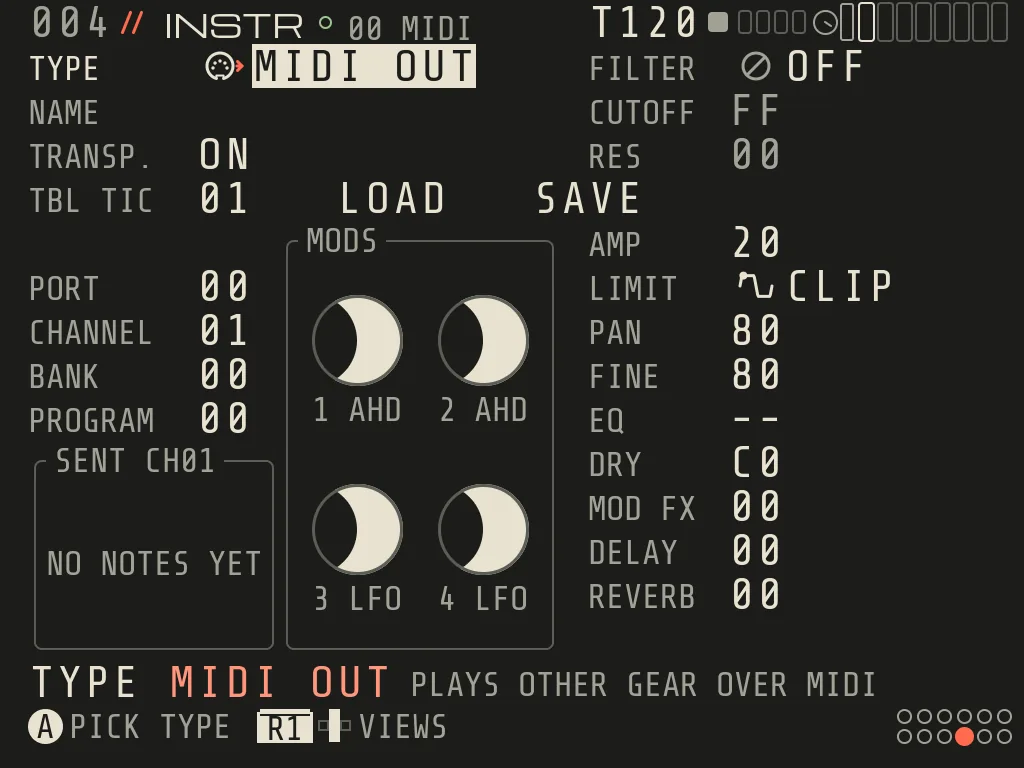
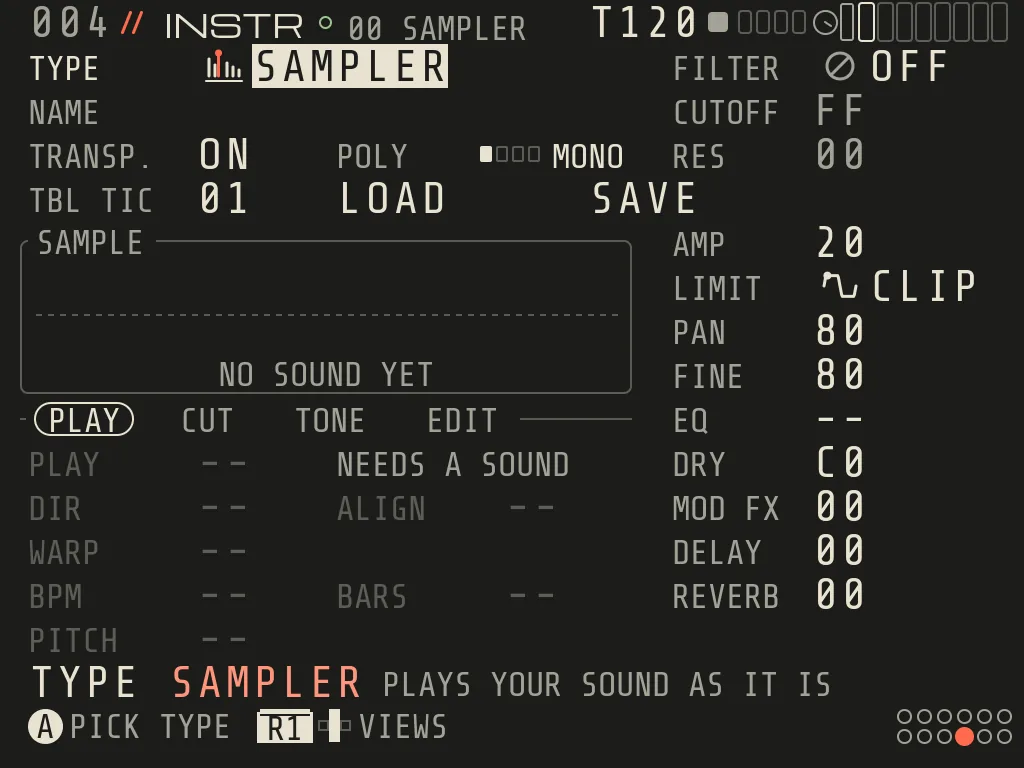
INST edits the cursor track's instrument. A on TYPE opens the HANGARNew 0.9: eight engines in two columns,
ORBIT, ATLAS, KEPLER, CLUSTER (synths) and SAMPLER, LUNA, MORPH, MIDI OUT. The d-pad moves between them and the big
card says what each one is; A picks (a new engine starts from its defaults; L2 undoes), B closes. Hold A + LEFT/RIGHT on TYPE steps the type directly.
LOAD / SAVE keep instruments with their table in /Instruments. B+LEFT/RIGHT goes to the previous / next instrument
slot (B+UP/DOWN ±16), on INST and MODS alike. NAME: A edits; LEFT/RIGHT moves, UP/DOWN changes the character
(A-Z, 0-9, - _ . #), B is done. The same NAME entry works on PROJECT.
drive into the limiter (20 = unity) and its shape (CLIP, SIN, FOLD, WRAP, SOFT, OFF, SAFE: leaves a normal level untouched and only rounds what goes over the top; a new MORPH starts on it)
PAN, FINE
80 = centre / in tune
DRY, MOD FX, DELAY, REVERB
dry level and the three sends (the first one was called CHORUS before 0.9)
EQ
an EQ slot after the voice (edit the slot on FX)
POLY
MONO, 2, 3, 4 held notes (ORBIT, ATLAS, KEPLER, SAMPLER)
POLY under load. POLY shows what is allowed right now: 4>3 busy CPU (one note less for a while, back after
about 1 s), 4>2 a long sample streamed from the SD card, 4>1 dense CLOUD. Your saved POLY never changes; the hint
line names the reason. Mono parts, drums and a chord's root are never cut.
The instruments
Type
What it is
Its own knobs
ORBIT
8-bit wavetable synth
SHAPE, SIZE, MULT, WARP, SCAN; ORBIT circles the wave through SCAN and WARP (TILT, LAP), PHASE bend
EQ SLOT AFTER THE VOICE (-- NONE, EDIT IN FX VIEW)
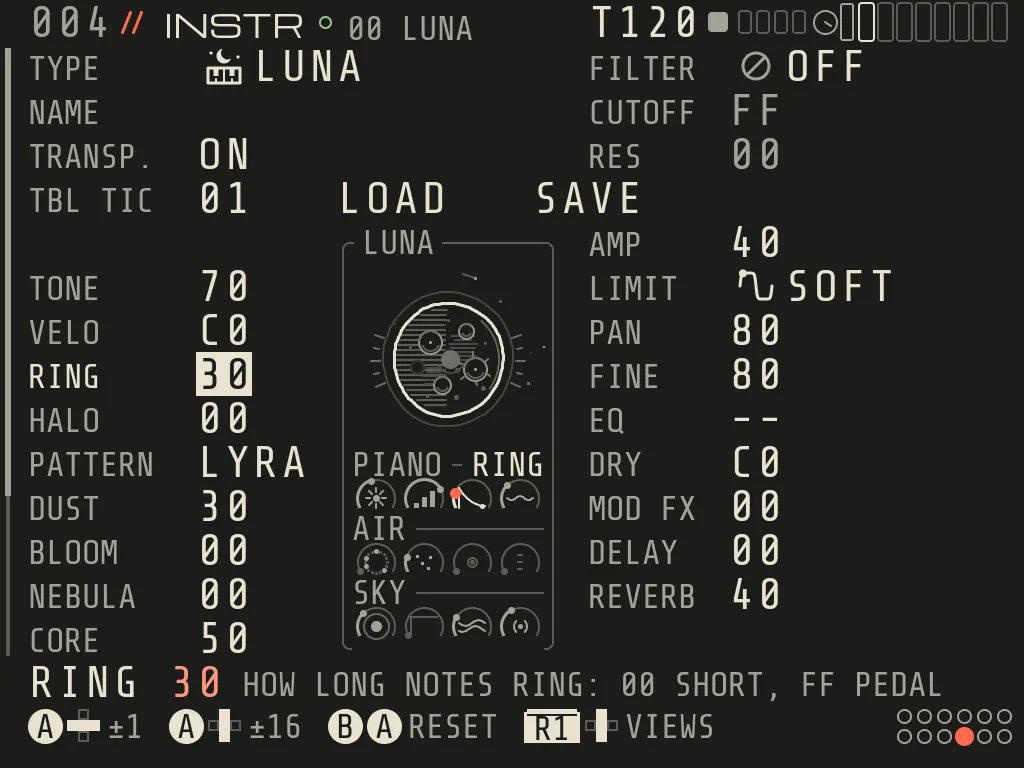
LUNA DEEP SKY New 0.9. Four more dials, each 00 = off = the old sound, bit for bit:
CORE: a deep soft octave under the lowest held note.
EMBER: no hammer; the note glows on slowly and stays. At FF a held note is a pad.
TIDE: the strings of a note drift apart and breathe slowly.
AURORA: LUNA in stereo, keys spread by pitch with a slow moving sky around them.
A new LUNA starts with CORE 50, TIDE 40, AURORA 60; songs saved earlier are unchanged. The LUNA panel shows the twelve
dials in three rows, PIANO / AIR / SKY, each with a small picture of what it does.
ATLAS and KEPLER: NUDGE takes a small step from the current sound, NEW SOUND rolls a new MODE and macros; both keep
the MODS and are one undo. ATTACK / RELEASE are the MOD1 envelope, MOVE / RATE the MOD3 LFO.
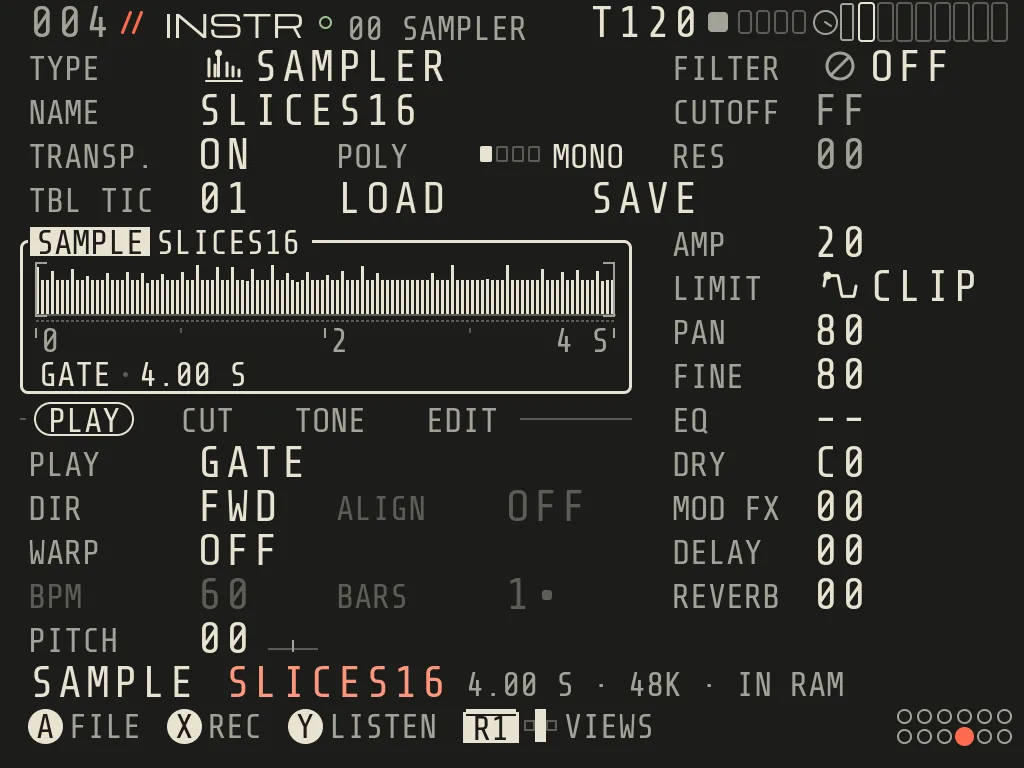
SAMPLER in detail
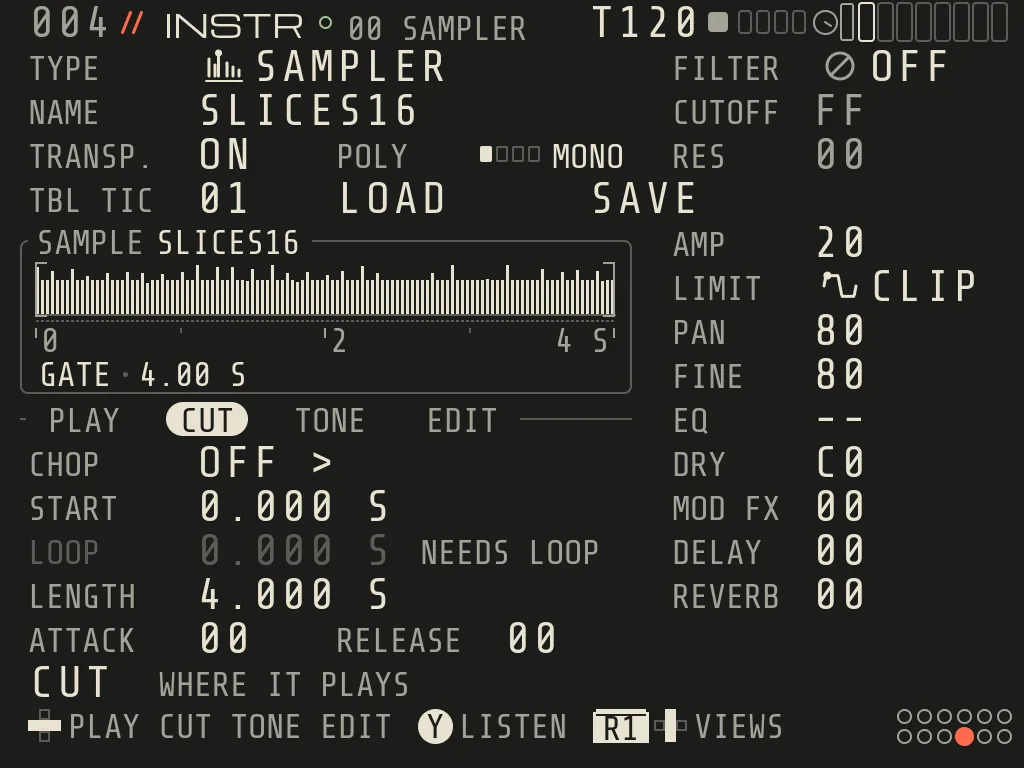
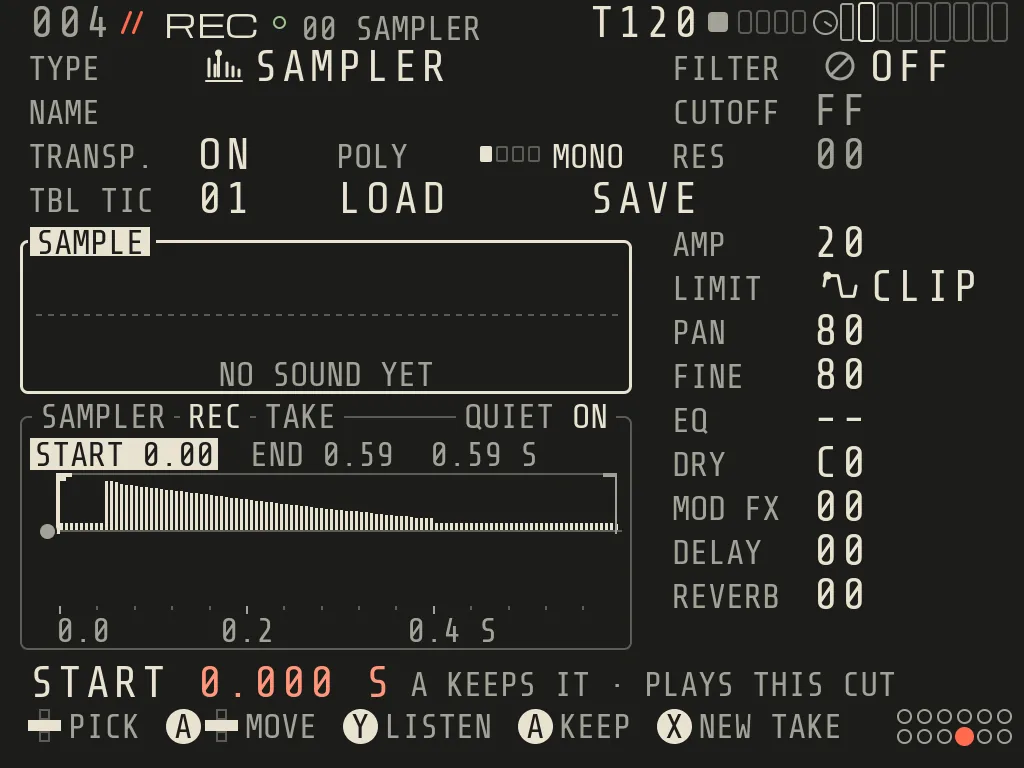
The SAMPLER screen New 0.9. Nothing scrolls. Under the name rows sits the wave box: the sample on a horizon,
with START / END (and LOOP when it loops) marked, a ruler (seconds, bars when synced, slice numbers when sliced) and
one line under it that says how it plays now (GATE · 4.00 S, ONCE · 1.42 S, 16 SLICES). A
playing note shows as the coral planet moving over the wave. Under the wave are four groups; LEFT / RIGHT on the tab
row switches them, a dot after a group name means it holds values you changed:
INSTR: a SAMPLER with slices16.wav loaded
1TYPE The engine. A opens the hangar to change it.
3LOAD / SAVE Keep instruments with their table in /Instruments.
4Wave box The sample on a horizon with its markers. A opens RADAR, X records; the line under it says how it plays.
5Groups PLAY, CUT, TONE, EDIT. LEFT/RIGHT on the tab row switches the group.
6Rows of the group PLAY: PLAY, DIR + ALIGN, WARP, BPM + BARS, PITCH. A row that does not apply is dim and says why.
7Sound column FILTER, CUTOFF, RES, AMP, LIMIT, PAN, FINE, EQ, DRY and the sends (MOD FX, DELAY, REVERB).
8Hint line The file, its length and rate, and whether it sits in RAM.
The CUT group · CHOP, START, LOOP (dim: NEEDS LOOP), LENGTH, ATTACK, RELEASEThe EDIT group · pick an operation, then APPLY
Try it
Find and load a sample
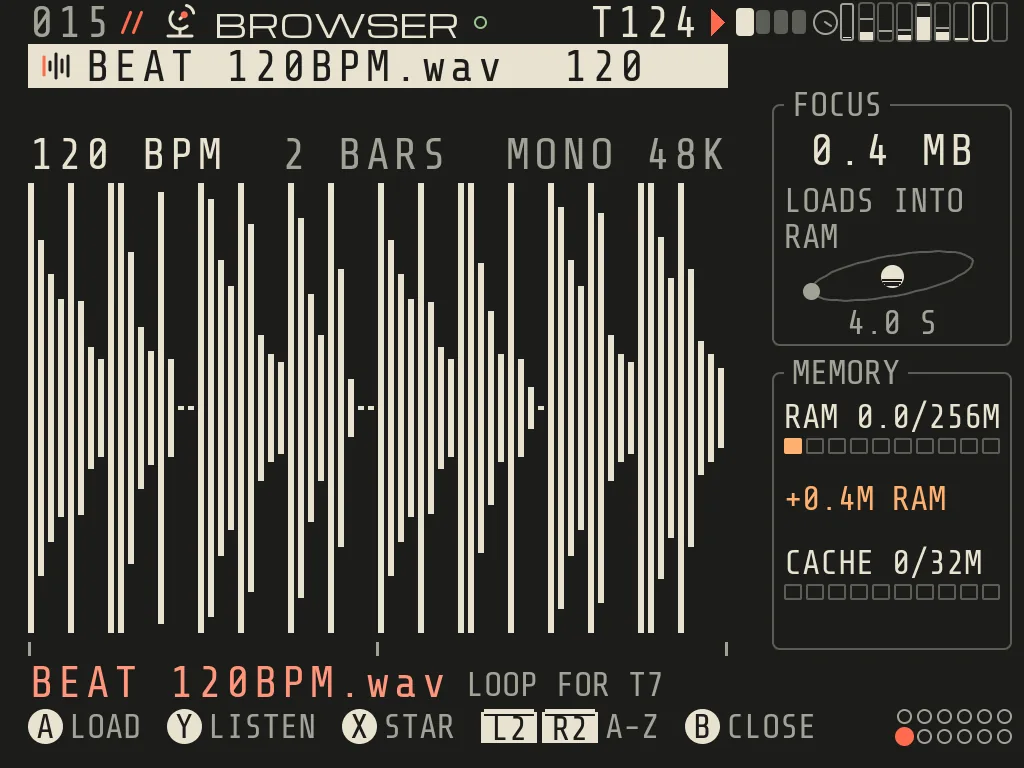
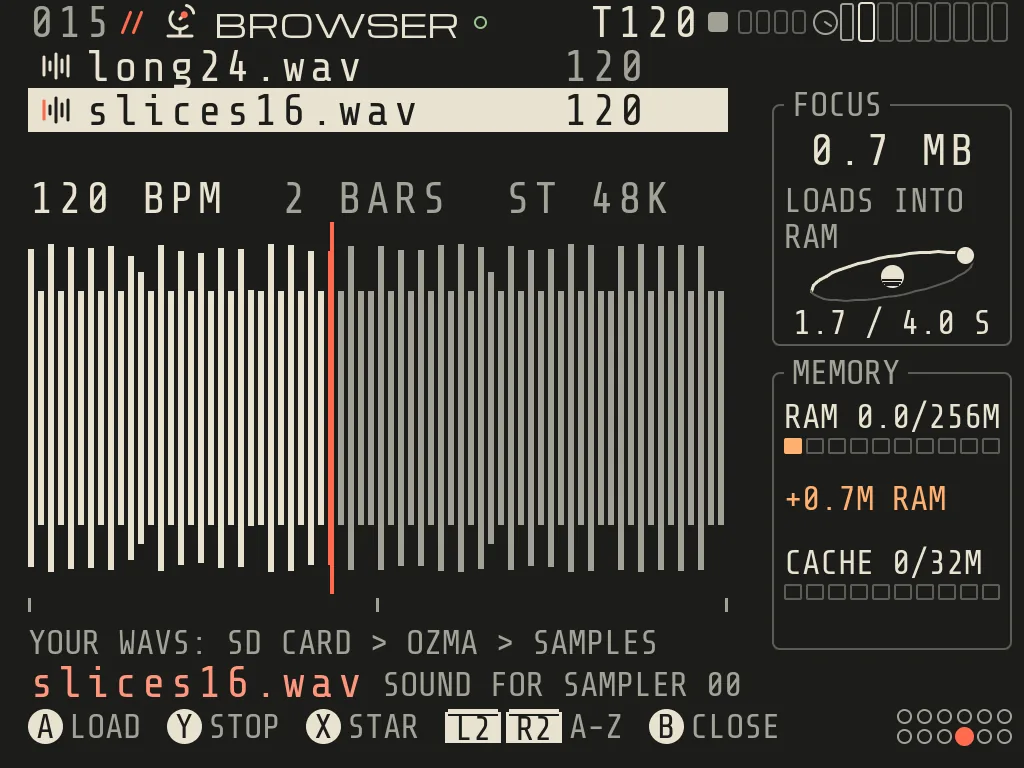
RADAR, the sample browser, on the synthetic test library
1Files UP/DOWN moves, LEFT/RIGHT a screen at a time. Folders open with A.
2Tempo guess BPM and bars from the acid chunk, then the name, then the length.
3Waveform The playhead runs while the file plays in tempo (Y).
4Focus File size and how long it takes to load into RAM.
5Memory RAM used by samples, what this file adds, the stream cache.
6Keys A load, Y listen / stop, X star, L2/R2 jump A-Z, B close.
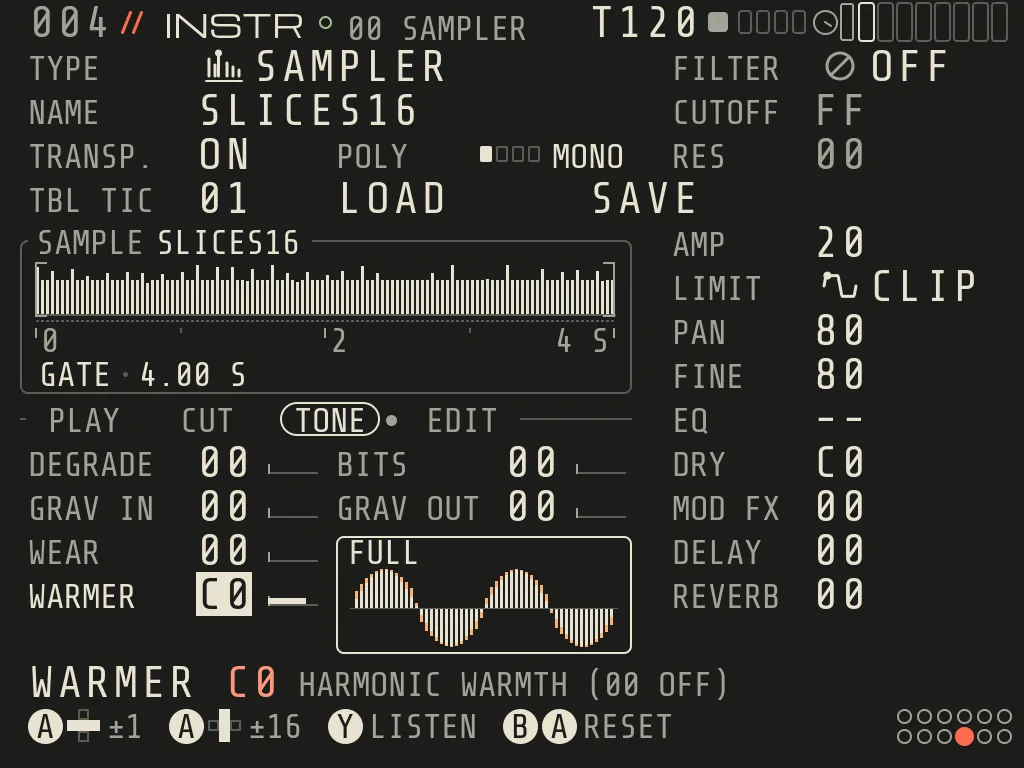
WARMER at C0 in the TONE group
WARMER 00Off: the sound untouched
WARMER FFFull, at the same loudness
Group
Rows
PLAY
PLAY (GATE, ONCE, LOOP, PING-PONG, OSC, CLOUD), DIR (FWD, REV, BOTH for OSC) + ALIGN, WARP (OFF, REPITCH, BEATS, STRETCH), BPM and BARS side by side, PITCH. In CLOUD: GRAIN, SCATTER, DENSITY instead of DIR / WARP / BARS
CUT
CHOP (OFF, 16 SLICES, GRID 8; A opens CHOP), START, LOOP, LENGTH (times in seconds), ATTACK + RELEASE
TONE
DEGRADE + BITS, GRAV IN + GRAV OUT, WEAR, WARMER
EDIT
EDIT op, APPLY, UNDO EDIT
A row that does not apply right now is dim and says why (NEEDS LOOP, SPEED SETS IT, SET IN CHOP,
ONCE PLAYS TO THE END); it never disappears, so rows do not jump. A dim row ignores A.
The wave = SAMPLE: A FILE opens RADAR (an empty one says NO SOUND YET): UP/DOWN item (wraps), LEFT/RIGHT one screen, A load, Y listen in tempo,
X star, L2/R2 jump A-Z, B back. While the song is stopped the file under the cursor plays by itself after a moment.
BPM and bars come from the WAV's acid chunk, then the file name, then the length. At the top of Samples:
* FAVORITES/ (files you starred with X), * RECENT/ (the last 24 loads), * BOUNCE/ (this song's takes, bounces
and commits), * TAPE/ (older takes), * EDITS/ and * RECORDINGS/ (your mic takes, from SAMPLER and MORPH).
Your own WAVsNew 0.9.2: RADAR lists the folder OZMA/Samples at the top of the SD card together with
data/Samples, as one library, and the line YOUR WAVS: SD CARD > OZMA > SAMPLES says where it is on your system.
OZMA only reads that folder: it never changes, moves or deletes a file in it (an edit goes to data/Edits). The same
name in both places is listed once and plays the data/Samples file. B goes up a folder, B+UP/DOWN jumps 8 files. Flags on the
frame: SD (the file streams from the card), REV, EDIT (an edited copy plays).
PLAY + DIR + WARP are one choice seen three ways, so old songs read the same. GATE stops when the note ends;
ONCE plays the whole sample to its end whatever the note length (STOP, stop track and KIL still silence it).
WARP follows the song tempo: REPITCH by speed, BEATS per slice, STRETCH keeps the pitch (STRETCH stretches only the
START..END part you hear). BPM and BARS stand side by side; A+UP/DOWN on either doubles or halves (was ±10
on BPM before 0.9), A+LEFT/RIGHT moves one step. A loop can be up to 32 bars. In BEATS, when the song is slower than the loop,
each hit rings out into the gap instead of falling silent.
PITCH -24..+24 semitones for the whole sound, slices included. Dim with WARP on, where the tempo sets the pitch.
START / LOOP / LENGTH show seconds; A+LEFT/RIGHT moves by a fine step, A+UP/DOWN by a coarse one, so a long
file can be cut to the millisecond. Moving START keeps the length you hear; the help line says where the sound ends (ENDS AT 9.840 S).
ATTACK / RELEASE are MOD 1 as a volume ADSR: the first edit sets MOD 1 up (one L2 undoes both). If MOD 1 is used
for something else the row says so; edit it in MODS.
Pitch modulation: vibrato, SLIDE and MOD -> PITCH now reach the SAMPLER (new instruments only; a sampler saved
before 0.9 keeps its 0.8 sound).
Slices by key: a sliced sound picks the slice by the key you played, so SCALE and TRANSPOSE no longer move you
to another slice; every key plays its own slice whatever SCALE the track has.
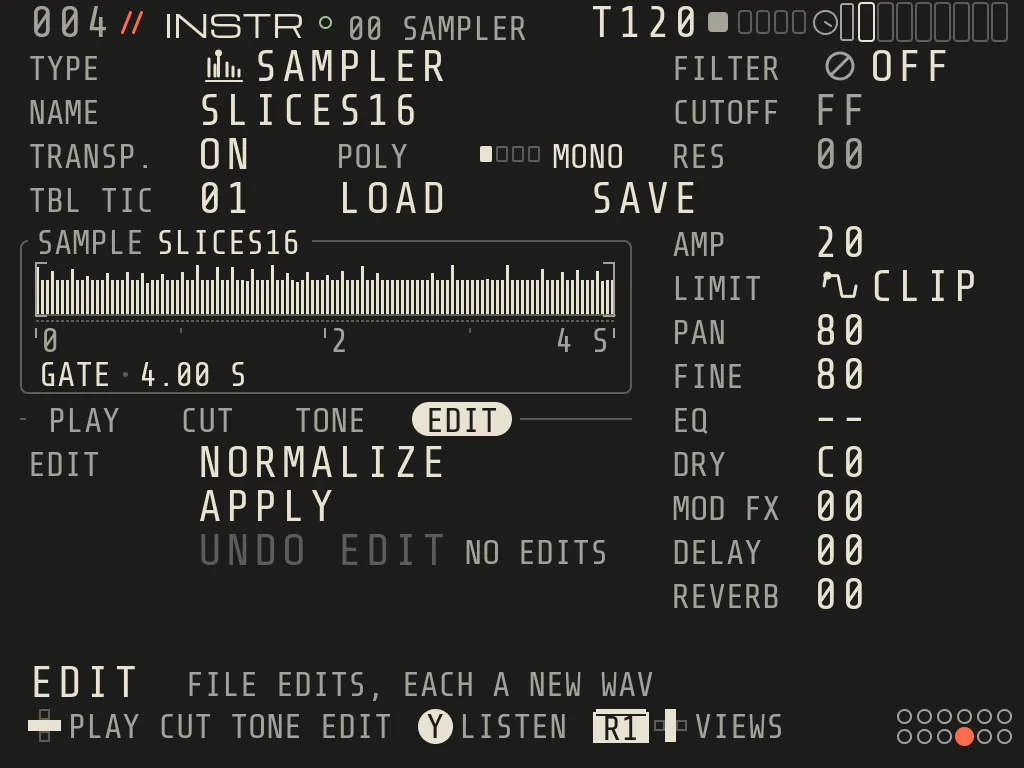
EDIT + APPLY: NORMALIZE, REVERSE, TRIM, DECLICK, FADE IN/OUT, GAIN ±3 dB, TO MONO. Every edit is a new file in
data/Edits/; UNDO EDIT (or L2) points the instrument back. Slicing lives in CHOP only. Edits act on what you
hear (START to LENGTH): REVERSE, FADE and DECLICK inside it, NORMALIZE measures it and sets one level for the whole
file; the file keeps its length and only TRIM cuts. GAIN and TO MONO take the whole file, and so does every edit on
a sliced sound. LOOP XFADE smooths the join of a forward loop: the end of the loop blends into the sound just
before LOOP, so the wrap does not click. The wave shows the two zones and the length before you APPLY; it needs
some sound before LOOP.
X REC on the SAMPLE box records from the mic, or from a computer over USB INNew 0.9: see
The REC card. KEEP makes the take the sound, cut as you trimmed it,
playing ONCE on an empty SAMPLER. A ZOOM IN (a tap on START, LOOP or LENGTH) opens REGION to
set the markers on the big wave; hold A + d-pad still edits in place.
PITCH help: when the sound has a clear note, the help line names it and the PITCH that puts it in key
(FILE IS F#2 · +06 PLAYS IN KEY); PITCH is never changed for you.
CLOUD (granular): GRAIN 12-500 ms, SCATTER, DENSITY 2-120 grains per second; PITCH works here too.
GRAV IN / GRAV OUT: tape spin-up and tape stop.
CHOP: cut the sample into slices by tapping or by grid; a slice plays from C-1 plus its number.
Better pitch on samples. A sample you load (RADAR, or a new SAMPLER) now plays through a cleaner
transposer: much less aliasing and grit when you play it far above or below its pitch. Nothing to switch on. Songs
saved before keep their old sound until you pick their sample again; one L2 brings both back. It is still classic
sample playback: higher notes are shorter and brighter, the tempo does not change separately. Very high notes of short loops
used to cost a lot of CPU; the final 0.8 build reads them through cheaper decimated copies and the loop's harmonics,
with the same clean sound.
WARMER. The last row of the SAMPLER's TONE group.
00 is off (the sound is untouched, bit for bit); FF is full. It adds soft harmonic warmth, like a warm preamp:
from about 14 the third harmonic, from about 80 the second, and high values darken the very top a little. The
knob is perceptual: low values are already audible, and the level is matched, so ON and OFF sound equally loud and you
compare tone, not volume. The small spectrum picture after the value shows the tone and four overtones lighting up in
that order; the word FULL appears at the top. WARMER belongs to the instrument: clips that share it share the amount.
It works in every PLAY mode, including CLOUD. Edit it like any field (A+LEFT/RIGHT, A+UP/DOWN, B+A reset, L2 undo).
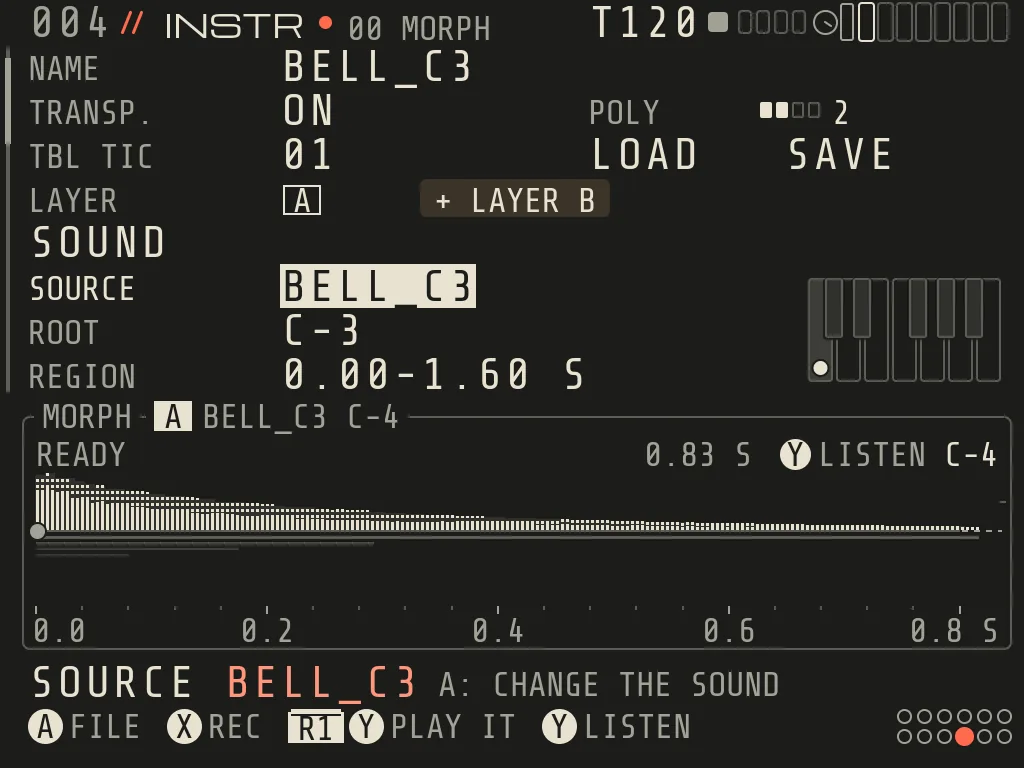
MORPH: record a sound, make it an instrument New 0.9
SAMPLER plays your sound as it is. MORPH makes your sound an instrument: a knock on the table, your voice, a
file, turned into something you play with notes. Pick it in the hangar (MAKES YOUR SOUND AN INSTRUMENT). An empty
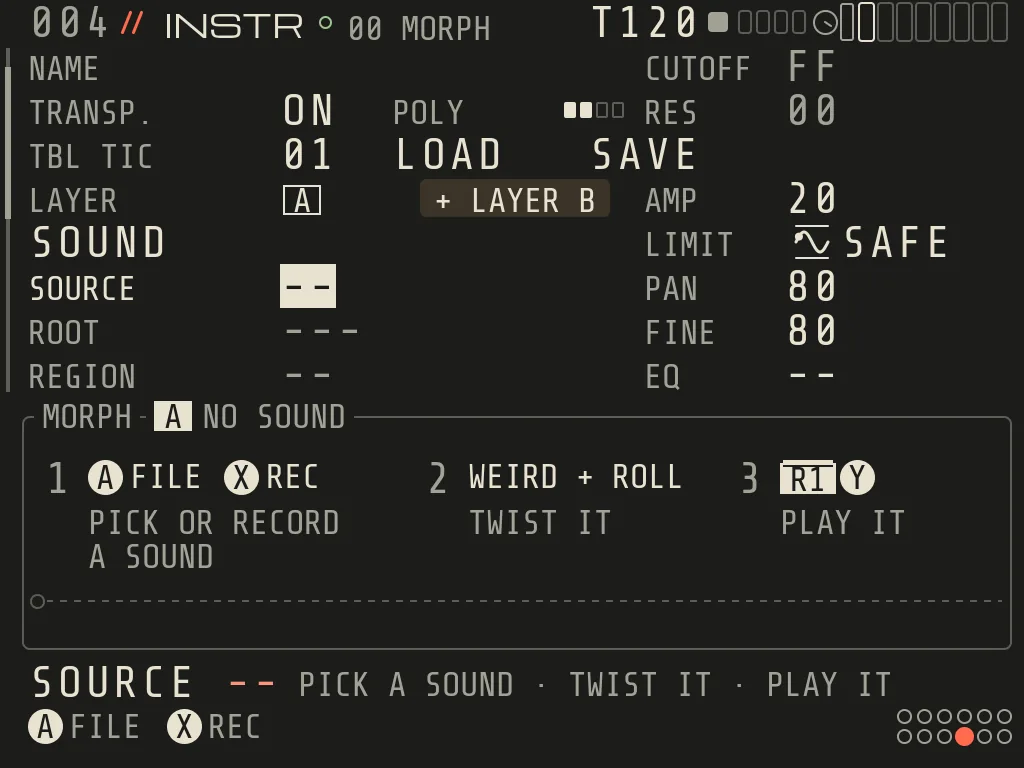
MORPH says what to do in three steps: A FILE · X REC (pick or record a sound), WEIRD + ROLL (twist it),
R1+Y (play it in JAM). Its rows sit under four headers, and a wide wave band at the bottom shows what you hear:
layer A in cream above the line, layer B in sage below it.
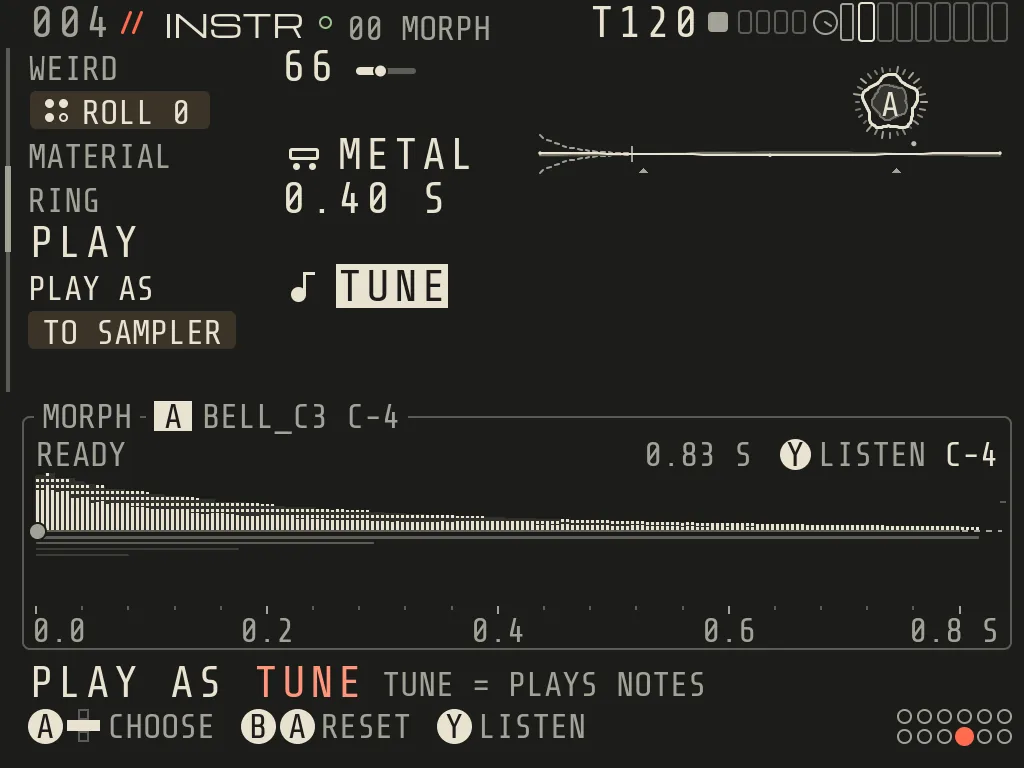
A new MORPH · three steps: A FILE or X REC, WEIRD + ROLL, R1+YMORPH with Bell_C3.wav · ROOT C-3 read from the file name
Further down the form · WEIRD, ROLL, MATERIAL, RING and PLAY AS (HIT, TUNE, HOLD, LOOP)
Group
Rows
SOUND
SOURCE (the file), ROOT (its note), REGION (the part you hear), EDIT op + APPLY
TWIST
WEIRD (00 = the raw sound, more = stranger; A on it plays the raw sound, A again WEIRD), ROLL (a new surprise, L2 undoes), MATERIAL (METAL, WOOD, GLASS, STRING: what it rings like), RING (how long it rings)
PLAY
PLAY AS (HIT = one drum hit, TUNE = plays notes, HOLD = rings while held, LOOP = a loop in the song's tempo), TO SAMPLER
MIX (with [B])
FOLLOW (how layer B listens to A, then how much), LEVEL and PITCH of layer B; with PLAY AS LOOP also BLEND, SING / HUM, BARS and LATE
Until it has a sound, the rows under SOURCE stay dim and the cursor skips them, so the form keeps its shape.
Record (X REC). X on SOURCE opens the REC card at the bottom: record the Brick's mic, or a computer over
USB IN New 0.9. How it works is in The REC card. KEEP makes the take
the layer's sound, with your START and END as its REGION.
Pick a file (A FILE). RADAR opens as for the SAMPLER (SOUND FOR MORPH [A]); your takes are in
* RECORDINGS/, a SAMPLER's sound or an edit can be picked here too. MORPH plays a piece of up to 10 s (20 s with PLAY AS LOOP).
ROOT. MORPH listens for the note of the sound and suggests it: A takes it, B+A keeps yours. A sound with the
right ROOT plays in key.
REGION (A ZOOM IN) opens the big wave with START and END, the same screen and keys as the SAMPLER's: LEFT/RIGHT
pick, A+LEFT/RIGHT move, A+UP/DOWN zoom, Y listen, B done. On a file longer than 10 s, A+DOWN at the widest zoom
opens OVERVIEW: the whole file, a box (LEFT/RIGHT moves it, A+UP/DOWN 2, 5 or 10 s), A loads that part.
EDIT + APPLY work as in the SAMPLER (a new file in data/Edits/, the old one stays); MORPH has no TO MONO, a
take is mono already.
Two layers.+ LAYER B on the LAYER row opens a card: COPY OF A, ANOTHER FILE or REC. LAYER then switches
which layer the rows edit; MIX sets how the two play together.
TO SAMPLER makes a new SAMPLER on the next empty track from what MORPH plays, KIND HIT (the twisted sound,
plays ONCE), TUNE (the twisted sound, melodic, C-4 is the same pitch), HOLD (the held note as a looping
SAMPLER) or RAW (the recording itself, cut as here, ready to loop or CHOP). LEFT/RIGHT (or A+LEFT/RIGHT) picks the KIND, an A tap makes it:
MADE SAMPLER 01 ON T2 · A OPENS IT. MORPH stays as it is; one L2 undoes it.
MORPH LOOP New 0.9
PLAY AS LOOP turns the sound into a loop in the song's tempo, and every key plays a piece of it. The REGION is
fitted to 1, 2 or 4 bars (BARS on the REGION row; A+LEFT/RIGHT doubles or halves). C-4 plays from the first hit, each
semitone up from the next hit. The box shows one pass in bars and beats with A's hits as dots; BARS says BAKING while
the loop is made.
FOLLOW with a layer B says how B listens to A: LEVEL (as before: B's level follows A's hits), TALK (B speaks with A's rhythm and
colour), TURNS (A and B take turns at A's hits), JUMP (B cuts in on the hits), SCRATCH (B is scratched along A's
energy). Outside LOOP only LEVEL and TALK play; the others sound as LEVEL.
ROLL gets a BLEND chip with two layers: each A rolls a new link, one undo step (BLEND 3 · TALK · L2 UNDO).
ROOT gets SING (B rings the track's scale on A's hits) and HUM (the notes A hums). PITCH shows an amber +7?
when B is out of tune with A: A takes it, B+A says no. LATE starts B 0..8 sixteenths after A.
A on BARS shuffles A's hits; B+A puts the loop back as it was.
RADAR from the MORPH form has two new places: * JUST PLAYED/ keeps the last 1, 2 or 4 bars you heard as the
layer's sound, and * PICK FOR ME/ (on [B]) lists up to 8 library sounds most unlike A.
HIT, TUNE and HOLD sound as before. A song that uses MORPH opens only in 0.9 and later.
The lessons RECORD A SOUND and MORPH LOOP (HELP > LESSONS) walk through it: MORPH, a take, Y, WEIRD, JAM, then
PLAY AS LOOP and the pieces in JAM.
REC card: record the mic or a computer
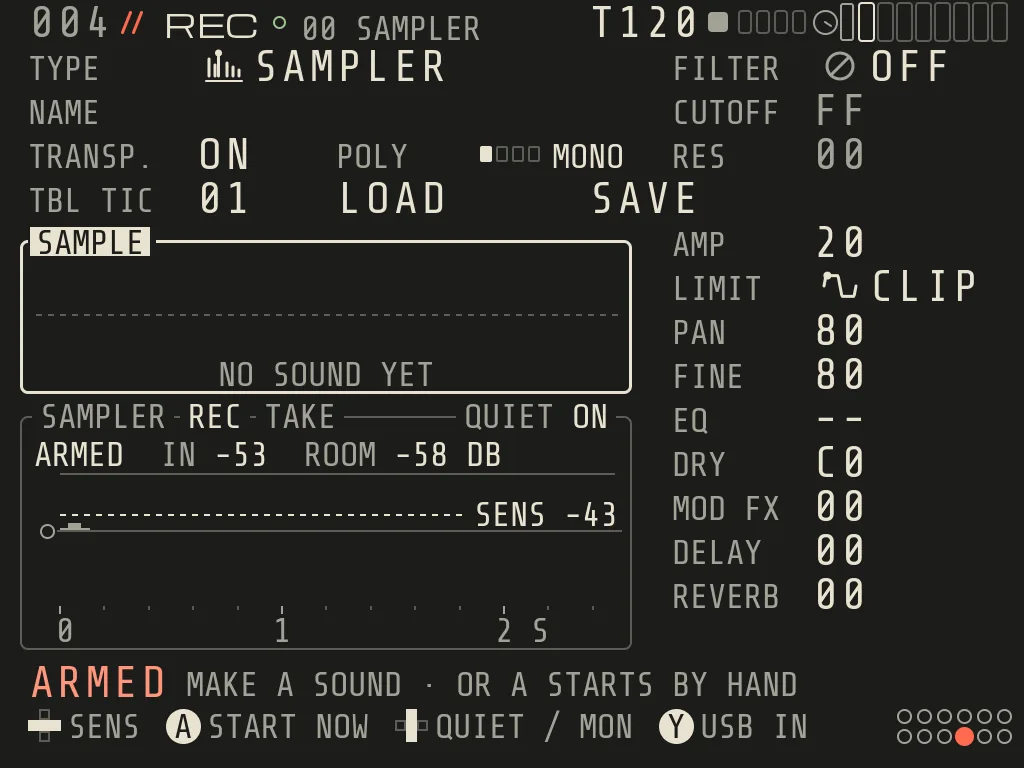
SAMPLER and MORPH record with the same card. Open it with X: on the SAMPLER's SAMPLE box, or on MORPH's SOURCE row
(REC on the + LAYER B card records layer B). It has two sources:
Try it
Record a take
Source
What you record
Longest take
The file
MIC
the Brick's built-in mic: your voice, a knock on the table, a glass, the room
10 s
Recordings/MIC_001.wav
USB INNew 0.9
whatever a computer plays into the Brick over the USB cable: a loop, a synth, a part of a track (folded to mono)
30 s
Recordings/USB_001.wav
For USB IN, set PROJECT > AUDIO > USB AUDIO = IN first (it applies on the next start), connect the Brick to the
computer and play sound on the computer as into a sound card. Then Y on the waiting card switches MIC / USB IN; the
title says FROM USB IN. Without USB AUDIO = IN, Y is not offered and the card records the mic.
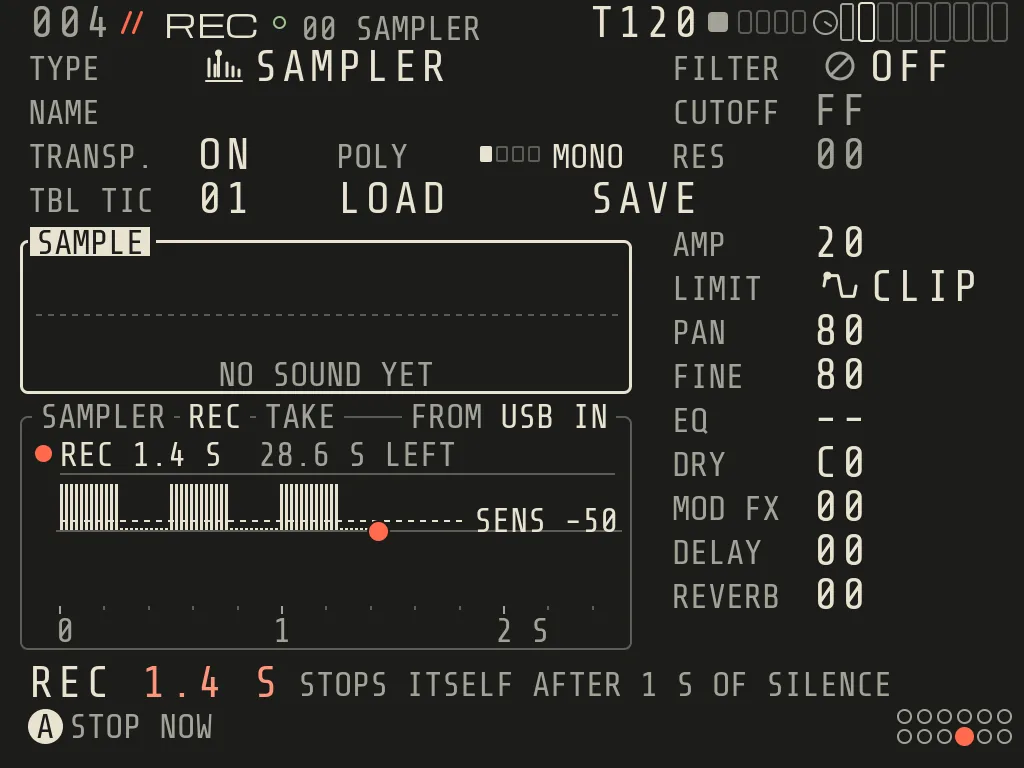
ARMED means the card is waiting for your sound. The take starts by itself on the first sound louder than
SENS, the dashed line on the meter (LEFT/RIGHT moves it; in the first moment OZMA measures the room and suggests
one), and stops by itself after 1 s of silence. A starts at once and A stops. With the song playing, the mic does
not start by itself (the song would start it), so A starts and A stops; USB IN still arms. On the mic, QUIET (UP)
mutes the Brick while you record and MONITOR (DOWN) lets you hear the mic on headphones.
When the take is done (TAKEN), LEFT/RIGHT pick START or END, A+LEFT/RIGHT move it, Y listens, A keeps it, X
records a new take, B twice drops it (L2 brings it back). KEEP saves the whole take (the numbers only go up) and cuts
it as you marked it: KEPT MIC_001 · L2 UNDO. On a SAMPLER the take becomes the sound and plays ONCE; on MORPH it
becomes the layer's sound. Your takes are in RADAR under * RECORDINGS/.
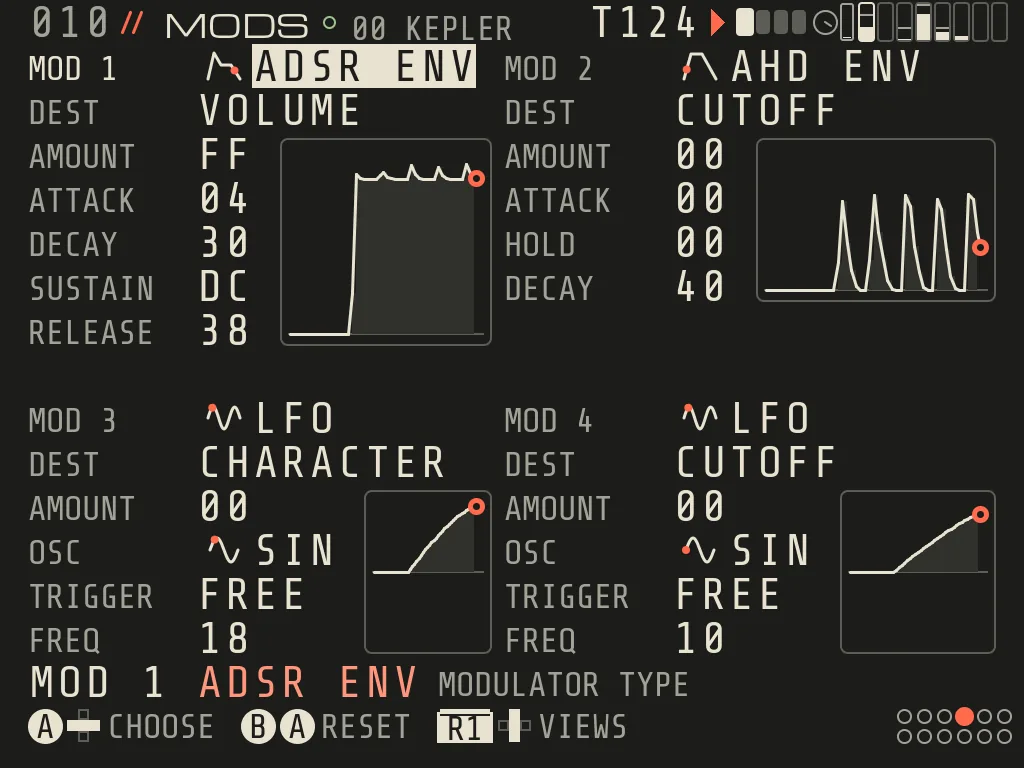
MODS
Four modulators per instrument (MODS, above INST): AHD ENV, ADSR ENV, DRUM ENV, LFO (10 shapes, FREE / RETRIG / HOLD /
ONCE), TRIG ENV, TRACKING (by NOTE or VELOCITY). Each has DEST and AMOUNT; a modulator can modulate another.
MODS · four modulators per instrument
MIXER New 0.9
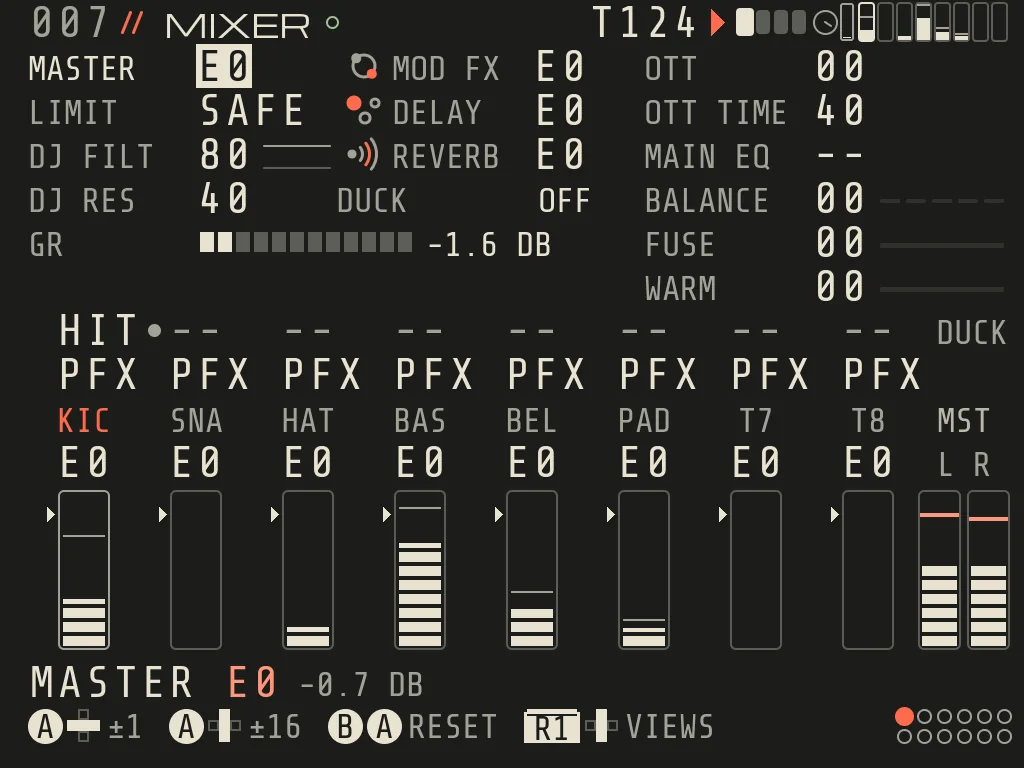
MIXER, top left: MASTER, LIMIT (always on: SAFE = peaks only, up = drive), DJ FILT (80 off, below = lowpass, above =
highpass) and DJ RES, and the GR meter (how much the limiter takes). In the middle: the returns MOD FX, DELAY and
REVERB, and DUCK. On the right: OTT (3-band master compressor) and OTT TIME, MAIN EQ, and the master finisher
BALANCE, FUSE and WARM. Under them, per track: the DUCK row (how far each track dips), the PFX row (PFX =
the track goes through PERFORM, DRY = it stays out) and the volumes. The help line under MASTER and the returns says
their volume in dB.
MIXER with the demo song
1Master MASTER, LIMIT (always on; SAFE = peaks only), DJ FILT, DJ RES and the GR meter.
2Returns MOD FX, DELAY and REVERB return levels. The help line says them in dB.
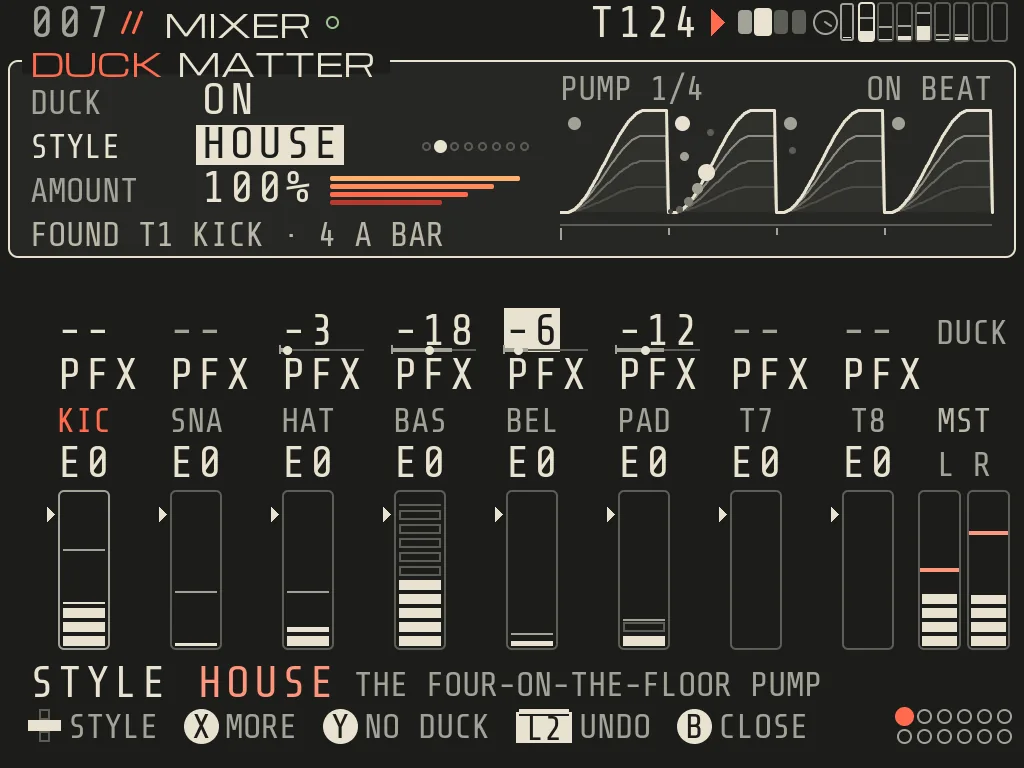
3DUCK A switches DUCK on, sets it up and opens the DUCK MATTER card.
4Master tools OTT compressor, OTT TIME, MAIN EQ slot.
5BALANCE · FUSE · WARM The master finisher. X on BALANCE learns the mix.
6DUCK row How far each track dips; the key track shows HIT.
7PFX row PFX: the track goes through PERFORM; DRY: it stays out.
8Track volumes One fader per track.
9Master meter Left and right output.
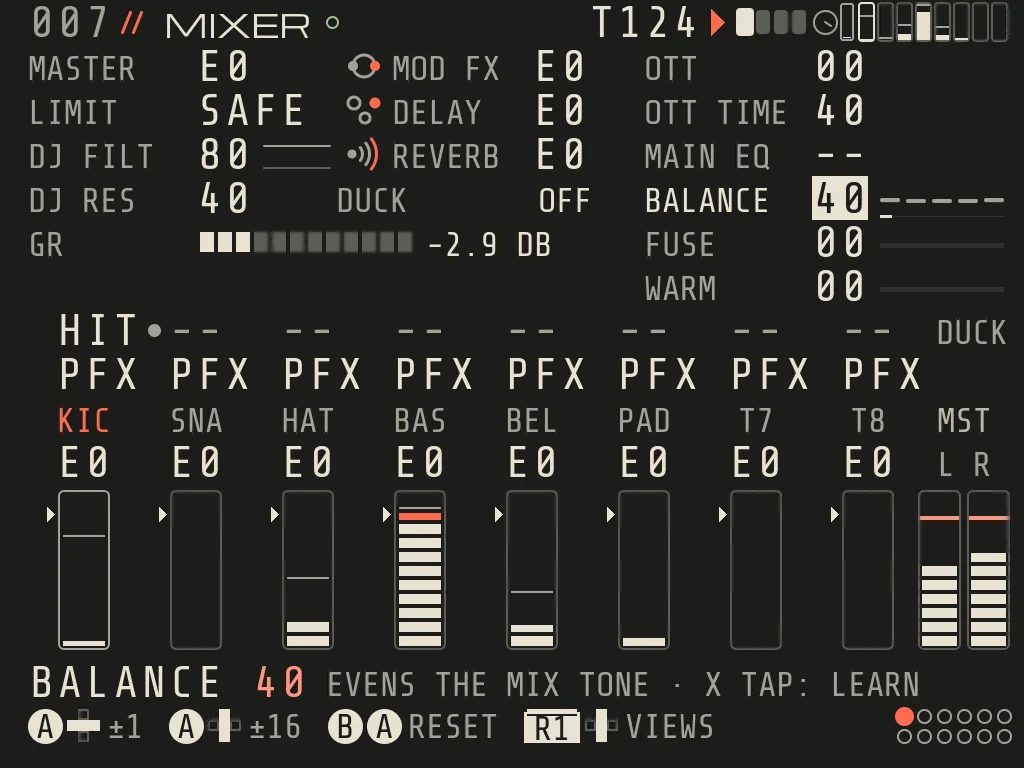
BALANCE turned up · X tap: LEARN
BALANCE evens out the mix tone (boomy, dull or harsh). FUSE gently presses the whole mix into one piece.
WARM makes it denser and warmer while the peaks stay. All three are 00 = off.
BALANCE LEARN. Turn BALANCE up, then tap X on it (at 00 it says BALANCE IS 00 · TURN IT UP, THEN X). While
the song plays it listens to about half a minute of the full mix; while stopped it starts at PLAY. A thin line under
BALANCE shows how far it is. When it is done it says what it changed, for example LEARNT: LESS MUD, MORE AIR · KEPT
(or LEARNT: YOUR MIX WAS ALREADY BALANCED) New 0.9.2; X again, STOP or another song before the end changes
nothing (NOT LEARNT · THE OLD ONE STAYS). The knob still sets how much you hear, L2 brings the old one back, and
RENDER uses the learned balance.
A learned BALANCENew 0.9.2: hold Y on BALANCE to hear the mix without it (BALANCE OFF WHILE Y IS HELD).
B+A drops the learned balance (LEARNT BALANCE DROPPED · L2 BRINGS IT BACK); B+A again resets the knob.
A track in a group wears a frame in the group's colour and shows A or B.
DUCK MATTER New 0.9
DUCK makes tracks dip under a beat or a hit, the pump of a dance mix. On MIXER, A on the DUCK tile switches DUCK
on, sets it up (finds the kick, gives every track a depth by its role) and opens the DUCK MATTER card. A short A on a
track's DUCK cell opens it too. Old songs keep their DUCK as it was.
DUCK MATTER on MIXER · STYLE HOUSE, AMOUNT 100 %, the pump on the beat and the depth of each track
On the card
Does
DUCK
on / off
STYLE
GLUE, HOUSE, BIG, RUMBLE, 808, SWELL, GATE, STUTTER (the help line says what each one is)
AMOUNT
how deep the whole mix ducks
X
MORE: follow a track or the beat, HIT NOTE, SHAPE, RATE, KIT REST, the three effect returns, DICE, DRAW
hold Y
hear the mix without DUCK
The picture shows the curve with the real dip on it. Track cells take eight depths (-- -3 -6 -9 -12 -18 -24 MAX);
the key track's cell reads HIT. CLIP > FX has a DUCK tile with the track's depth. In QUICK MIX hold B+LEFT/RIGHT to
change AMOUNT; in PERFORM hold L2 for the DUCK pads (chapter 10). Step commands DKA (amount), DKD (this track's depth)
and DKM (moves).
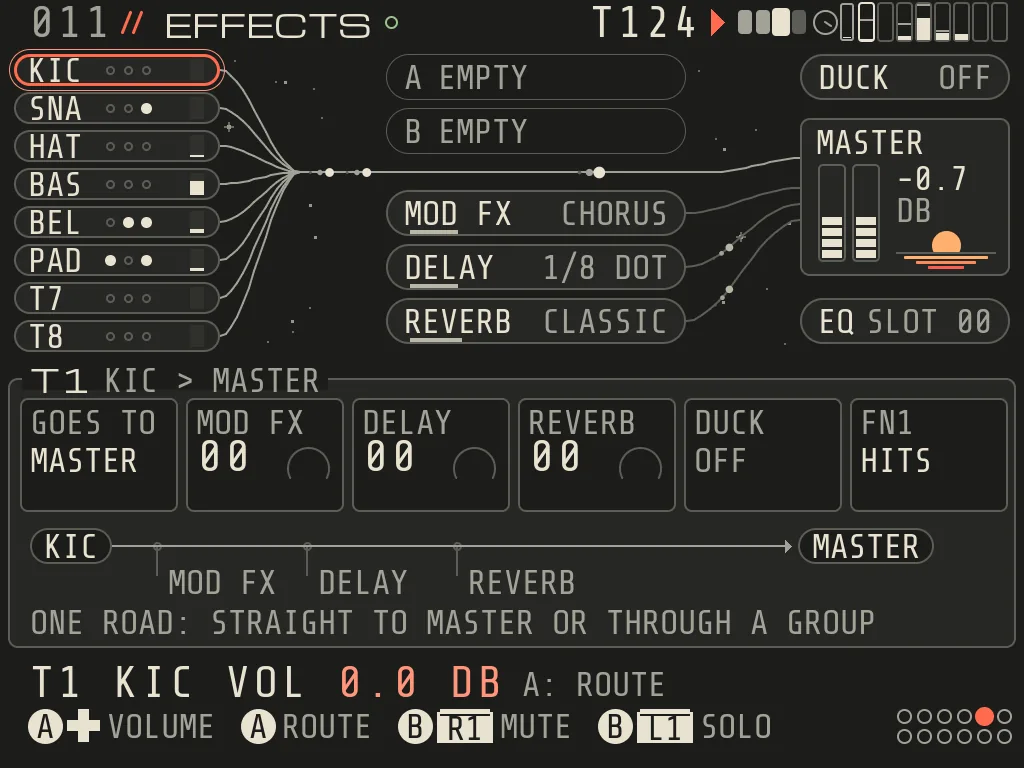
EFFECTS New 0.9
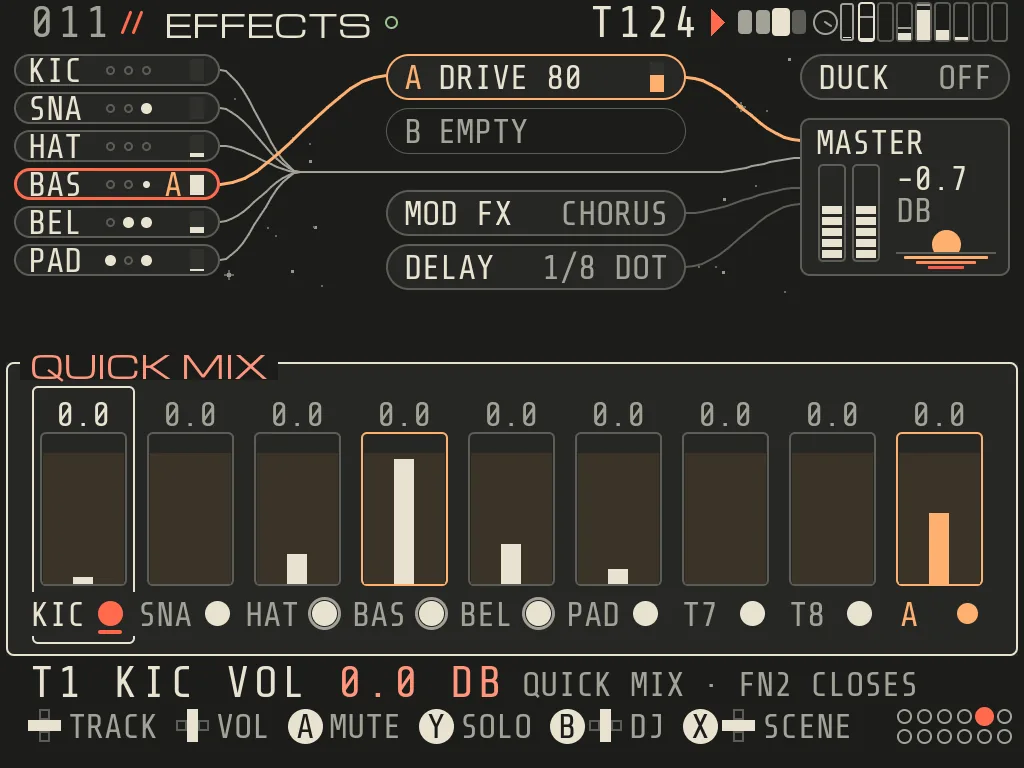
EFFECTS (FX on the button map) is a map: the eight tracks, GROUP A, GROUP B, MOD FX, DELAY, REVERB, DUCK,
MASTER and EQ, joined by the cables the sound really takes. The card of the thing under the cursor sits below it.
EFFECTS: the map, with the card of track 1 under it
1Tracks The eight tracks. Dots are their sends, the bar their level.
2GROUP A and B A group has one effect, a filter, a DUCK depth and its own volume.
3Returns MOD FX, DELAY and REVERB with their mode or time (DELAY 1/8 DOT).
4DUCK A opens the DUCK card.
5MASTER The volume in dB and the meters. A opens the MASTER card.
6EQ slots Hold A + d-pad picks a slot, A opens its bands.
7Card The card of the thing under the cursor: for a track GOES TO, the sends, DUCK and FN1.
8Road The road the sound takes, drawn under the card.
9Keys Hold A + d-pad: volume. A: its route or card. B+R1 mute, B+L1 solo.
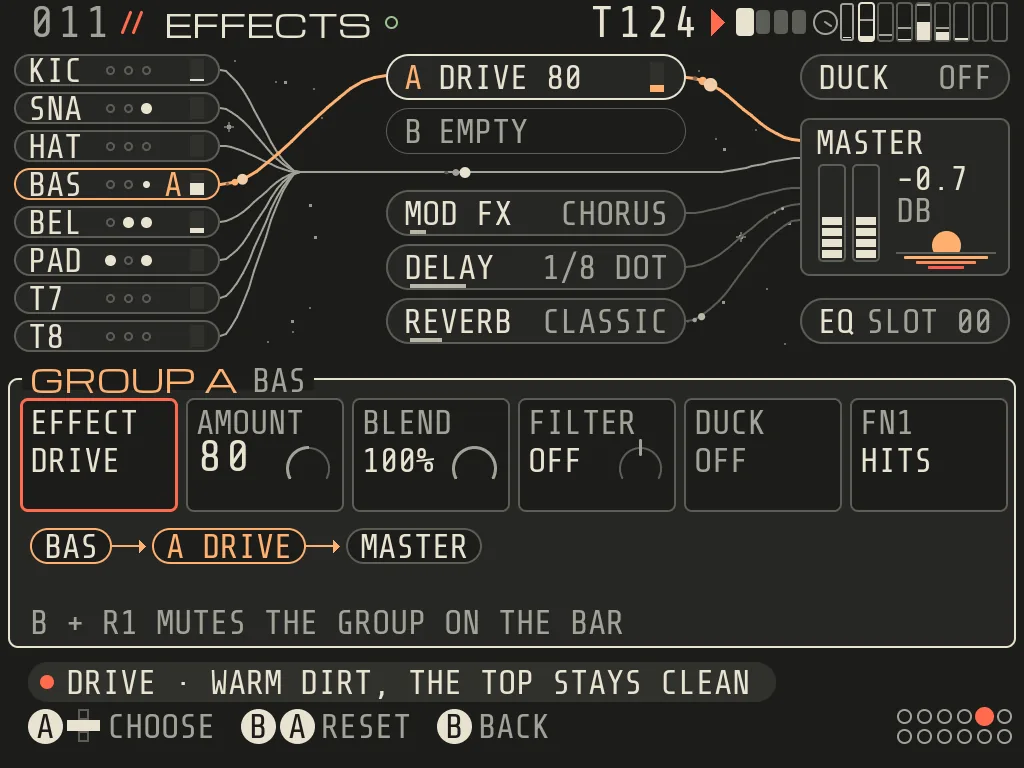
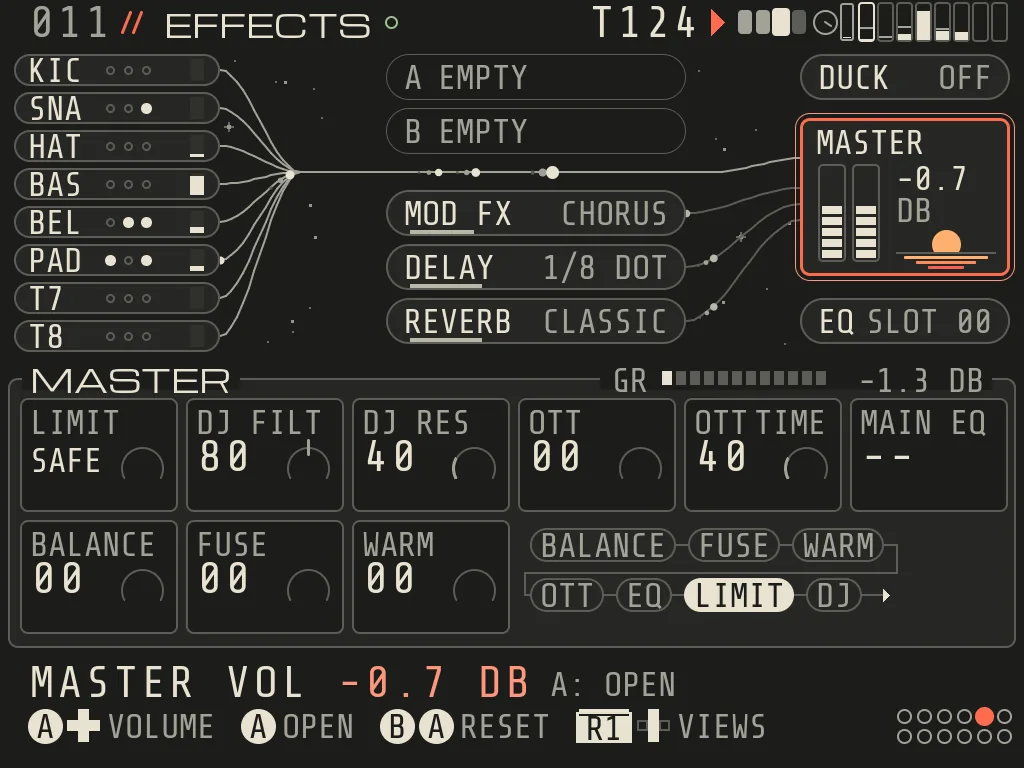
BASS goes to GROUP A · its card: EFFECT DRIVE, AMOUNT, BLEND, FILTER, DUCKThe MASTER card · LIMIT, DJ, OTT, MAIN EQ, BALANCE, FUSE, WARM and the chain
Do
Keys
Open a card / follow a send
A
Come back
B
Volume of the thing under the cursor
hold A + d-pad (MASTER and the returns in dB: LEFT/RIGHT 0.5 dB, UP/DOWN 3 dB)
Mute a group on the next bar
B+R1 on the group
A track GOES TO MASTER, GROUP A or GROUP B (one road). Its card also has the three sends, DUCK and FN1 (whether
PERFORM hits this track).
A group has one EFFECT with AMOUNT and BLEND, a FILTER, a DUCK depth and its own VOLUME. Six effects, one knob
each: SQUEEZE (presses the group together), DRIVE (warm dirt, the top stays clean), CRUSH (fewer bits,
lower rate), SMACK (harder hits, then a clipper), GROWL (bass you hear on a small speaker), DUST (old
tape). Picking an effect while AMOUNT is 00 sets it to 80, so you hear it at once.
MOD FX modes: CHORUS, PHASER, FLANGER, COMB and new ENSEMBLE, WIDE, VIBE. DELAY has a second mode, ECHO
(repeats keep their treble, DRIVE and WOBBLE, PING PONG, HIPASS and LOPASS). REVERB modes: CLASSIC and new ROOM,
HALL, PLATE, GATED, with TONE, ATTACK, HIPASS, LOPASS. New songs start with ECHO and HALL; old songs keep their
effects and sound as before.
The MASTER card: LIMIT, DJ FILT, DJ RES, OTT, OTT TIME, MAIN EQ, BALANCE, FUSE, WARM, the order of the master
chain and the limiter's GR reading.
EQ slots: hold A + d-pad picks the slot, A opens its three bands (TYPE, FREQ, GAIN, Q).
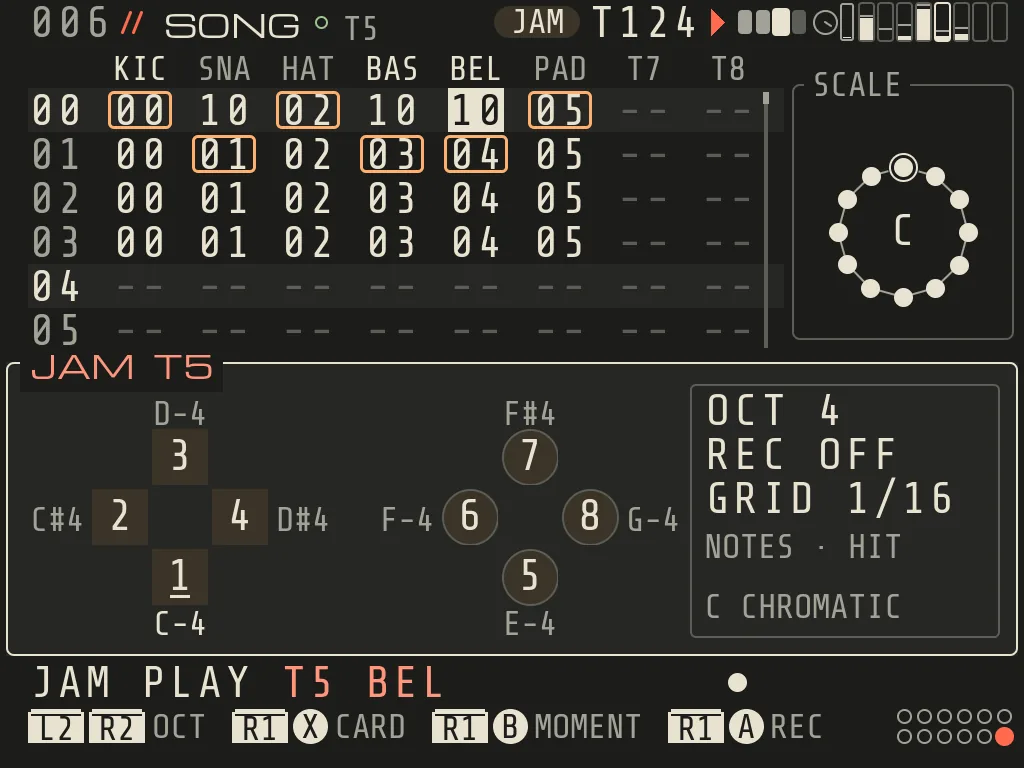
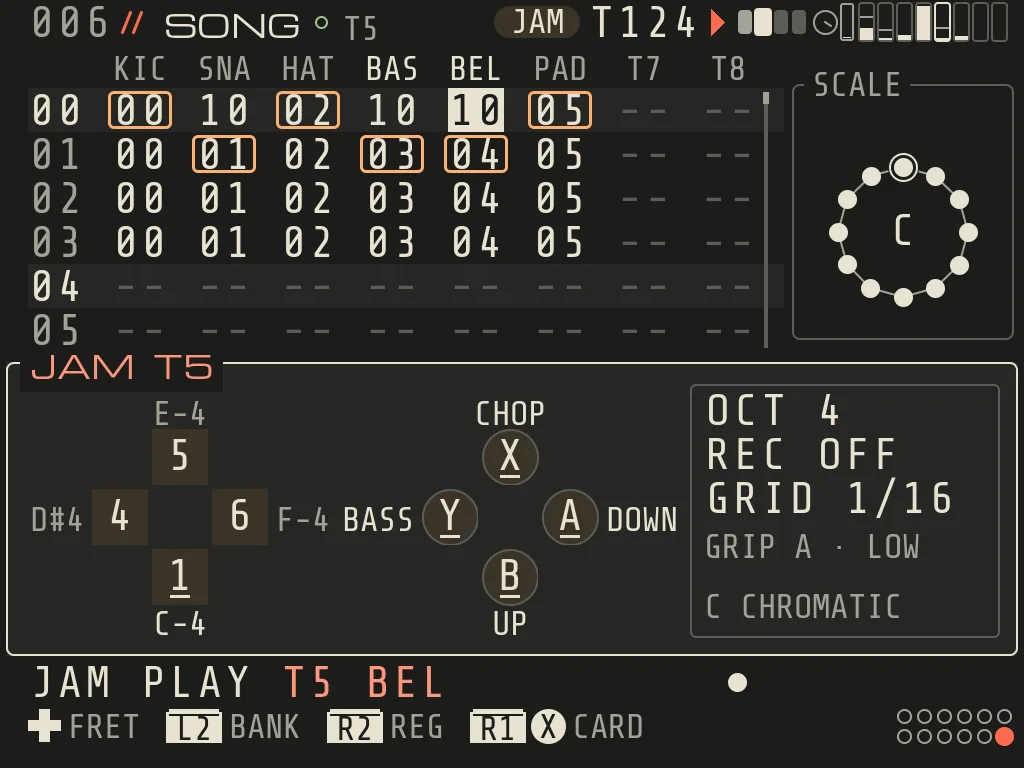
Play the JAM track on the buttons or a MIDI keyboard. REC keeps the take, MOMENT keeps what you just played.
RouteR1+Y from any screen; R1+Y again leaves.
Keys here
R1+AREC
R1+BMOMENT
R1+XJAM card
R1+L2undo
R1+R2redo
JAM turns the Brick's buttons, or a MIDI keyboard, into an instrument for the JAM track: the track set in
PROJECT > MIDI > IN TRACK, or the cursor track when IN TRACK is AUTO. You can record what you play, or catch it after
the fact with MOMENT.
JAM on track 5 in C major with CHORD TRIAD
1JAM is on The header shows JAM while it is open.
2Scale ring The scale with its degrees numbered like the buttons.
3JAM panel The JAM track. Other screens can be visited with R1+d-pad, JAM stays on.
4D-pad = degrees 1-4 Each key shows its degree and the chord it plays.
5B Y X A = degrees 5-8 The face buttons play the upper degrees.
6Status Octave, REC state, take grid, chord and style, scale.
7Key bar L2/R2 octave, R1+X card, R1+B MOMENT, R1+A REC.
Open and close
R1+Y opens JAM and closes it. With a MIDI keyboard plugged in, JAM opens as JAM KEYS (the keyboard plays,
the buttons control).
Closing JAM lets every note go. JAM, PERFORM and QUICK MIX are one at a time: FN1 (PERFORM), FN2 (QUICK MIX) and
MENU (HELP) close JAM first (JAM OFF).
Playing on the buttons
Buttons
Scale degrees
DOWN, LEFT, UP, RIGHT
1, 2, 3, 4
B, Y, X, A
5, 6, 7, 8
The SCALE ring beside the grid numbers the same degrees, and each key is labelled with its real pitch.
L2 / R2 tap an octave down / up (they never undo while you play). R1+L2 undoes, R1+R2 redoes (0.8.2). R1+L1 stops the JAM track only.
The R1 layer (buttons and keyboard alike)
R1 +
Does
A
REC: arm a take into a clip (START begins it, with the PRE-ROLL count-in)
B
MOMENT: keep what you just played as a new clip
X
CARD: open / close the JAM card
Y
EXIT JAM
L1
stop the JAM track
L2
undo (0.8.2), while you play and on the card
R2
redo (0.8.2), while you play and on the card
d-pad
change screens; JAM stays open
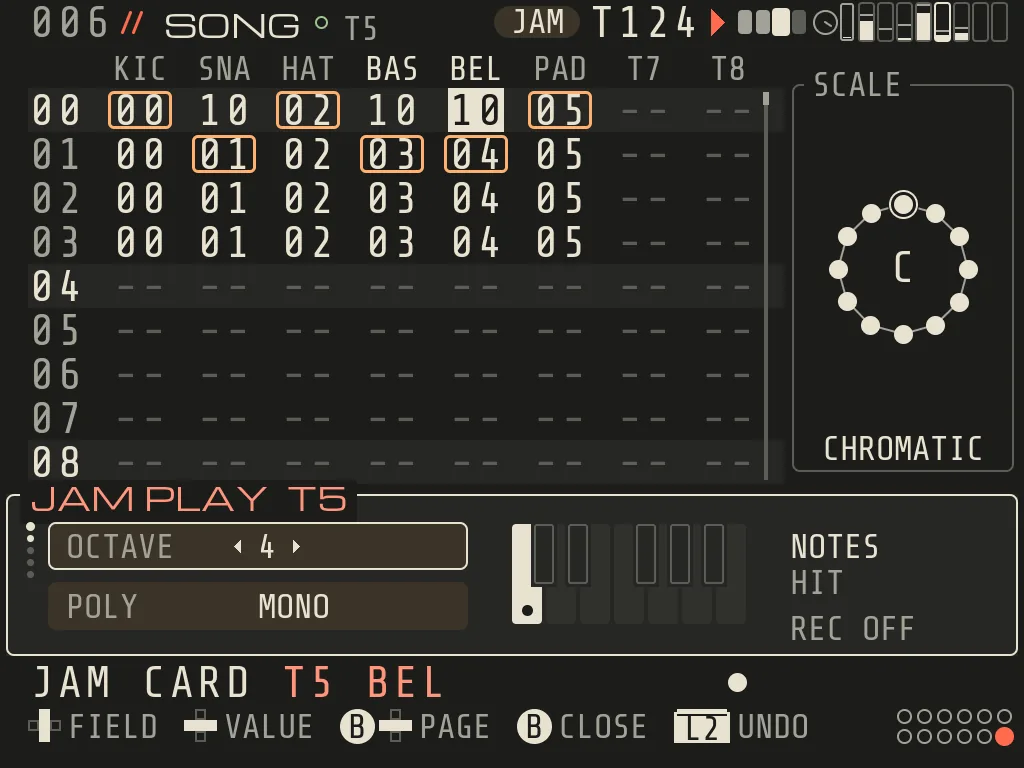
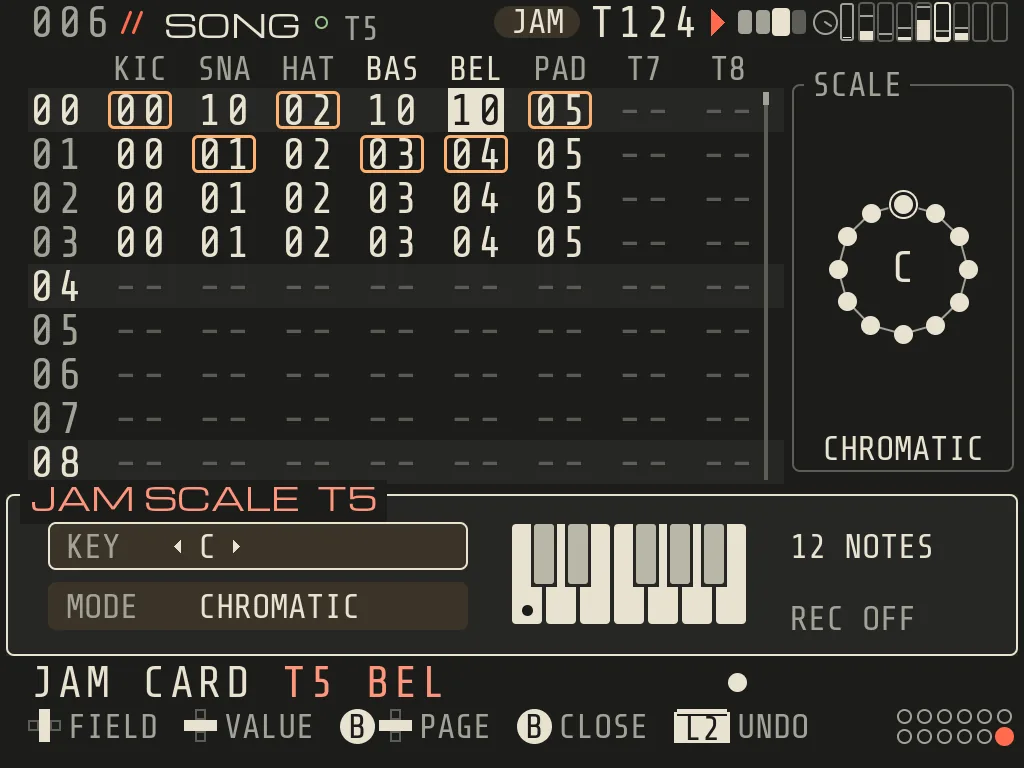
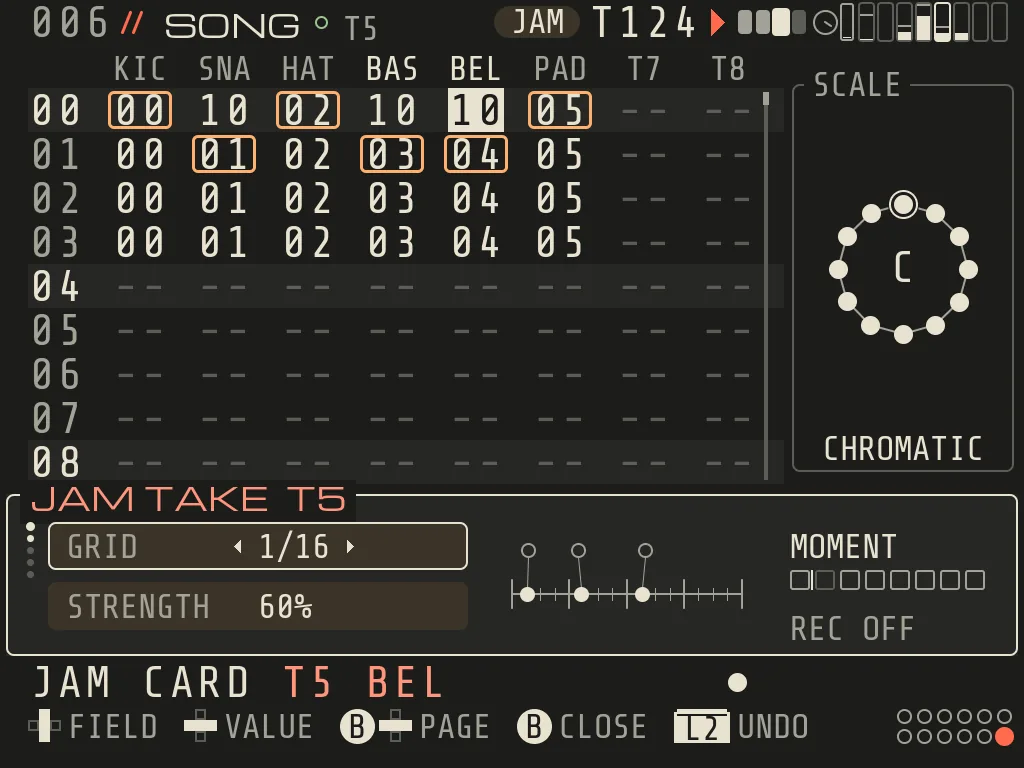
The JAM card (R1+X)
Three pages: PLAY, SCALE, TAKE. The card follows the JAM track (its name is in the title).
Card 1/3 · PLAYCard 2/3 · SCALECard 3/3 · TAKE
The six styles, heard
One progression, C, Am, F, G, on the demo bell with CHORD TRIAD. Only STYLE changes.
HITThe chord at once
STRUMString by string, DOWN, MED speed
RIDEPattern 1 POP while the chord is held
ARPUP at 1/16
HARPA sweep over two octaves
GRIPStrums down and up, a choke and a bass note
GRIP · the d-pad picks the chord, A and B strum, X chokes, Y plays the bass
On the card
Keys
Pick a row
UP/DOWN (a dot column on the left shows where you are when there are more rows)
Change the value
LEFT/RIGHT
Previous / next page
hold B + LEFT/RIGHT
Close
tap B (or R1+X)
Play while you set
A, X and Y keep playing (the d-pad works the card)
Undo / redo
R1+L2 / R1+R2, as while you play. Plain L2 (R1 let go) undoes too, and holding it repeats
After a take or a MOMENT the hint line says once how to take it back: UNDO: R1+L2.
PLAY page. The left column is what sounds; the extra rows say how the chosen style plays, so only they change
when you change STYLE.
Row
Values
What it does
OCTAVE
0-8
the octave of the keys (same as L2/R2)
POLY
MONO, 2, 3, 4
the JAM track's instrument POLY (LUNA shows 8 NATIVE, CLUSTER BANK, others FIXED)
CHORD
OFF, TRIAD, 7TH, SUS2, SUS4, POWER, OCT
each key plays a chord on its degree, in the track's scale
STYLE
HIT, STRUM, RIDE, ARP, HARP, GRIP
how the chord is played
KEY STYLE
OFF, ON
MIDI keyboard: ON = keys play through the style too; OFF = keys play plain notes over it
STRUM / RIDE / HARP / GRIP: the gap between strings (about 30 / 18 / 8 ms)
FEEL
0-100 % (steps of 5)
human looseness in timing and velocity; kept with the take as you played it
LATCH
OFF, ON
RIDE / ARP: keep playing after you let go (a new chord changes it)
STYLE OCT
1-3 (HARP 2-3)
ARP / HARP: how many octaves the pattern spans
The middle of the card previews the chord on a small keyboard; notes that will not sound are drawn in outline.
The styles:
HIT: all notes of the chord at once.
STRUM: the notes one after another, like a strum (DIR, SPEED, FEEL).
RIDE: holds a strumming rhythm while you hold the chord (PATTERN). Change chords on the beat; LATCH keeps it
going hands-free.
ARP: an arpeggio (MODE, RATE, STYLE OCT, LATCH).
HARP: a sweep across 2-3 octaves.
GRIP: a guitar in your hands. The d-pad picks a chord (bank A: degrees 1, 4, 5, 6; bank B: 2, 3, 7, 8); A
strums down, B up, X chokes (a muted chop), Y plays the bass note. L2 swaps bank A / B, R2
switches LOW / HIGH register. The panel shows GRIP A · LOW. The last chord stays until you pick a new one.
CLUSTER plays its own chords, so only HIT and RIDE are offered on it (CLUSTER: HIT ONLY (OWN CHORDS)).
SCALE page. KEY and MODE of the JAM track's scale, with the scale ring and a keyboard. If another track shares the
scale, an edit says so in a toast (SCALE 1: ALSO T3); slot 0 is copied to a free slot before the first edit.
TAKE page.
Row
Values
What it does
GRID
OFF, 1/4, 1/8, 1/16, 1/32, 1/8T, 1/16T
where REC and MOMENT pull your notes (default 1/16)
STRENGTH
0-100 %
how far they are pulled (default 60 %)
METRO
OFF, TAKE, ON
the click: TAKE = only during count-in and recording
PRE-ROLL
OFF, 1 BAR, 2 BARS
count-in before a take (default 1 bar)
MOMENT
READY · R1+B / PLAY FIRST
whether there is something to keep
Warnings on the JAM panel
MONO: ROOT ONLY: CHORD is on but the instrument plays one note at a time, so you hear only the root. Set POLY
to 3 or 4 on the card. REC and MOMENT still keep the whole chord.
ARP CLOCK LIMIT: very rarely, with a complex tempo and table combination, the arpeggio cannot work out its
exact timing in time. Then it holds the note you play instead of going silent. Let go as usual (or use the pedal /
LATCH); the pattern picks up again on the next exact cell. REC and MOMENT keep the held note as you heard it.
JAM KEYS (a MIDI keyboard)
Plug the keyboard into the top USB-C port. JAM opens as JAM KEYS. The keyboard plays the JAM track; the buttons:
as above (R1+A REC, R1+B MOMENT, R1+X card, R1+Y exit)
On the card, A / X / Y audition instead of their KEYS shortcuts. With CHORD on, one key plays a chord; with KEY
STYLE ON the keyboard also plays the style. A MIDI pad can trigger the style while you play a melody on the keys
(KEY STYLE OFF).
Recording: REC and MOMENT
REC: R1+A (or A in JAM KEYS) arms. START counts in (PRE-ROLL) and records into the cursor cell's clip; R1+A
again ends the take. If a new clip is already waiting to start on that track (right after a MOMENT, or any queued
launch), REC waits for it: REC ARMED · STARTS AT THE BAR, and the take goes into the new clip. A step keeps up to 8 notes, so chords and strums record whole. A style stroke (a strum, a
RIDE pattern hit) is stored as a stroke, so it plays back the way you played it, FEEL included.
MOMENT: R1+B (or B in JAM KEYS) keeps the last bars you played as a new clip, in the first empty cell from
the cursor row down. Nothing needs to be armed. The MOMENT tile on the TAKE page says READY when there is something
to keep. The ring of eight cells on the JAM panel is the last eight bars; a cream seam marks the current bar.
One L2 (on the card) takes a take or a MOMENT back.
Stop and close cancel notes that have not started yet; a natural key release lets a strum finish its last strings.
take length (1-64 bars); on the MOVES source it replays the take
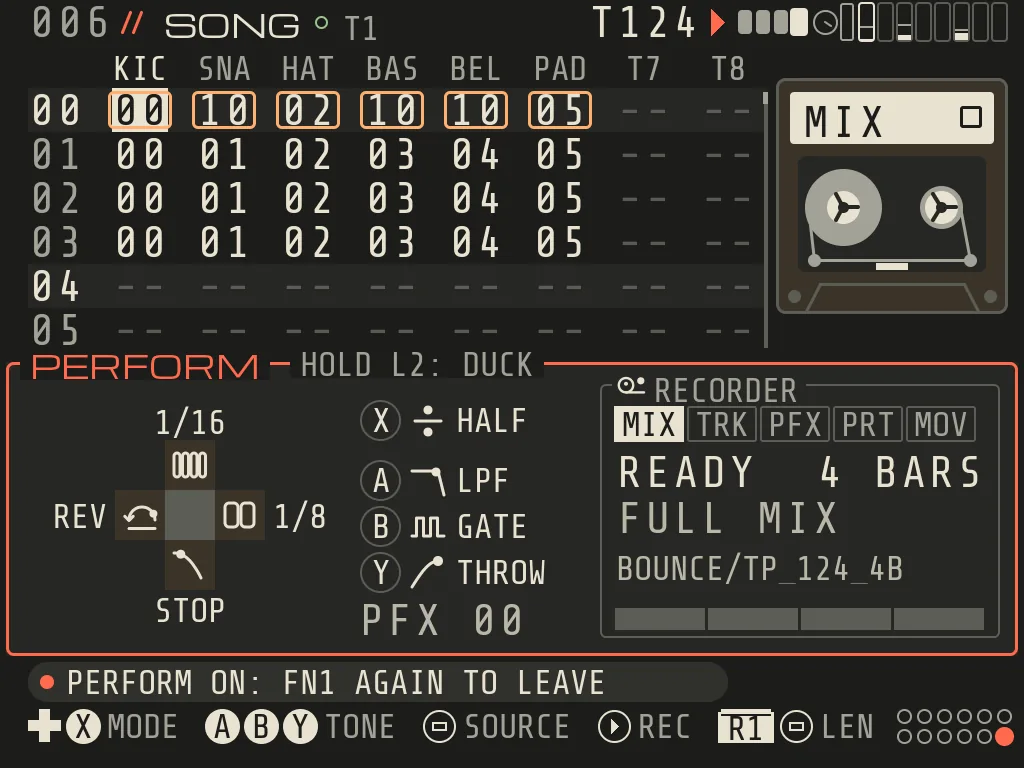
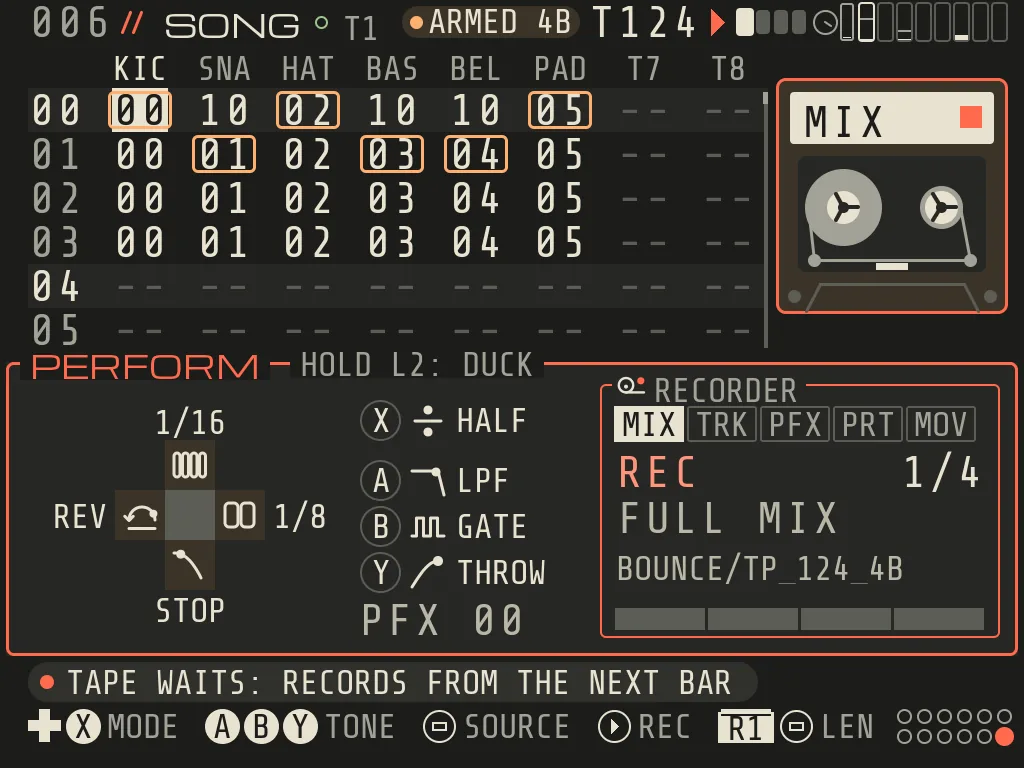
A tap turns a mode or tone on or off. Hold it longer than a quarter second and it plays only while held: let go and it
is off again (good for stutter fills).
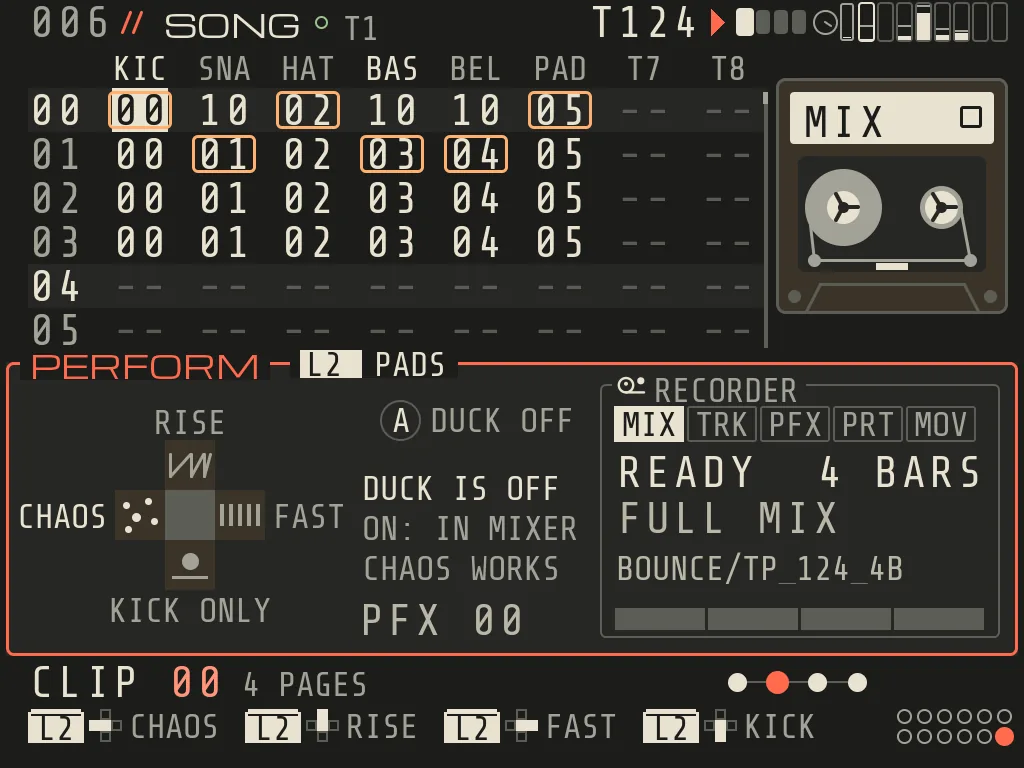
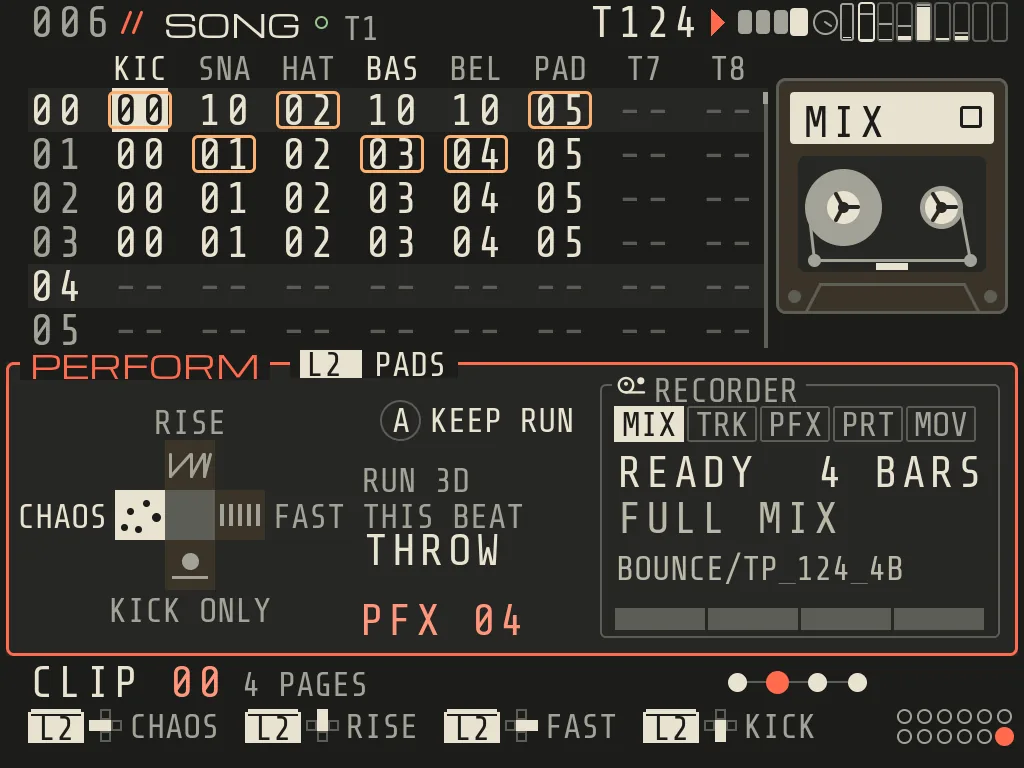
The PADS layer (hold L2) New 0.9. Hold L2 in PERFORM and the d-pad becomes pads: UP RISE, RIGHT FAST,
DOWN KICK ONLY (DUCK moves) and LEFT CHAOS; A is DUCK OFF. The DUCK pads work only while held and are not
saved; with DUCK off the panel says DUCK IS OFF and CHAOS still works. A short L2 tap is still UNDO, when you let go.
CHAOS (hold L2 + LEFT) plays another move every beat while held; let go and your own state is back. The run follows
the song bar: the same bar gives the same run. A while CHAOS is held keeps the run (KEEP RUN): every later hold
plays it, and it is saved with the song. A again under a held CHAOS frees it.
FN1 again leaves. The PFX command prints a PERFORM state into a song; FIL plays a row only in (or out of) PERFORM.
RECORDER (TAPE)
START inside PERFORM. SELECT picks the source: MIX, TRACK (the cursor track), PFX BUS, MIC (only when a mic is
there), PRINT (records your PERFORM moves into the song as PFX commands) and SONG MOVES (records your row changes).
Audio takes are bar-exact and land in a new sampler instrument; files go to the song folder.
START in PERFORM · TAPE WAITS: RECORDS FROM THE NEXT BAR
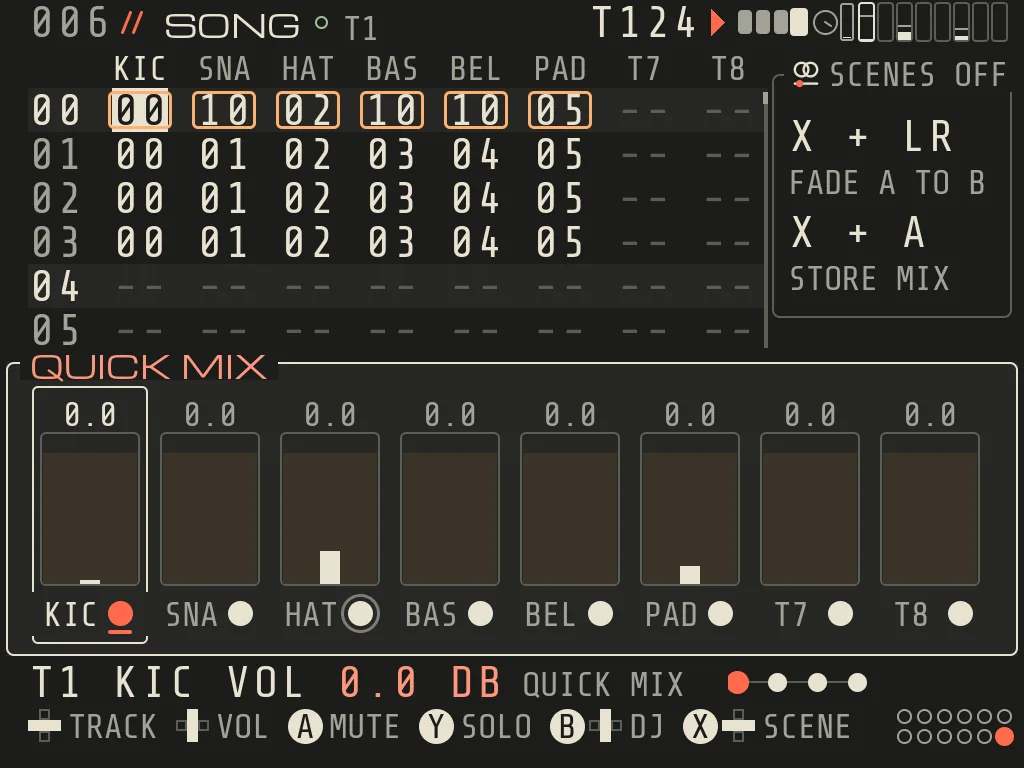
QUICK MIX (FN2)
LEFT/RIGHT track, UP/DOWN volume (0.5 dB a step, A+UP/DOWN 3 dB, read in dB), A mute, Y solo, B+UP/DOWN rides the
master DJ FILT (DOWN closes a lowpass, UP opens a highpass; a held ride parks 0.5 s on OFF), hold B+LEFT/RIGHT sets the
DUCK AMOUNT New 0.9, B tap closes.
QUICK MIX over SONG (FN2)
1Scenes X+LEFT/RIGHT fades A to B, X+A stores the mix, X+B turns scenes off.
3Mute and solo A mutes, Y solos the selected track.
4Selected track Name and volume of the track under the cursor.
5Keys B+UP/DOWN rides the master DJ filter, hold B+LEFT/RIGHT sets the DUCK amount; B closes.
QUICK MIX over EFFECTS · BASS goes to GROUP A, so group A has its own strip after T8
SCENES:
X+LEFT/RIGHT crossfades scene A to B; X+A stores the current mix in the scene the fader sits on; X+B turns scenes off
(back to the plain mixer). With scenes on, the scene-owned MIXER / EFFECTS fields say which scene
owns them.
Group strips New 0.9. When tracks go to GROUP A or B (EFFECTS), each group in use gets its own strip after T8:
UP/DOWN its volume, A mutes it on the bar (its M blinks while it waits). Tracks of a muted group are dimmed. An empty
group says GROUP A IS EMPTY; groups do not take part in the scene fade (NOT IN SCENES).
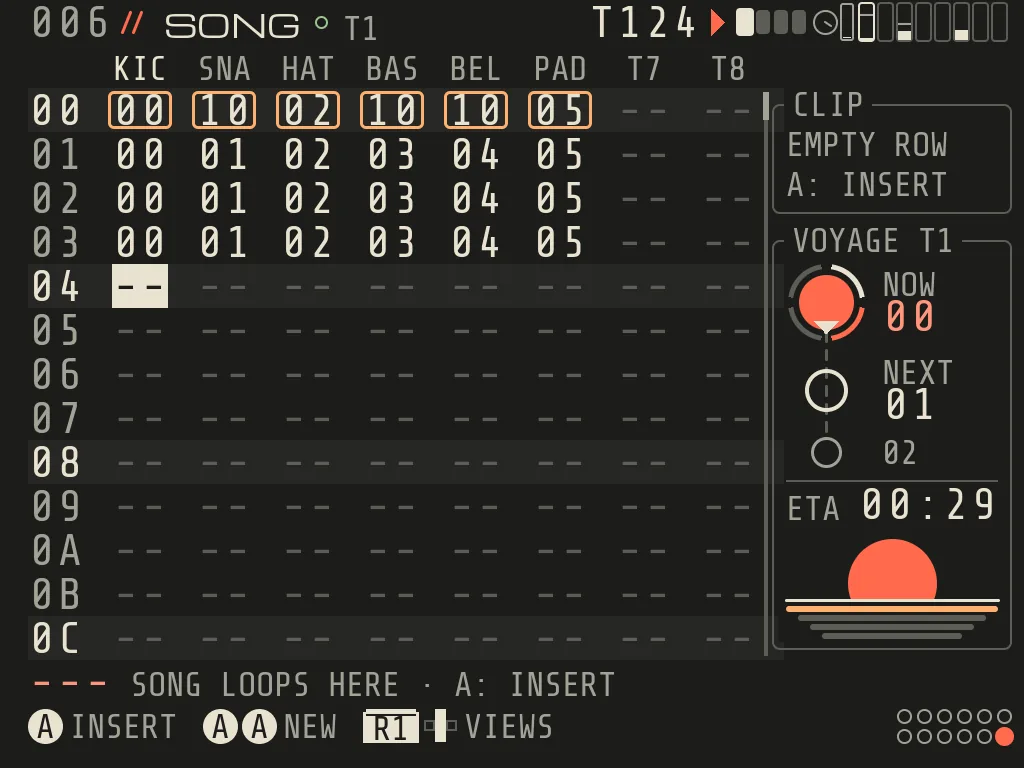
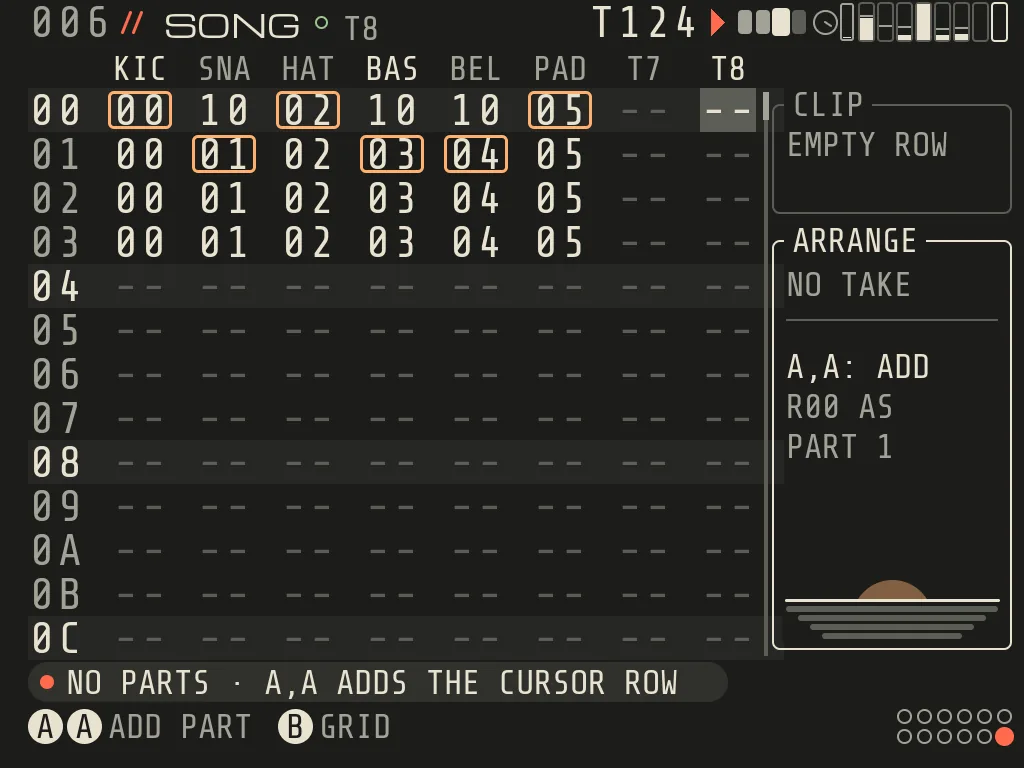
SONG plays the grid rows from top to bottom. It is edited like LIVE: A puts a clip in an empty cell (on SONG the same
clip, not an own copy: SAME CLIP 07 · EDITS CHANGE EVERY 07), A,A makes a new one, B+A deletes.
SONG · the arrangement is the grid, top to bottomARRANGE · RIGHT past track 8
All tracks move togetherNew 0.9.2. A SONG row plays as one scene:
A row lasts as long as its longest clip. Shorter clips loop until the row ends.
When the row ends, every track goes to the next row at the same moment.
An empty (or STOP) cell is a rest: that track is silent for the row. You do not need empty clips for a break.
A row with no clip at all is where the song loops: it goes back to the top of that part.
Stop every playing track by hand and the song still goes on: a track that has a clip later comes in on its row.
START stops the song.
LIVE works as before. Old songs with clips of different lengths on one row, or with empty cells, can sound
different now, and so can the demos DEEP FIELD and ION DRIVE. Your song files are not changed.
Tip: tracks on one row whose grooves have a different total give a double hit at the row change. Give them the
same groove total.
START plays from the cursor row (while LIVE clips play it takes over at the next bar; START again cancels).
ARRANGE (RIGHT off track 8): UP/DOWN picks a part, A+UP/DOWN its bars (1-64),
A+LEFT/RIGHT the row it plays, A,A adds a copy, B+A deletes, START plays from the picked part. The RECORDER source
MOVES records your row changes into the song.
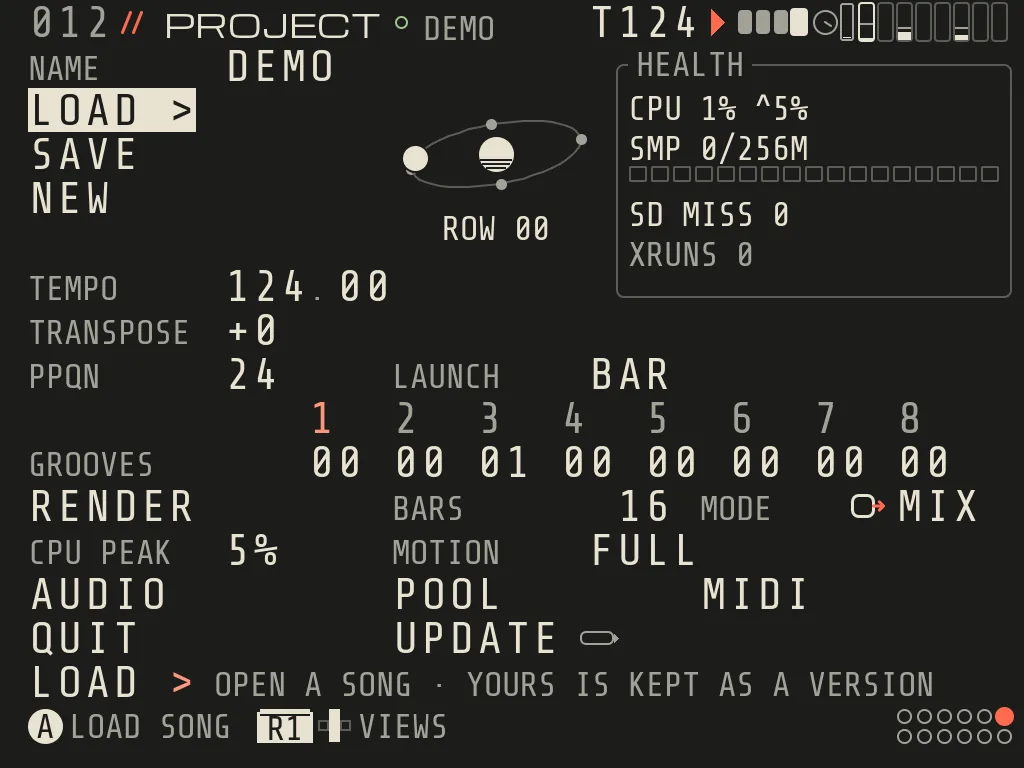
TEMPO (and fraction), TRANSPOSE, PPQN, NAME, LOAD (your song is kept as a version first), SAVE (overwrites; SELECT
saves a new version), NEW (hold A; starts with KICK, SNARE, BASS, PAD and HAT tracks, ECHO and HALL; your song is
kept), GROOVES (the groove of each track), RENDER (hold A) with BARS and MODE (MIX = one WAV, STEMS = one per track,
LOOP = exactly BARS with the tails folded in; a learned BALANCE is used New 0.9), CPU PEAK, AUDIO >, MIDI >, POOL >, QUIT, LAUNCH (BAR, BEAT, CLIP END, NOW),
MOTION (FULL or CALM: CALM cuts screen glides for motion-sensitive players; playheads still move).
PROJECT
1Song LOAD, SAVE and NEW (hold A).
2Song orbit Where the song is now.
3HEALTH CPU now and peak, sample memory, SD misses, audio dropouts (XRUNS).
4Timing TEMPO, TRANSPOSE and PPQN.
5LAUNCH When a launched clip starts: BAR, BEAT, CLIP END or NOW.
6GROOVES The groove of each track.
7RENDER Hold A. BARS and MODE: MIX, STEMS or LOOP. A learned BALANCE is used.
8MOTION FULL or CALM screen motion.
9Setup pages AUDIO, POOL and MIDI open their own pages; UPDATE is the in-app update page.
10QUIT Hold A.
Try it
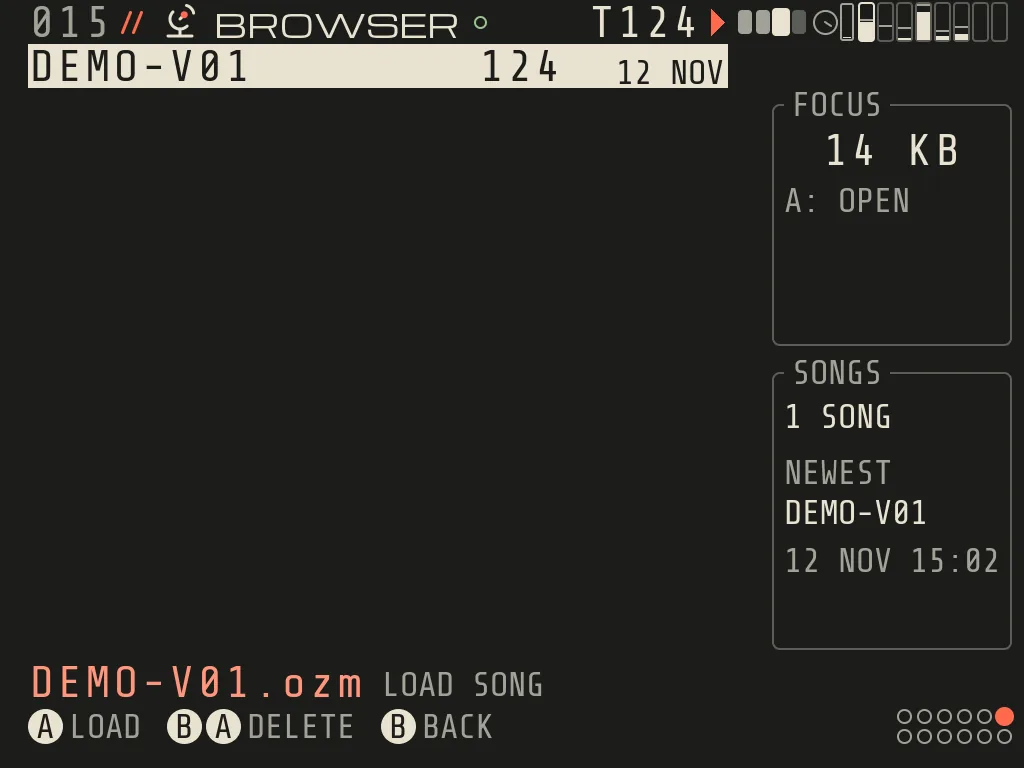
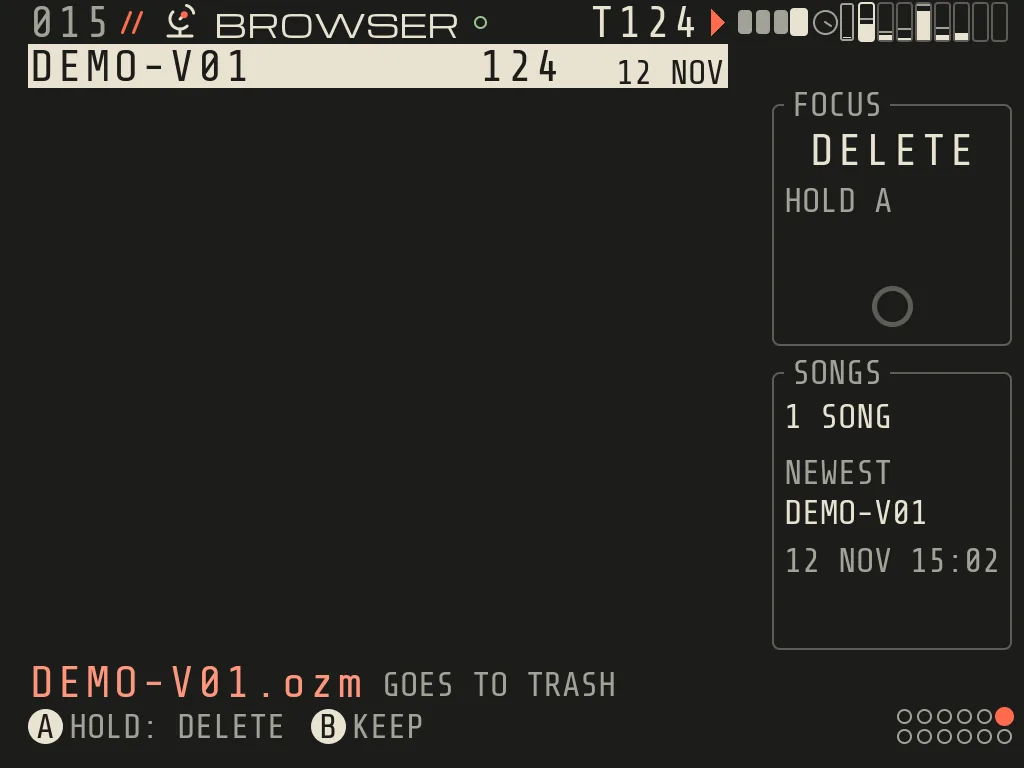
Open, keep or throw away a song
Autosave keeps your session. SELECT saves NAME-V01, V02 ...
A save is remembered right awayNew 0.9. After a restart SELECT says NO CHANGES SINCE <NAME>-Vnn instead
of writing a copy, and LOAD names the song you saved last as NEWEST.
LOAD list: UP/DOWN, A load, B+A delete (hold A 0.6 s moves it to Songs/.trash/; L2 brings it back this session;
the trash keeps 20; POOL > TRASH empties it).
Renders go to data/Renders/ (NAME_124_16B.wav: song, BPM, bars). A render never overwrites: the next one is
NAME_124_16B-R02. LOOP adds _LOOP; STEMS go to a NAME_124_16B_STEMS folder.
A d-pad press while you hold A on a hold-to-confirm cancels it: CANCELLED · HOLD A ALONE TO CONFIRM.
UPDATE
PROJECT > UPDATE brings new versions of OZMA over Wi-Fi (turn Wi-Fi on in the system's menu first). CHECK looks for a
new version, DOWNLOAD gets it and checks it, INSTALL (hold A) saves your song and restarts OZMA on the new version,
ROLLBACK (hold A) goes back to the version before, AUTO CHECK looks once a day while the music is stopped. A download
is signed and checked before anything changes; your songs, samples and renders stay.
What it does depends on the systemNew 0.9.2. On the Brick with the stock TrimUI OS or spruce it downloads and
installs. On CrossMix, NextUI, Knulli, muOS, ROCKNIX and the other systems it only tells you that a new version is
out: install the new zip by hand. On MinUI OZMA has no Wi-Fi, so UPDATE does not open
(OFF HERE: NEW VERSIONS AS A ZIP BY HAND).
When a download is ready the page says NEXT START INSTALLS IT TOO: if you do not install it now, the next start
of OZMA does New 0.9.2.
If a new version fails to start, OZMA goes back to the old one by itself. Quitting it yourself right after an
update (QUIT, or the system closing it) is not a failure and keeps the new version. Turning the Brick off within
20 seconds of a start counts as a start: the new version stays unless that happens three starts in a row
New 0.9.2.
An update never installs over the same or a newer version you put on the card by hand (ALREADY ON 0.9.2), and a
download that is not the signed version is refused (WRONG ZIP: IT IS 0.9.1). After a hand install ROLLBACK says
NO OLDER VERSION KEPT and changes nothing New 0.9.2.
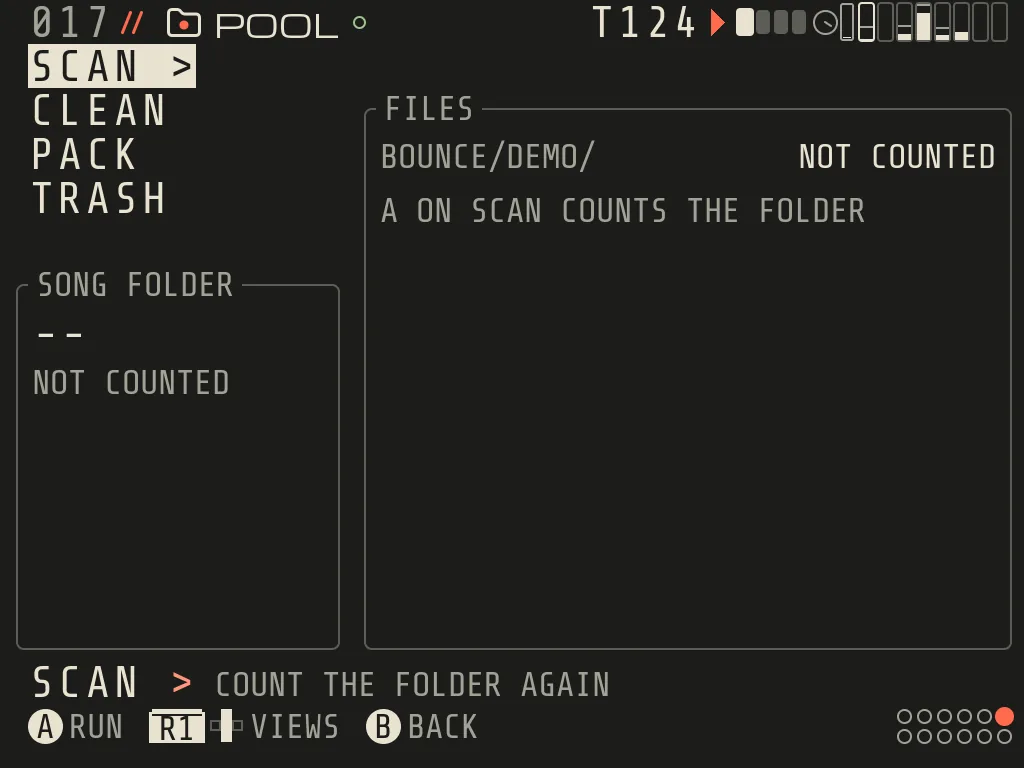
POOL
The song folder: size, SCAN, CLEAN (hold A; deletes only unused listed files), PACK (copies outside files into the
song folder and saves the next version), TRASH.
POOL · SCAN, CLEAN, PACK, TRASH
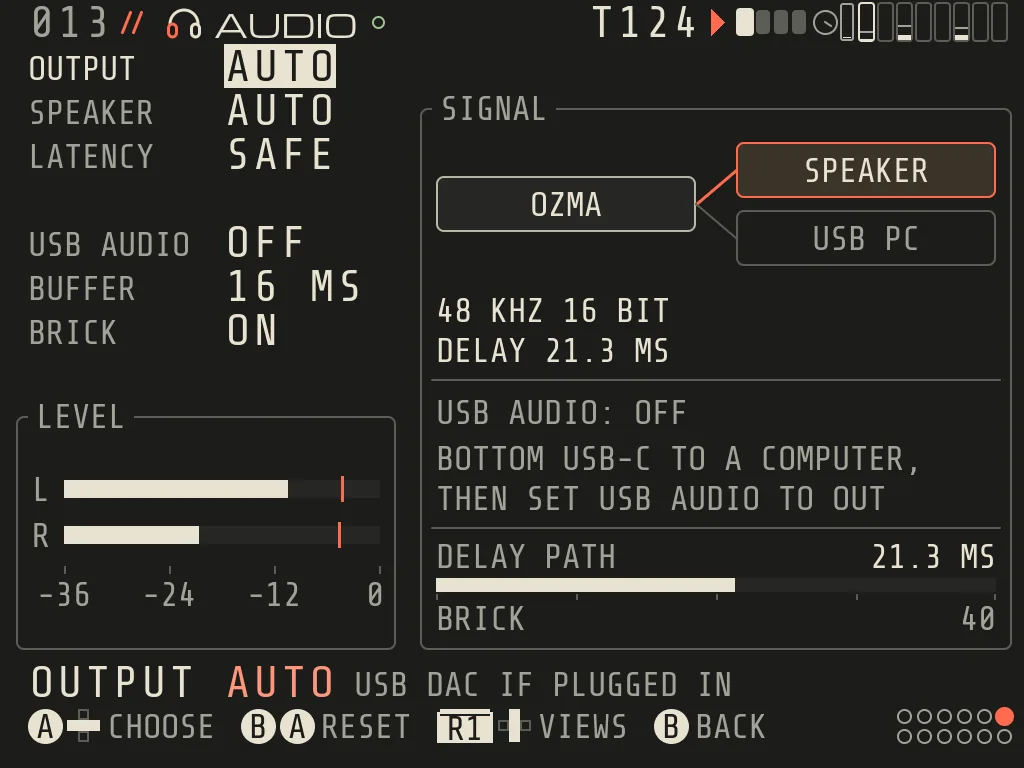
AUDIO
OUTPUT (AUTO: a USB DAC takes over; SPEAKER), SPEAKER (AUTO / ON / OFF), LATENCY (SAFE / LOW), USB AUDIO (OUT = the Brick is a
sound card into the computer, IN = from it; on the next start), BUFFER (8 / 16 / 32 ms), BRICK (ON / MUTED while the
computer records). With USB AUDIO = IN, the REC card of MORPH and SAMPLER can record from the computer New 0.9.
AUDIO · output, speaker, latency, USB audio
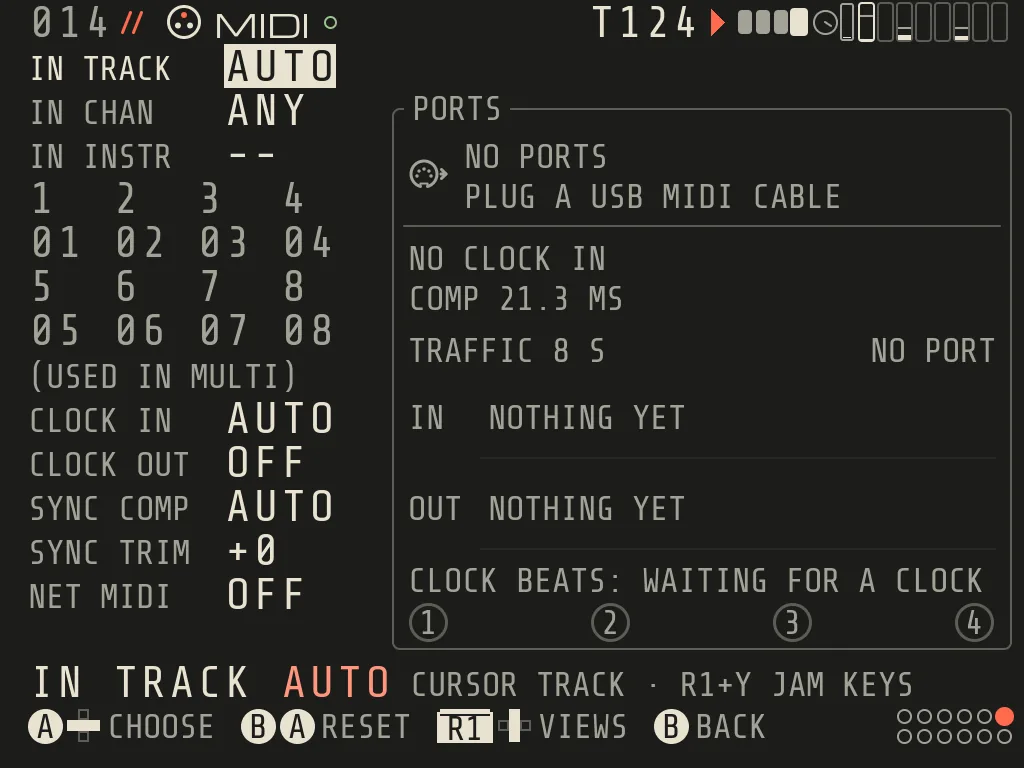
MIDI
IN TRACK (AUTO = the cursor track, 1-8, MULTI = per channel; the eight channel cells below set which channel feeds
which track), IN CHAN, IN INSTR, CLOCK IN (AUTO / OFF), CLOCK OUT,
SYNC COMP and SYNC TRIM (play ahead by the output delay), NET MIDI (over Wi-Fi, UDP 21928). The TRAFFIC box shows
messages per 100 ms for the last 8 s.
MIDI · without a cable the counter row stays hidden; it appears when a port is plugged in
MIDI OUT note counter. While a MIDI port is plugged in, a row above the traffic lanes reads
NOTES n · STOLEN n · REFUSED n: how many notes OZMA is holding on MIDI OUT now (up to 8 per track), how many old held
notes were cut to make room for new ones, and how many notes could not be sent. STOLEN and REFUSED turn amber when they
happen; then lower POLY or thin the chord on that track.
When you hit a limit, the bottom line says why in a few words and nothing is lost.
RouteMessages come to you on any screen.
Keys here
8notes per step
32voices per song
256rows; steps per clip
8 tracks, 256 rows, clips up to 256 steps, 8 notes per step, up to 4 style strokes per row, 3 locks per step.
Up to 32 notes sound at once in a song, 8 per track. Over that a fading note gives way first, then the oldest held
note of a track that holds another; a track's last note never stops.
SAMPLER: dense CLOUD plays one note at a time, a long streamed sample up to two.
On a POLY track, SLIDE, PBN and ARP move the newest note; older notes keep their bend.
Rare: an early (negative MICRO) note can land late in patterns that combine a delayed SLIDE with tempo-changing or
random tables.
Common messages: STOP REC TO EDIT NOTES, STEP FULL: 8 NOTES MAX, JAM: TOO MANY KEYS AT ONCE,
JAM: NOTE TOO HIGH OR LOW, REC: NEW GRID FROM THE NEXT TAKE, TAKE CANCELLED, COUNT-IN CANCELLED,
NO FREE SCALE SLOTS.
Every new 0.9 feature and its chapter: MAKE LOOP and LOAD LOOP (4), the CLIP workflow (5), MORPH, LUNA DEEP SKY, MIXER, DUCK and EFFECTS (8), PADS and CHAOS (10).
RouteFollow the table to the chapter.
Keys here
XMAKE LOOP
A+R1length, loudness
hold L2PADS
What changed in 0.9.2
Change
Where
Chapter
SONG rows play as scenes: all tracks move together, an empty cell is a rest, a row with no clip is the loop point
Controls that changed since 0.8.2: L2 in PERFORM (a tap undoes when you let go, a hold opens the PADS); A on an
empty LIVE cell (an own copy); VEL on the CLIP grid (each hit owns its loudness, new hits get VEL 100); the send to the
modulation effect is called MOD FX everywhere (CHORUS is now one MOD FX mode); the SAMPLER's SYNC is called WARP,
with BPM and BARS side by side; EFFECTS and MIXER volumes read in dB; hold A on a CLIP step (TRIG tab) changes its note
and octave; on MIXER, B+R1 mute and B+L1 solo act on the strip under the cursor. Unchanged: R1+d-pad changes
screens, hold R1 = the map, R1+Y = JAM, START plays, SELECT saves, and JAM's R1+L2 / R1+R2 undo and redo.
Songs: a song that uses MORPH opens only in 0.9 and later (0.8.2 says LOAD: UNSUPPORTED INSTRUMENT and leaves it
closed). Songs without MORPH open in 0.8.2 without the new parts.
Controls that changed since 0.7: in JAM, REC and MOMENT moved to R1+A / R1+B for both layouts (JAM KEYS also keeps
plain A / B outside the card), R1+X opens the three-page card instead of the scale card, and L2/R2 only change
the octave while you play (undo is on the card). Everything else is as it was.
Every field the screens can show, with its values and the hint line the Brick prints for it.
RouteOn the Brick: the hint line above the bottom row explains the field under the cursor.
Keys here
A+◀▶±1
A+▲▼big steps
B+Areset
Every field a settings screen can show, with its values and the hint line the Brick prints when the cursor is on it. This list is generated from the build itself, so it always matches the app. Hex fields go 00 to FF and 00 is off for every feature knob. A+LEFT/RIGHT changes by one, A+UP/DOWN in big steps, B+A resets, L2 undoes.
INSTR: ORBIT29
Field
Values
Hint line on the Brick
TYPE
NONE · ORBIT · ATLAS · SAMPLER · KEPLER · CLUSTER · MIDI OUT · LUNA · MORPH